Steve Jobs on iMac and iLife 08: the new desktop and apps
What Jobs talks about
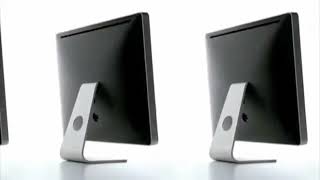
Jobs opens by showing the new aluminum-and-glass iMac, arguing that desktops should be all-in-one machines and that Apple can make them thinner, cleaner, and better. He details the design, ports, display sizes, keyboard, and pricing, framing the iMac as a major step forward for the Mac line.
He then introduces iLife 08, focusing first on iPhoto's new Events view, hiding photos, search, printing, and .Mac Web Gallery. The emphasis is on making large photo libraries easier to organize, browse, and share across Mac, web, and iPhone.
Jobs closes with the story of the redesigned iMovie 08 and briefly introduces iWork 08, positioning all three suites as simpler, more capable tools for everyday users. The larger message is that Apple is rethinking how people create, organize, and share digital media.
Jobs speaks throughout, with occasional references to Phil Schiller during the demo.
In his words
“We think that there is a better way than this.”
“This is the new iMac design.”
“08 is about this. This is about events.”
“You just press Web Gallery.”
“This is a completely new way of editing a video.”
Key points
- The new iMac is built from aluminum and glass and is thinner than the previous model.
- Apple keeps pushing the all-in-one idea: desktops, notebooks, phones, and iPods all integrate key components.
- iPhoto 08 introduces Events to automatically group photos by date and make libraries easier to browse.
- Users can hide unwanted photos, search by date/keywords/ratings, and print better books and calendars.
- .Mac Web Gallery lets users publish photos and share them through the web with rich viewing modes.
- iMovie 08 is a completely new approach to video editing, built for faster browsing, skimming, and sharing.
- iWork 08 adds new features to Keynote, Pages, and Numbers, including Smart Builds and flexible canvases.
Full transcript
Good morning. Applause Thank you for coming this morning. We are very happy to organize this event in such a private environment. So, thank you for coming. We have some great things for you. So, today we will start by talking about Mac. The past 12 months have been unbelievable for Mac. If you look at the industry, it has grown year after year in the last 4 quarters. And we can see here how the industry has performed. Let's take a look at how Mac has developed in the same period.
You will see that in the last 4 quarters, it has grown by about 3 times. Mac has been very successful in the last year. And it is growing very fast compared to the industry. So, it is about 3 times faster than the industry. This is our production series. Our production series is very clear. We think that we have the best notebooks and desktops in business. And today we are going to focus on iMac. iMac, as you know, is an all-in-one desktop. We have been the ambassadors of this design. And we have continued to make the best all-in-one in the world.
And we think that this is an all-in-one world. Obviously, phones and iPods are all all-in-one devices. But what is really interesting is that notebooks are also like this. And notebooks are dominating the entire PC industry. In the last quarter, two-thirds of our shipments were notebooks. In the PC industry, there are about 40% notebooks. Are they all all-in-one? And that is why we often ask ourselves, why are people still tolerating such things on desktops? Look at this. This is a computer ready to be used outside the box. There are speakers in it. There is a camera in it. There is an IR sensor, a keyboard and a mouse in it. I mean, this is what is on your desk. This is reality. And we think that there is a better way than this.
And we think that the better way is to keep everything in one place, clean up the mess, and at the same time, provide a better computer. This is our vision. And definitely, iMac has been very successful. It comes in one box, which has everything you need. And you take it out of the box, and in 5 to 10 minutes, you are doing video conferencing with the inbuilt iSight camera, and all the software and friends. It is so fast. And it actually works. So, iMac has actually been a success for us. We would like to make it even better. So, how can we do that? Well, we are going to use two elements, which we have used in many of our advanced products. Aluminum. And silicon, especially silicon dioxide, which is better known as glass.
These ingredients are wonderful for making products. And let's take aluminum. We make our most advanced products from aluminum. It is very durable, and it is also very light. Our products are made from advanced aluminum. And even the recyclers like aluminum. In terms of recycling, it is a very desirable product. Let's take a look at the glass. The glass is very beautiful. Again, you usually see it on very high-end products. It is highly resistant, and in terms of recycling, it is also very desirable. So, like our products, we are using aluminum and glass. Our Mac Pro, the most expensive desktop, is made entirely of aluminum.
Our MacBook Pro, our notebook's Pro line, is entirely made of aluminum. Our most advanced product, our iPhone is made of aluminum and glass. So, if we upgrade our iMac and make it out of aluminum and glass, how will it look? Well, it looks like this. This is the new iMac design. And it is just magnificent. We have succeeded in making it thinner than before. So, this is the new iMac, and this is the one it replaces. Look at it. It is very beautiful. And this is the back side. You can see that we have given 36 IO ports in the new iMac, both audio in and out, both analog and digital, USB 2.0, FireWire 400, and for the first time on iMac, FireWire 800, Gigabit, Ethernet, and definitely video out.
So, the new iMac has all the IOs. We have a SuperDrive slot load on the side, and we have an inbuilt iSight camera and a microphone on the top. So, this is really very good. On the new iMac, you can only connect the memory with a pin. To be honest, this pin is only visible on the outer part of the device. To connect the memory, just pull it out. So, the new iMac is going to come in two sizes. 20-inch display and 24-inch display. And both these displays are going to be glossy. Our customers have told us that they like new glossy displays. These are the previous ones.
They were glossy displays, and we have removed some coatings and other things so that you can see the digital assets as they should be seen for photos and movies. These look much better on these glossy, beautiful and clear displays. So, with the new iMac, we also have a new keyboard. Our new keyboard is this beautiful aluminum keyboard, which you might have seen on the web. This is a USB 2.0 port. If you compare it with our old keyboard, then, in terms of ergonomics, this new keyboard is much better than our old keyboard. Apart from all the important keys, there are some dedicated keys which we have connected to make the screen brighter.
Just one click on the keyboard and you can go to Expose, Expose and Dashboard. Previous, Next, Play, Pause, Volume Control and Optical. There is also an eject button for driving. Now, all these are present on the keyboard. This is very good. So, this is the new iMac, a new keyboard with a mouse. What about the wireless option? We have that too. We have a new wireless keyboard which is really great and definitely our Mighty Mouse. The new wireless keyboard is very beautiful and we have made a very compact version because people who want a wireless keyboard prefer to carry it in their lap and carry it here and there. And as you can imagine, it has Bluetooth 2.0 and all the dedicated keys are present in this too.
So, this is very good and we think you will like it a lot. So, this is the wireless keyboard and standard wired option. Now, what is inside? It is beautiful from outside with dual-core 2D architecture. This is a very good machine. It has a dual-core processor up to 2.4 GHz. And if you want to choose the CTO option, then you can go up to 2.8 GHz on the 24-inch model. It has a memory of up to 4 GB. In the previous model, it had a memory of up to 3 GB. Now, we are providing a memory of 4 GB. It has a very fast graphics. It is the new ATI Radeon HD Graphics Series. And definitely, it has a memory of up to 1 TB. It has a hard drive storage and 802.11n airport extreme wireless networking and Bluetooth 2.0 inbuilt.
So, this is the new iMac. Now, again, which models do we have? Anyway, let's see what we are going to change. Till now, we have a model of 17-inch and 20-inch. And there was a model of 24-inch. 17-inch model, some day 99. 20-inch model, 1499 and 29 of some age. Anyway, today, we are changing the 24-inch model with the new iMac. And we are reducing its price by 200 dollars and increasing it to 1799. So, in 200 dollars, you get a better product. We have a 20-inch model at the same price of 1499. And the 17-inch model is being discontinued.
How will we change it? Anyway, we will change it with another 20-inch model at the same price of 1999. And that's why, the 24-inch model is cheaper by 200 dollars. In comparison to yesterday, now, buying a 20-inch iMac is 300 dollars cheaper and it is a better product. So, we are very excited to buy it. Again, three models 11 and 99. 20-inch display, 2 GHz dual-core processor, 1 GB memory, 1.25 TB storage, Optical drive, better graphics. 1499 gives you 2.4 GHz, big hard drive, 340 GB and fast graphics.
And 1799 takes you to 24-inch display. So, we think that all these models are going to be popular. So, new iMac. Now, the interesting thing is its aluminum and glass design. We can see the whole spectrum of customers. We have received an unbelievable response. The connoisseurs who have shown this to us have said that they liked it a lot. It actually looks like a high-end connoisseur product. And the experts have told us that it looks more like a pro-product in the expert environment. So it is actually interesting. It actually looks more like a high-end product and a pro-product compared to the iMac.
It has been thought very deeply from the point of view of recycling. We are using very high-quality plastic glass and aluminum. Very high-quality and very desirable from the point of view of recycling. The new iMac starts at Rs.1100 for a 20-inch model. And all models are available from today. So we have made a new application which we will start running in a few days. If you want, I can show you. Would you like to see? It is very simple. Let's run it now. See.
Wow! Wow! So you must have got a good idea of what the new iMac looks like. You will be able to use it yourself after a while of this presentation. So I think you will like it a lot. It goes very well with the rest of our product line. And this is what we wanted to talk about Mac this morning. We hope you will like it a lot. Okay. Now I would like to talk about those applications which run on Mac. You know that many years ago, Apple had invented a whole series of digital lifestyle applications.
I think that Apple was one of the first companies who thought that a personal computer would become the center of our digital life. And we can make such applications which will make it a more successful and rich experience. And we started with iMovie. After that, Photo, iDVD and today we have other existing apps. And that's why we never learned to stop. We have increased our presence in the PC world. Every time when we presented a new version of iLife, we continued it and we are not stopping. So today we are very happy to announce iLife Zero8, which is a completely new version of iLife. This is the biggest leap in iLife since we presented it many years ago.
Let me show you what is in it. As you know, iLife has 5 applications. iPhoto, iMovie, iWeb, iDVD and GarageBand. And this year, we are making some of them much better and we are completely changing a main app from something that will take it to a new level. So let's start with iPhoto. We are making iPhoto much better and taking it to a new level. And you will like it very much. So the first thing that we are adding and the biggest one is Events. What are these events? Well, today in iPhoto, digital cameras have made it so easy and cheap that we keep taking photos all the time.
We load them in iPhoto and our photo library has reached tens of thousands of photos. It is not unusual to get 6000 photos in iPhoto library. And that's why to find these photos, we keep scrolling thousands of photos. And you can find them, but it is like digging a needle in a haystack. So what do we do? We make an album. We load our photos and go to a program, for example, a wedding or a birthday party. We take all those photos and make an album. And see what happens. Now we have a lot of albums. You know, when we make a collection of photos to put in the album, they are centered around events.
Birthday party, family reunion, skiing weekend. And we give the same name to the album and we do all this manually. Anyway, we have a computer here. We can do this hygienically. And this is what it does. It takes these collections of photos, which we call events. And it makes an event from them hygienically so that you don't have to do it manually. And 08 is about this. This is about events. And that's why if you look at the top part of the source column, you get an events and a photos view. We still give you a photos view. If you want to scroll through your photos, like you do today, but we add an events view layer on top of it, then you can choose the photos, events, whatever you want to see in your photos.
And what is unbelievable is that we have seen this in a lot of photo libraries, from the people of Apple, that there are usually about 50 photos per event. Some have only 10 or 20, some have 100, but usually there are about 50. And this means that instead of looking at 5,000 photos in a 5,000 photo library, you are looking at 100 events to get what you are looking for. The lack of 50 to 1. And keeping these 5,000, 10,000, 20,000 photos makes a complete arrangement. This is a very good way to arrange. So, which photos go to an event? When I make an album, I put them in manually. But when it makes an event manually, what does it do?
Anyway, all the photos taken in a day, when you load your new photos, it will take all the photos taken 2 days ago and put them in an event. It will take all the photos taken yesterday and put them in an event. It will take all the photos taken today and put them in a third event. And when you upload a photo, it will go through your photo library, and if you want, it will do the same for you manually. So, all the photos taken in a day make an event. So, what happens if I go to a birthday party in the morning, and in the afternoon, I go to a wedding. I don't want to keep all the photos in one event. This is very easy. I just choose the first photo. I go to that event. I choose the first wedding photo, and I can distribute them in two events. Right? So, I can manage my events. It is very easy to distribute an event in one or more events.
What happens if I go on a trip on a Saturday or Sunday, and I have photos of 3 or 4 days, which are actually one event, but they look like 3 or 4 events. I can choose all of them and click the Merge button, or I can just merge them in one event. So, it is very easy to manage these events, if two things are happening in one day, or if it is an event of many days. It is very easy. So, the first and foremost thing is that we have added events. And when you see this, the second thing is to hide the photos. This sounds like a normal feature, but it is a very big thing, because when you take a lot of photos, they come in three stages. The first stage is those that you just want to throw away, and you feel that they are not good, so you delete them.
Now, the second stage is the photos that you like, but the third stage is the photos that are not very good, but you do not even want to throw them away. You may want to see them in the future, but you do not want them to be scattered among your favorite photos. And that is why you can hide them with Photo8, and you can only see your favorite photos, and you can bring them back at any time and see your hidden photos. This is a good feature and helps a lot. We have also added a unified search in Photo8. So, you can search based on dates, keywords and ratings. You type something and choose a date range. You can search for keywords and say that I only want those photos that I have tagged above 3 stars, or above 4 stars, or above 5 stars. It immediately finds them and sorts them according to the event for you.
We have added more powerful editing tools and we can spend a lot of time on them. But let me tell you something that will be very useful for me. When you take time to edit a photo and you do it perfectly, but you have not taken many photos in one roll, then you can just copy the settings and paste the rest on the photo. You can do it wherever you want. So, this alone will save us a lot of time and we also have powerful editing tools. We also have a built-in home printing facility. We have made printing so much better that you can print things that look great with powder all around. There are many different themes in this. You can put many photos on one page and these are the things that you can print and put in the frame.
And it looks great with some great themes. And we also have new books and calendars. So, we have improved the quality of the books. And now we have put a dust cover in front on which you can also print. You can print on the inner jacket. No doubt the pictures inside are great. you can print it on the back of the book and the cover goes up. The hardcover book with the beautiful foil printing is really good. I think you will like it a lot. Our calendars are also popular and this year we are presenting 70% bigger calendars at the same price. So that you can keep a better wall calendar. So new books in the photo and calendar.
And to explain its full potential, I really like to show you this. That's why I would like to give you a demo of it. I have new iMacs here. And I will use them to give you a demo of Guri Row 8. And I am going to Photo. And I have about 5000 photos in this library. You can see that it takes time to scroll through 5000 photos. This is a big library. And still many of us have at least this big library. So, this is the photo view. And this is the events view.
It has put those 5000 photos only in the OneRidge4 events. And I can easily scroll through 104 things. And I can get what I am looking for. Graduation, parties, vacations, trips. It is very easy to find what I am looking for. Now I will tell you one of the most amazing things. How will I know which photo is in which event? I can open it. There is a faster way. Look at this. I just take the mouse to an event. And it shows me all the photos inside. We call this skimming. And we have also applied for a patent for this. Look at this. I can go to any event. And I can skim it in any direction.
Isn't this great? Now I can open an event. I just double click on it and it opens. And I can see all the photos there. Right? I can go back to all the events here. This is very amazing. And now if I choose any other photo that I like. Look, one photo shows this event and I have to choose it. So, if I get any other photo. I just press the space bar and it becomes the photo of this event. Or I can choose any other. This is the photo of this event. So, you get to choose the photo that you like. And you can set it for that particular event. Very simple. Okay. So, once we are in an event. We can see the photos very easily. Instead of going down and resizing them. Which I can definitely do.
There is another way to see my photos. Which is to double click on them. And it immediately previews them for me. And I can just see my photos like this. I save a lot of time. There is no need to go to edit mode or anything else. I can just preview my photos from here. This is really amazing. Now, I go to Becky's birthday. And this is one of those events where it is a birthday party. But, oops, wait a minute. I would have to go to a wedding that afternoon. Right? And really, when I go inside. You know that this is a birthday party. But, I go to a wedding. So, I want to divide it into two events. I just choose the first photo of the wedding. I go down to split. I press this button. And now, it creates another event with this wedding.
And I will just double click on it. And I will type. I mean. Oops. Sorry. And I got another event. When I go up here. I get my birthday party. And an event. Let's do a separate event. And I will just listen. A main photo for that event. It's pretty good, isn't it? Now, I can also merge the events. So, right here next to it. I have two events. This is a trip to Mammoth Lake. But, this was a weekend trip. And this is about reaching there. And this is about the climbing that we did.
And this is actually just one event. That's why I can choose both of them. And I can press the Merge button down here. Or I can just drag one event on top of the other. And this connects it. And now, you can see that I have pictures of both the events here. And I can go here. You know that I can choose one of the pictures of climbing. And I can choose it for that weekend in Mammoth. I can make my photo. Joy. And now, I just have one event. So, managing the events is very easy. Let me go back to Becky's birthday. And I will show you some pictures. Here are three pictures of some girls with balloons. And this one is actually very good. I want to keep it with me. But, these two are less good. I don't want to throw them away. But, I feel that I just want to hide them to clean my library.
That's why I choose both of them. And I go down here and say Hide. And now, these pictures are hidden. And it has put this text on top. Show two hidden pictures. I can hide pictures anywhere in this event. And it will just show here. And I say, show them to me. And it shows them to me again. Or hide them so that I don't have to see them. Very, very easy. And now, I am going to show you searching. I can come down here and say that I want to find all those pictures that I have tagged with Connor. And take this. And I have all the pictures with Connor sorted according to the event. I can go here and see things according to the date. But, I will go to Rating. And I will say that I just want to see pictures that are 3 stars and above or 4 stars.
And as you can see, it changes in real time. And my best picture is the one with 5 stars. And as you can see, it shows them according to the event. And it finds 26 such pictures in 45 events. Which are 5 stars. So, this was a little overview of iPhoto 08. It's pretty good, isn't it? We believe that events will really improve our ability to organize our photo library, to search for them again, and to enjoy them. And when you use it, I think you will like it a lot. So, iPhoto 08.
Now, we are familiar with all the .Macs. .Mac is our internet subscription service. Which increases our operating system and iLife application to the internet. And we are happy to announce today that we have more than 1.7 million customers. And it is increasing very fast. I think we will see it increasing even faster in the future. Because when you connect .Mac and iPhoto, you can get some amazing results. Because we have some new .Mac services to announce today. Especially, .Mac Web Gallery. This is very powerful. And it works with iPhoto 08.
So that you can put your photos on the web. And anyone can see them in a great way. So, what does .Mac Web Gallery do? First of all, it has one button photo sharing. We have integrated it directly in iPhoto 08. So, you just press one button to publish your photos on the web. You just press Web Gallery. It makes a web gallery for you. Uploads them on .Mac. And if you want, anyone can see your web gallery here. So, one button photo sharing. When other people see your web gallery, they get a very rich Web 2.0 experience. This is a very good Web 2.0 app. So, I will show you what it does. We can see our photos in a grid.
If we want, we can resize it. We can see our photos as a slideshow. And again, it can be on any computer. We can see our photos in a mosaic. And we can also see them in a carousel. We can see them on a Safari-running Mac. We can see them on IE or Firefox or Safari-running Windows. Whichever browser we want. And so, a very rich Web 2.0 experience. Now, people who see your photos on the web, if you give them permission, they can get print quality download and they can print up to 16S26. Print quality download. And if you give them permission, they can contribute their photos anywhere in your web gallery.
This is quite amazing. So, you take a lot of photos and load them on your Mac in iPhoto or iPhoto. Then, you click on Web Gallery. Your Mac sends those photos to the cloud and you publish them on a Mac in a web gallery. During the game, one of the other players is looking at those photos on his PC and he is enjoying it. And he realizes that he has also taken some photos from the game. He can get a special e-mail address from the web gallery where he can e-mail some photos taken from any old e-mail program. And do you know what? They will be shown in your web gallery. And since your web gallery and iPhoto are synchronized, they will also sync to your photo library.
And in this way, those photos come to your Mac and you definitely have them on every other computer. This is really very good. So, you can upload photos from anywhere. And this is an amazing iPhone experience. So, you are out with your iPhone and you click a photo, right? Anyway, now when you decide what you want to do with that photo, so we have added a web gallery in the iPhone. So, you choose it and the iPhone and Mac talk to each other and the Mac is made by you. A list of all the web galleries is sent to your iPhone. You choose one and it emails it to the special address of that web gallery and that photo will be seen in your web gallery and it will be synced with the iPhone. So, by the time you reach home, it is already on your computer and definitely on your web gallery.
Now, when you make a web gallery, you can definitely tell your friends about it and it will send them an email. You can get an email from your friends about their web gallery on your iPhone and you just tap it and it will take you directly to their web gallery and you can see their photos. To see their photos on your iPhone, just tap on it for a slideshow. So, this is also a great iPhone experience which is fully integrated in the Mac web gallery. I would like to show you some of these things if it is okay. So, here we are back in iPhoto and I am here in Baseball Game. I am going to choose this event and I will ask it to be shown in the web gallery.
And it will ask me some questions. Who can see this? Everyone or just me? Or do I need a list of names and passwords so that only my family or my friends can see this? I am just going to say that everyone can see this. Add a share. Let Agantuko download the picture. Yes, I want this. Let Agantuko upload the photo. Yes. Let Agantuko upload the photo through email instead of web browser. Yes. And let Agantuko show the email address so that anyone can get the email address to upload the photo. Yes. So, I am going to publish it. With one more button. What is happening is that it is communicating with the Mac. And it will start uploading these pictures in one second. And now you can see the pictures being uploaded.
And what we are going to do is to make it smaller. And we are going to go on a safari. And what we are going to do is to go to my Mac web gallery. And it is right here. Look at this. I have already set many other albums in my web gallery. And it is uploading the picture from the baseball game. But now look at this. Oh God! I have a Mac web gallery on a web page. Is there any scamming facility? No. This is a true web 2.0 app. And I can scam the picture in any album of my web gallery. I can double click the picture to see the picture.
I can actually go down here and change its shape. I mean this is a web app. This is not a client app. And still it is behaving like my desktop. Is this a trick? So, I can see the individual pictures. I can double click to see them again. I can get information about them. This is very good. Isn't it? Very good. Now I can see my pictures in different ways. I can see them in a grid like this. And I can change the shape of the grid as you just saw. I can see them in the form of a mosaic. And that is why I have a mosaic. And I just click here and I can see anyone. I can change the shape of the photo in the mosaic as per my liking.
Isn't it? I can see them in the form of a carousel. If I want. And I can just scroll through them like this. You know, click on the next one like this. And I can definitely see them in the form of a slideshow. Now I want to show that I will go back to the mosaic because I like it. Or maybe the grid. And I want to show how easy it is for others to contribute to my Mac Web Gallery. Now when I have made one. So I asked Phil. Those who have an iPhone, Phil Schiller is right next to me. Phil Schiller has his iPhone and he has taken a photo.
And he is going to send it directly to my Mac Web Gallery from his iPhone. And I am going to do the same. This is another gallery. He is going to send it to the gallery around the campus. And here is the photo. Actually, he has sent it there. He could not see it. By the way, I think I should delete it. You can send it again. No problem. So Phil has just sent it directly from his iPhone to my Mac Web Gallery. And it will automatically be downloaded in the photo on my system. So here it is in front of you. I am going back to the gallery. And for now, I am closing the photo. Okay.
So that is Mac Web Gallery. Photo sharing from one button. Applause. Applause. I will tell you the story behind the new iMovie Zero 8.
So one of our most talented video engineers went on a holiday. A very important holiday. He went to Cayman Islands. There he shot a lot of footage in the water with a new high-def camcorder. And when he came back, he wanted to make a 5-minute film about his holidays for his friends in about half an hour. So we shot the iMovie. And after a few hours, we realized that it was very difficult to make such a film in iMovie. You cannot make a good film in half an hour or less than that. He knows the very talented engineer Final Cut Pro very well. And that is why he shot the Final Cut Pro. He cannot do this.
So after spending 20-30 minutes, he could not find a way to make a 5-minute film and share it on the website. So he found a new way. And when we saw it, we were stunned. We were so impressed that we decided to make a new iMovie. This is not an update to the old iMovie. This is a completely new way of editing a video. Which is surprisingly better. So we will still call it iMovie. But we will give it a completely new icon so that it is known that it is a completely new app. So iMovie 08. Anyway, the first thing is that you have a library in which all your videos are safe. So now you do not need to go to the finder to find your video.
Just like iMovie manages your video and shows you in the same library, whether it is on the internal hard drive or external. So you have a library of all the videos shot by you in iMovie 08. And you can scroll it just like you do your pictures. Isn't it? This is completely new. And this means that you will be able to watch your video again and enjoy it. At the same time, you will be able to make films much faster. iMovie 08 can take a video from almost any source. iMovie 08 can take a video from almost any source. Old DV camcorders can take a video. Steel cameras can take a video. HDV high-def video can take a video. Camcorders that are available in the market and completely new.
AVC HD cameras. These are completely new. These are much better than any previous HD consumer camcorder. This is really great. This new Panasonic one is the best. This is really great. This actually records super high quality high-def video on a 8GB flash card for more than an hour. So this is really great. And it is available in 7 and 9. Yes, it will change everything again. So for all your videos, you can take a video from a library of these different sources. And this is really amazing. For preview, we should do a skim. If we are doing this for the photo library, then why not for the video? There is a revolution in the world of video. If I have a video clip here, then I can do a skim in high-speed from the back, front and real-time.
I don't have to run the clip to see what's in it. I can scrub zoom and find out what's in it. And this is completely This is a much better way to see your video and find things in your video library. Which also gives you the convenience of making movies very quickly. You can make movies faster than before. So you can select the video as you select the text. Say I want this in my movie. Select the second part of the video. And I want this in my movie. And almost immediately. you will see it in just a moment. You can give it a finishing touch. You can add music and sound effects. You can go to iTunes and choose a song.
You can add pictures. You can drag pictures from your photo library. If you want, you can drag the whole event and add it. It's a great title. Just drag it. And excellent transition, cross dissolve, fade to black and many other effects so that you can make the video better very quickly. And you can watch your film anywhere and share it. It's really important. This is what people want to do these days. So you can go to the share menu and create a version for iTunes. And once it comes to iTunes, you can watch it on your computer. You can watch it on your iPod. You can watch it on your iPhone. You can watch it on your Apple TV. You can say, iTunes is great. I want to put it on my website so that everyone can see it.
I want to make a web gallery version. And you can do this. Because the Mac web gallery is not just for photos. It is also for films. And if you want, you can decide to encode it in many resolutions. Small, mobile, medium and large. And the quality of high resolution is better than DVD. Now, friends, your grandparents will not need to send DVDs. You will put it in your Mac web gallery and they will be able to see it in better quality than DVD. This is really very good. And if you want to show it to the world, you can just select it in the menu and send it to YouTube.
It will encode it and send it to YouTube for you so that the whole world can see your film. All this is inbuilt in iMovies. Now, I would like to show you some great features. I am going to start iMovies Rewards. So, this is my entire video. And this is the entire video that I shot in 2007. And I can just scroll it from here. So, all this is here. And I can just go inside and scroll my video.
Isn't this amazing? It is quite amazing, isn't it? Maybe you should answer that. Look at this. Isn't this amazing? So, now I can just scroll my video. If I want, I can play a part of it. If I like something, I can just press the space bar or double click. But playing it is done in real time and it is fun to watch. But if I am looking for something, then this method is very fast. Where is that tortoise? There it is. Now, you know. Now, even I see this every time. When I turn on and off the camera, Oh!
This is a clip for it. Every time when I turn on and off the camera, it puts it in a clip. However, my clip is in high resolution. If I just want to look for things, then I can say that give me a clip every 30 seconds. Or give me a clip every 10 seconds. Or give me a clip every 5 seconds. So, to see my clip, I can choose any granularity. And even I can scrub it. So, I will keep it set to give a small clip every 5 seconds. Now, I am going to show you how to make it. And you know the best thing about it. One is that you can go back and watch that video again which you have not seen for some time. You know. You get all kinds of things which you have not seen. And you enjoy them.
You say, Oh! I have not seen it for a long time. Let's take a look at it. So, you find that amazing video again which you have already shot. Now, let's make a film. I am going to go to a snowboarding event. And I will show you how easy it is. So, I will start my film. You know, someone is throwing a snowball. So, I will just click here. And iMovie is set to choose a 2 second video. I can set it as I want. But it is default. I think it is set to 2 seconds. And I can just drag it up for my film. Now, my film is set to 2 seconds. And you know, someone is throwing a snowball. So, you know, it is set to 2 seconds.
And I can just drag it up for my film. Oh! Snowboarding. Oh God! Where is it? I will go from here and choose some scenes which I like. So, I will put it up here. Oh! Here is a... Oh! Here is a... Yes, there it is. So, I will just choose it from here. And I am not bound to compromise with 2 seconds. I can just hold this hook and make it as I want. So, I will make it a little longer. And... Let's see. Oh! One, two, three. This one. Someone falls down here.
Well, I am Vastu. So, let's choose it. And there it is. Just like that. Maybe I will make it a little longer. And I will put it up there. Oh! This person is here. So, I will just choose it. And I will put it up here. And... Oh! God! Let's see. Here is a man snowboarding in the trees. I thought it would be fun. Oh! Absolutely. And I will put it in the movie. And... Oh! God! Maybe that one. Here is a fun thing.
Where they do like this. Ok, I will put it in the movie. And you know, I will just put something in the beginning of the movie. You know, there is a view of some mountains. And I will put it up here. And you know, I will put it in the beginning of the movie. So that I can put my mirror on it. And you know, let me put a mirror on it. And maybe I will pull it and put it outside. And... Oh! God! Let me put it in the middle of the clip. And... Oh! I will just write snowboarding. Oh! This was Mount Hood. And now I have a mirror. And maybe I will put some cross dissolve here.
And maybe I want to put black fade at the end of the movie. And now I want to put a soundtrack. And a few days ago, I got something of Red Hot Chili Peppers. Where was it? I will just put it here. And I made a movie here. So let's take a look. Chasus. So you know, this is a small movie and... We are working with the Hi-Def video taken by us.
And you can imagine that you can make a great movie with this in 20 minutes. This is quite good. And if I am making a long movie, then you know, I can move things here and there. I can keep my assets up. And you know, I can look down like this. This was made with a lot of thought. Now, if I want to share this, then I can just go to the web gallery. I can go here and go to the media browser. I can share this on YouTube or Mac web gallery. And I can share this and choose the resolution of my choice. So this is quite good. This is really good. And one more thing I want to show you is the Mac web gallery. Because I have put some movies here.
And you can go to the movies. You can see them here. And this is a big size, but this is a DVD. It has a better resolution. I have uploaded it on my Mac web gallery. Anyone can watch it. And this is the movie that our video engineer has made. And you can imagine that you can make something in 20 minutes. And you can put it on your website in super high resolution for anyone to watch. Now, the problem of sending a DVD to grandma is over. This is a better and faster way to do it. And one more thing. One more thing here. This is the lowest resolution here. This is for mobile. So that you can watch it on your iPhone. This is the medium resolution.
And let me use the bigger one. Look at this. And if you want, you can download it on your computer so that you can watch it on Apple TV once again. It's pretty good, isn't it? Do you know? Someone asked me, You are ahead of everyone else. Why are you making your own products old and why are you making them better?
And the answer is the same, the reason why we invented all this. Because we really care about these things. And we really like it. And to be able to make films more easily, to find our video assets again, to put our photo library and our films on these great websites, so that everyone can enjoy. This is great. This is really amazing. So iMovie08, with some incredibly amazing features. And we think that with iMovie08, more amazing films will be made and shared. And I think our brilliant video engineers who invented this will be very happy. So iMovie08. So now I would like to talk about another app in iLife08.
We have an advanced iWeb culture that actually combines the best things so that you can make even better websites. We have a live web widget. So when you are making your website and you want to add Google Maps, we have made it in series. And you can just drag Google Maps, you can put your address, you can see it as a satellite, hybrid or map, and you can add it to your website. But now you can take any web snippet, that is, any HTML snippet. There are hundreds of such websites that are provided by YouTube. But hundreds of websites provide them. Just copy it and paste it in your website. And in this case, you have a YouTube video directly on your website.
Many websites provide them. Now you can put them directly on your website. So live web widget. Another thing that you can add to your website, which we have made directly in this, is Google Adsense. So you can actually register with Google within the app. Or if you have already registered, and you can decide in which form you want your ads. When your website is running, Google will add ads according to the content of your website. And every time when someone clicks on them, you will earn money. So it is very easy to add to your website. Now Google Adsense. Media Index Page. Many of us have made many different photo album websites. And it takes up a lot of navigation space. That's why we want an index page for our photos and videos.
And that's why we have added it. You can choose an index page. And you can just drag your content and fill it. And as you can see, when you click on one of these, you go straight to the page where all the photos are. And you can see that we are taking up only one place in navigation. You can actually keep your Mac website pointers here. And if you choose to do this with iWeb, then you can add them to one of the pages of your big website. So Media Index Page. Supporting a person's domain. If you have a person's domain, then support it. Which is good. Theme Switching. Earlier you had to choose a theme and fight with it. Now even after your website is published, you can change the theme.
You just have to choose a new theme. And it will automatically change the website. So you can use it. Let's see which theme you like. We have also presented some great themes with iWeb08. So this is iWeb and iLife. This is for iDVD. Something new and good. Now the iDVD that we have seen today, some people still want to make DVDs. There must be some people like that. We have upgraded iDVD with better performance and pro-grade encoding. And we have also added 10 new animated themes. I will show you two of them. And again, these are themes in which you can add your content. So this is your movie, your text. And it creates a great theme with your content. Here is another theme.
Again with your content. And very high production value. So for those who still want to make DVDs, we are making it even better with iDVD and iLife08. And lastly, GarageBand. GarageBand. We have some great things for GarageBand in iLife08. Like Multitake Recording, 24t, Audio Support, Notation Printing and many more. But my favorite thing is for both musicians and non-musicians. This is Magic GarageBand. This is a way to take a step in the world of music, to use it and then to show what you have made, to use GarageBand. And the best way to explain this is to show it to you.
So let me show you Magic GarageBand. So let me run GarageBand. And I will choose Magic GarageBand. Magic GarageBand. Shalia Generous gives me this. Here. Here. Country Music. Here. One more Rock. And the one I will choose is Latin.
And I choose Latin for Audition. So he gives me this small Jazz Club with my instruments. He will load the instruments. And I want to play the whole song. So I am just going to play the song here. And when I choose an instrument, I can choose all these instruments. And even my own instrument. So I will choose a medley here. Country Music. Country Music.
Country Music. And when I like something, then I can make a project which takes me directly to GarageBand. And now I can add my voice or my instruments to it. I can add loops and change it as I wish. So this is for musicians and non-musicians.
There is a way to enter GarageBand and we think it will be very interesting. Applause. Applause. Applause. Laughter.
Laughter. Applause. Keynote and Pages are included.
Keynote is the best presentation app in the world and Pages is a word processor which has been made more for page layout I am very happy to tell you that we have sold 1.8 million copies of iWork which is actually very good for us and many people are very happy with this product Today we are presenting a new version of iWork iWork 08 and it has been improved dramatically Let's start with Keynote I am a big fan of Keynote I like Keynote a lot and Keynote has some amazing new features New text effects Have you seen any of these? There is an effect called Blast Sparkle Comet Bouncy Drift Squish There are many more You must have seen some of these in the presentation because I got a chance to use it before it was released New text effects Some amazing new transitions Here is a transition called Blur Here is a transition called Swap Color planes and one called Confetti So some amazing new transitions This is a big thing Keynote already has a feature which we call Instant Alpha Now let's take a picture We take a picture from somewhere and we like it We want to use flowers but we don't want leaves That's why Keynote has this feature Instant Alpha removes the background Just keep it as we want Reduce it in Keynote
and add it to the cover slide of the presentation These are all in Keynote and this is Instant Alpha We also have Smart Builds This is very good This is a very easy to make high quality animation Let's start with a small display with some drop zones Let's go to our media viewer and drag some pictures Let's drag some pictures Let's drag some pictures Let's drag some pictures Anything you want Anything you want and then we can choose a spinning cube and Keynote will create it for us and Keynote will create it for us Let's flip it Let's flip it Let's flip it and any high quality animation can be used and any high quality animation can be used and any high quality animation can be used So, Smart Builds There are some animations which we didn't think about and you want to make them yourself We were hesitant to include the real A to B animation because it was very difficult to use But we solved it and even normal people can use it So, you can say I have a plane and I want to take it from here to there It is very easy to set It goes from here to there So, you can easily make such slides So, you can easily make such slides You know very good A to B animations which even normal people can use We have some amazing new themes We have some amazing new themes We have some amazing new themes We have some amazing new themes we also have
We also have One more One more One more One more One more One more One more One more One more One more One more So These are some features of Keynote in new iWork 08 Let's move to Pages Pages is a word processor which was made for page layout But many people wanted to use it as a word processor We have made two different modes to make it even better We have found a way for word processing and page layout Now both are easy to use If you want a word processor you will get a good one If you want a page layout you will get a good one I think we are going to make it very easy for many people There are different modes for word processing and page layout We have given a contextual format bar so that you can use it when you want to make a text, photo or table There is a contextual format bar for that We have given change tracking Many people asked for it This word is compatible with documents You can use change tracking
in your page documents which is very good 140 templates designed by Apple You can create as many templates as you want These are the pages There are some new features of these pages I think you will like it We have keynote We have pages But when you think about productivity suite Today we are presenting the third app This is our spreadsheet and we call it numbers Today we are presenting numbers which is a spreadsheet for all This is a very good spreadsheet which is made in the style of keynote and pages First of all we have intelligent tables What does it mean?
This is a table in the keynote It has header and footer and I can use names in formulas instead of F2 plus or F9 I can say This is an amount dug which makes it very easy to make formulas It is very easy to read It has checkbox and sliders I can adjust things with checkbox I can adjust things with sliders What will happen if I want to see? It is better to drag the slider What else can I do? I can sort and filter I can choose a column and sort it in a row It is very simple Second thing is a flexible canvas We have made a spreadsheet in which there are many parts We want to change the format of one part without spoiling the other But we are not able to do that HavePagesPages allows you to keep many sheets on a canvas They are connected with formulas but they are not connected with formatting So I can change the formatting of the upper sheet I can add columns You know that I can do everything I can do things here and there and the other sheet does not change Isn't it? It is very easy to do I have chart, image and text label I can easily add a chart I can do things here and there I can add a photo or a text I can add sheets I can make a beautiful spreadsheet And I have interactive printing
How many of us have tried to print this spreadsheet 100 times so that we get the printout we want Now we have interactive printing So I just want to print I just want to show the print view It is exactly what I want I can see a line in the middle So I can play my content and use it in real time I can see how the content fits on one sheet Or I can take some things on another sheet and make it bigger And I will get exactly what I see It is very easy to set printing And we have customizable templates so that you can start with our templates or you can make your own If you want to see the template given by us, that is also fine So there are many templates which you can customize And you can import and export almost all excel documents So let me show you a small demo of numbers So I am going to open a numbers document And I will take a steam roaster table and move it here and there I can move it as I want And I will change the size of a column Maybe I will move these things here and there Whatever I want Here I can click on a number And it will show my small slider And I can change things from here You can see a formula You can see here In English
It is so easy Now I will show you how to do some simple things Like I want to add a yoke It is here So I can just choose them And I can make a formula But you know There are pages, sorry Numbers It is very smart It knows about numbers And it puts them here And tells me what are yoke, positive, negative, positive and negative And if I want to add a yoke I can just drag it here I don't even need to make a formula So this is so simple, and if I want, I can choose either of these and go here and choose different styles. You know, I think I like that one the best.
And see how easy it is to make a beautiful spreadsheet and layout. So this gives you a little experience of what the numbers are and there are some great new features. So this keynote and pages and now with numbers, our productivity suit for iWork 08 completes. iWork 08. iWork 08 is only for 79 dollars. Another miracle of the universe is 79 dollars and it is available today. So iWork 08. So we have iLife 08.
Better iWork 08 is available today. Everyone works with Mac OS X Tiger and when we ship from the end of this year, everyone will work with Mac OS X Leopard. So we are very happy with these products and as you have seen earlier, we have some great new computers to run them. So go to KripyaApple.com and see new iMacs, iWork, iLife, Mac, Web Gallery, Gallery. And even an iLife 08 guided tour is available. My suggestion is that it is worth seeing, which gives you information about all the products of iLife 08. So this is what we have for you this morning and I am really grateful to you all for watching these products.
Transcribed from the audio with OpenAI Whisper. Timestamps link to the video above. Errors are possible.