Steve Jobs on the Digital Hub Strategy: Mac OS X to iPod
What Jobs talks about
Jobs says Mac OS X is Apple’s most important strategic work and shows how its Unix foundation, interface, and growing application support are driving adoption. He also spotlights major third-party support from Adobe, FileMaker, and others to show the platform is gaining momentum.
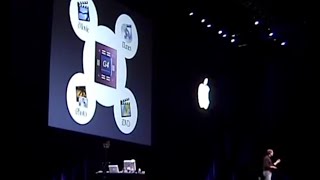
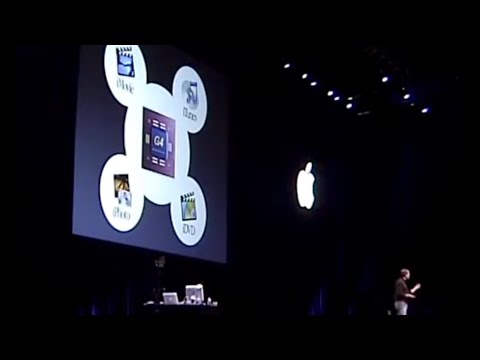
He then explains Apple’s digital hub strategy: the Mac sits at the center of digital cameras, camcorders, music players, and DVDs. He ties that strategy to Apple’s bundled apps—iMovie, iTunes, iDVD, and iPhoto—which make the Mac the control center for digital life.
Jobs closes by discussing the new iMac and new iPod features, including a 10GB model, custom engraving, and contacts syncing. The throughline is that Apple wins by integrating hardware, software, and devices into a simple, connected experience.
Jobs speaks throughout, with brief presentations from Adobe, Ergo, FileMaker, and Lucasfilm guests.
In his words
“Mac OS X is the most important thing we're doing at Apple.”
“It's all about the applications.”
“Personal computers will become the center, or as we say, the digital hub, of our new digital lifestyle.”
“Our contribution to this industry is to innovate.”
“We think we see the future.”
Key points
- Mac OS X is the most important thing Apple is doing.
- Applications are the key to Mac OS X’s success.
- The digital hub is the Mac at the center of a new digital lifestyle.
- iMovie, iTunes, iDVD, and iPhoto connect the Mac to common digital devices.
- The new iPod adds 10GB capacity, custom engraving, and contacts.
- Apple’s strategy is to innovate by integrating hardware and software.
Full transcript
Thank you very much. It's wonderful to be in Tokyo. We've got some fun things to talk about today. I want to start off by talking about Mac OS X. Then I'd like to talk about our digital hub strategy. I'd like to talk about the new iMac next. And after that, fun things about Bluetooth. Some really great things about the cinema display. And lastly, a few things about iPod. So, let's get started with Mac OS X. Mac OS X is the most important thing we're doing at Apple. It is an operating system that is the most advanced in the entire computer industry. And we've rolled it out over the last year, and we're starting to see some tremendous success now. Now, Mac OS X has got the best user interface that you've ever seen. It's really easy to use. It's very powerful. It's very beautiful. But don't let that fool you. Because underneath the hood of Mac OS X is Unix. Thoroughbred Unix. And so, this combination, this marriage of Unix plus Apple's ease of use and an incredible array of applications is a very powerful combination. We've seen some fantastic reviews. This one from Business Week. Version 10.1 of Apple's operating system is a triumph. We've seen some great reviews here in Japan as well. Now, we've been working on Mac OS X for several
years, and it's just about done. It's fantastic at this point. And now, it's really up to applications. It's all about the applications. And we've been working with our developers, and I'm pleased to report that we now have over 2,500 applications running natively on Mac OS X. So, as you can see, in the past year, we've gone from almost none to over 2,500. Actually, it's 2,650 as of today. Now, the most visible of these applications is, of course, Microsoft Office. Now, Microsoft has done a fantastic job on Office for Mac OS X. As a matter of fact, it's their best version of Office on any platform. But there's some other great apps as well that I want to bring to your attention. Maybe the most important are those apps being done by Adobe. We're all waiting for one of them in particular.
And it's my pleasure now to introduce Shantanu Narayan, who is the Executive Vice President from Adobe, who's going to show us what we've been waiting for. Shantanu, welcome. Thank you. Thanks again. It is an absolute pleasure to be here this morning and to demonstrate our commitment and enthusiastic support for Apple Mac OS X and the direction that they are taking. At Adobe, we're steadfast in our vision. Our vision is to help you all create far more compelling content. And we think we're witnessing a third generation of publishing.
Together with Apple, we revolutionized desktop publishing. We then saw web publishing. Now we're seeing network publishing, one that's characterized by the need to create content for web, video, print, and wireless, and the ability to access information anytime, anywhere, and on any device. Mac OS X is a fundamental platform for us, and we've been hard at work making sure that our applications take support of Mac OS X. We've already shown the Acrobat reader, Illustrator, After Effects, and we've announced Go Live and Live Motion. One of the applications, however, is InDesign, an application that's been designed specially for the Japanese market. 2.0 is coming. Take a look. Great performance on Mac OS X, significantly increased support for Kunihon, and some host of new features. What I'd like to do is invite Kasudai-san to show us new versions of both InDesign 2.0, as well as Go Live 6.0. Kasudai-san?
Kasudai-san? Kasudai-san? Kasudai-san?
Kasudai-san? Kasudai-san? Kasudai-san?
Kasudai-san? A quick new look at two great applications, InDesign 2.0 and Go Live 6.0. Great performance, gorgeous UI, and with Go Live 6.0, a brand new web workgroup server, which really will help people communicate better. An application that I know all of you are waiting for is Photoshop, and so we're happy to show you a sneak peek at the next version of some technology in Photoshop.
So, Photoshop is a new feature that's coming out, and we're very excited about it. We're going to show you just one new feature, and that's the File Browser. When you use the File Browser, you can check what kind of file you want to import, and we're going to show you how to do that. And now, I'd like to show you the performance of the Mac OS X. First, we're going to select the background layer of the ROM of the Ring. Let's zoom in to make it easier to see.
I think I went a little too far. I think that's about it. Now, I'm going to apply the unsharp mask to this layer in the filter menu. This material is originally designed for printing, so the file capacity is close to 100 MB. Even so, let's make the amount of work a little bigger. Even if you adjust the amount of work in the filter like this, I think you can see that the preview is very high-speed. This workshop, the next version of the workshop, is still before the announcement, so we have not yet held an exhibition at the Adobe booth, but we will show you our usual products, such as InDesign 2.0, Illustrator 10, GoLive 6.0, Live Motion 2.0, and After Effects 5.5.
If you have time, please come to the booth. Next up, a Japanese software maker has done something quite remarkable with Mac OS X. As you know, Mac OS X ships with the finest set of Japanese fonts ever on a personal computer. Fonts that would cost approximately $20,000 a seat if you were going to go license them for very high-end publishing applications. You should stand on every copy of Mac OS X around the world.
To take advantage of all those special characters, Ergo has done something quite wonderful, and I'd like to invite Mr. Yamichi Erikawa, the President and CEO of Ergo to show us. Thank you. Hello, Steve. Today, I'd like to talk to you about Mac OS X's innovative solution. There are about 6,000 people in this room, and I'd like to introduce you to Mr. Watanabe.
Mr. Watanabe is very happy to be here today. Mr. Watanabe, I'm sure you haven't forgotten the correct translation. But it's all right now. With the combination of Mac OS X, Easy Word, and Easy Bridge, the kanji for Mr. Watanabe's name, Nabe, has been displayed correctly. Of course, the kanji for Mr. Saito's name, Sae, and the kanji for Mr. Takahashi's name, Takano, are all displayed correctly. Now, let's take a look at the demonstration of Easy Word and Easy Bridge, featuring 20,000 characters of Hiragi, which Mac OS X has.
Now, let's take a look at this. I'm sure you all have the same name. The kanji for Yoshi, which is the name of the gyudon shop, is called Hichio, which is the kanji for red. And the kanji for Taka, which is the name of the department store, is called Shibodaka, which is the kanji for red. As you can see, the kanji for your name can't be displayed correctly on a computer. However, with Easy Word, Easy Bridge, and Mac OS X, you can make it possible. Let's take a look at another example. This is Mr. Watanabe. Mr. Watanabe only chose the kanji that was similar to his official kanji.
However, if you use Easy Bridge, you can make a lot of kanji like this. The font on the left is beautiful. Yes. In order to make the font on the left beautiful, we use the latest technology in the app called Coach. And in the end, you can use only these kanji. There are three or 24 kinds of kanji. That's amazing. Mr. Watanabe, please listen to me. Of these 24 kinds of kanji, you can use your official kanji.
In addition, Easy Word is also active in the BTP field. This sentence is about traditional Japanese architecture. In this kind of sentence, you can use traditional Japanese kanji. It was very difficult to make this sentence available in the BTP field. In order to explain this red part, there were people who wrote handwritten instructions. However, from now on, it is easy to use Easy Word to redesign the Adobe system. This sentence is already saved in the file, so let's take a look at it in InDesign. This is the file using the location command in the file menu.
I will paste it. I think you can see that it has been pasted. Please also check the red part. In this way, you can easily understand the kanji that you could not use until now by using Easy Word. For example, you can easily understand the kanji that you could not use until now by using Easy Word. In addition, by using Easy Word, Easy Bridge, and Mac OS X, you can realize the ideal environment for Mac OS X. Please use Easy Word and Easy Bridge with Mac OS X.
There is no such solution in Windows. I will say it again. It is a solution that Windows cannot do. It is a solution that only Mac OS X can do. I would like to tell you that. Of course, I am a game software company called Koei. I am developing game software under the name of Shibusawa Koei. I am developing Nobunaga no Yabou, Sango Kishi, Kessen, and Winning Post. In particular, Sango Kishi is one of the games with a very difficult kanji. For example, Junin, Koei, and Chosen.
These are very difficult kanji. Unfortunately, you cannot change them in the current workflow. However, by using Easy Word, Easy Bridge, and Mac OS X, you can change the kanji and display it on the screen. I am very happy to use Easy Word and Easy Bridge. Please use Easy Word and Easy Bridge with Mac OS X. Thank you, Steve. Sorry, Windows. Next up is FileMaker. I would like to introduce Dominic Papil, the president of FileMaker, to show us some really cool stuff on Mac OS X with iMode.
Dominic, welcome. More than 30 million people in Japan are using iMode phones. Increasingly, they want to see business information on their phones. Today, we are very proud to show you a breakthrough product, FileMaker Mobile for iMode, that allows you to instantly publish office databases to iMode phones. This product works with OS X and takes advantage of functionality of OS X. In particular, it is tightly integrated to the OS X built-in web server. With our software, you can take information in FileMaker databases and share it, such as mobile users can browse, edit, add, delete, search, and sort records from their iMode phones.
Let's see how it works. We have FileMaker Mobile for iMode running on OS X. You can see that on the right side of the screen. Terry was doing a demonstration, also has an iMode phone, a video camera, and the video camera is projecting on the left side of the screen an image of the phone. Let's go back to the right side and look at the database. Imagine for a second that you are a computer dealer in Akihabara and are keeping a catalog of Apple products in FileMaker. You can browse very quickly through the database. You notice that in FileMaker, you can store images as quick as movies. We have already set up the database in very simple setups such as iMode rate. Let's look at the phone.
Likewise, we have bookmarked the whole page so that basically we're ready to go. You can select the Mac catalog database. So this is a live demonstration. So we're going through the NTT Docomo network. Most of you have iPhones, so you know the process. It'll take a couple seconds for the page to load. And here we go. You're looking now at the banner of the database. And we scroll down. And you will notice that Farmacre Mobile automatically selects the search button. So let's execute on this. And you will see the product category show up. We can select the public list. So we can display all the products. And of course, you have heard about Farmacre Mobile for iModels. So you want to find more information. So let's do a find on this.
You will notice on the right side that the database is showing the same search result as on the find. And we will execute the acrolab there to get a bit more information, more detailed information about the product. And again, we're live. So it takes a couple seconds through the network. And now we can scroll down and look at a lot of detailed information about Farmacre Mobile for iModels, the pricing. You see also the URL of the vendor, database farmacre, so you can go to our website and find even more information. But wait a minute. As the designer of this database, you realize you forgot something. You should have put a phone number so people can order the product variously on the phone there. That's not a problem. We can fix that variously. We can go back to the database and we'll go to layout mode and paste from the clipboard a field for the phone.
And you can notice that Farmacre is really easy to modify the database. That's one of the key strengths of our product. So the database will be updated right now. And the beauty of this is that Farmacre Mobile automatically updates the information for the phone. Let's now go back to the phone on the left side and we'll refresh that page. Go into the network, scroll down, and voila, here we see our phone number. And you will notice that Farmacre Mobile for iModels automatically recognizes this as a phone number and displays it as hyperlink. Nobody else does it as easily as we do it. So hopefully in those few minutes you've seen that anybody with Mac OS X and Farmacre can very easily construct a database that can be accessed through iModels phones.
Farmacre Mobile for iModels starts shipping last week and is available now. So please visit the Farmacre booth for more information. Thank you. Next up, from Apple, we have Mike Evangelist. He's going to show us some pretty cool stuff on FileMaker Pro running on Mac OS X. Mike? Thanks, Steve. Good morning, everyone. It's a great honor to be here today. I'd like to spend just a couple of minutes showing you some great new features of Final Cut Pro 3.0 on Mac OS X. We introduce you to a new feature. We're using some content from a great band called Love Psychedelico. And I'd like to play just a few seconds of that for you first. I'd like to jump right into the demo. We're using some content from a great band called Love Psychedelico.
And I'd like to play just a few seconds of that for you first. So this video was created using Final Cut Pro. And I'm going to show you some new features that video editors all around the world are so excited about because it saves them so much time and allows them to be creative without getting in their way. Final Cut 3.0 introduced a software-based, real-time architecture that allows you to do a lot of things. Final Cut 3.0 introduced a software-based, real-time architecture that allows you to do a lot of things.
So I'm going to play a couple scenes that at the moment have no transition between them. So I'm going to play a couple scenes that at the moment have no transition between them. Just a hard cut, as it's called. Just a hard cut, as it's called. I think that might be improved. I think that might be improved by having a transition between them. I think that might be improved by having a transition between them. I'm going to zoom in a little bit here. I'm going to zoom in a little bit here. Now, the old way of doing video editing, Now, the old way of doing video editing, if I would put a transition in, I'd have to wait for the computer to calculate the new frame. This is called rendering. Then I could play it back and see how it looked. But with Final Cut 3.0, I simply drag the transition in, and I can play it back, and this will play back in real time.
I don't have to wait, and no special hardware is required for this. Alright, so far, so good. But this is where it really gets interesting. Because when you're editing a video like this, you might do this hundreds or even thousands of times in a single day. you might do this hundreds or even thousands of times in a single day. Because the creative process here is to Because the creative process here is to look at the transition, see how it looks, adjust it until you get it exactly the way you want. And in the old way, you would have to wait for that to render each time. And in the old way, you would have to wait for that to render each time. Here, however, I can just extend that transition to make it longer, and I can play it back immediately. The real-time architecture supports other transitions also.
Let's try a different one. This is called a clockwipe. I'll also play this back, no waiting. Okay, that's real-time effects. Next, I'd like to show you real-time titling. This is a clockwipe. This is a couple scenes that I want to lay a title on top of. I'll show you the scenes first. There we go. I'm going to take my title, lay it in there, and I'll play this back.
Now, you may notice, if you're familiar with the cut, we actually have the title superimposed on top of a real-time dissolve that will still all play back in real-time. Here we go. All right, finally. What I think is the most exciting new feature of Final Cut Pro 3 is its real-time color correction. This is just a godsend for any video producer who comes back from the field with a shot like this that maybe it's a very nice shot, but this one happens to be a little too dark, and it also has a blue cast to it.
Maybe the camera wasn't properly white-balanced. With Final Cut's real-time color corrector, I can fix this in literally a few clicks. Let's take the color corrector, add it to the clip. The first thing I'm going to do is set the white point, and this is as simple as I take this tool and I choose something in the shot that is white. You can see the color cast is mostly gone. I'm going to now brighten the shot up a little bit. And as I do that, it kind of washes out the black, so I want to darken those up a little bit. And just like that, I have the shot fixed. Let's play that back. And in case you missed it, I'll turn it off so you can see the before and after in three clicks.
So you can see the straight new real-time features. Real-time effects, real-time titles, real-time color correction. They all work spectacularly well on a desktop G4 system. But maybe the most amazing thing about this is all of these features also work on Powerbooks. So for the first time, you can take a video editing system with you anywhere you go. So that's Final Cut Pro 3. Thank you very much. Thank you, Mike. You know, Final Cut has become the most popular pro video editing application in the world. And coupled with iMovie, which is the most popular consumer video editing application in the world, Apple is now the largest video supplier in the world.
Next up, it's my pleasure to invite Dan Gregor, who's an animatic supervisor on Lucasfilm, to show us some incredible stuff from Star Wars Episode II, and how they used Max to actually make the film. Now, come on up, Dan. Dan, I know, happens to be pretty sick today, and he agreed to come here nonetheless and show us his stuff. So please give him a warm welcome. Thank you, Steve. Thank you. Thank you. Before I get started today, I actually have a special message from a member of our cast. Thank you, Archer.
A few years ago, we began pre-visualization on Star Wars Episode II, Attack of the Clones. And in less than 60 days, our film will be in theaters worldwide. The greatest challenge we had was creating a gigantic battle with literally tens of thousands of digital characters. And I'm here today to share with you how at Mac OS X, Maya and After Effects, we were able to accomplish this. The first thing I'd like to talk to you about is Maya running under Mac OS X and its incredibly powerful dynamics engine. As you can see here, I have a battle droid from Episode I being affected simply by gravity. It's a completely dynamic, real-time simulation that allows us incredible flexibility to create many droids at once.
That's a little boring. Let's send him back in the air a little bit, make him look like he's being hit by a laser bullet. As you can see, I changed two numbers, and I have a completely different dynamic simulation. And it's this technique that allowed us to create literally thousands of battle droids for the sequence, all of them differently. We were able to do it in a very short period of time. Let's introduce another character in this scene. Turn this guy off, there we go. As you can see here, I have a clone trooper in the scene. He's firing particle laser beams. We merely have to aim the gun, and he fires. The battle droid is dynamically activated by that.
It's a symbiosis of them together that makes it very easy for us to develop an interaction between these two characters. What can we do with these? Where can we take these? That's where After Effects comes in. As you can see here, I created a small battle scene with only three clone troopers and a few battle droids, but it's very easy to do. It's done within minutes. All the battle droids are being dynamically activated. They're all falling differently. Very little to do to create something like this. And that's what allowed us to really accomplish the gigantic battle scene that I'm about to show you. This movie represents some of the most complex scenes that we worked on for pre-visualization for Episode II, Attack of the Clones.
As you can see, dynamics, particle effects, full texturing and lighting. An incredible tool for Mr. Lucas to visualize whether or not his movie is working well before post-production begins. I actually have a special treat for you today. First, I'd like to thank you, Steve, for allowing us time on stage. Now, for the first time in the Japanese market, I'd like to present the Star Wars Episode II, Attack of the Clones, full-length trailer. Applause Music I will not let this republic be split in two.
My negotiations will not fail. If they do, they are enough Jedi to protect the republic. We prefer peace, not soldiers. Sorry, Master. I forgot you don't like flying. Well, he's lost it. If you'll excuse me. I hate it when he does that. Anakin, don't do anything without first consulting either myself or the council. You don't need guidance, Anakin. I see you becoming the greatest of all Jedi. Boy, he has exceptional skills. His abilities have made him arrogant. Excuse me. I'm in charge of security here, milady. They are using a bounty hunter named Jack the Third to create a clone army. Wait.
We must stop them before they're ready. Your clone's very impressive. I'll do the job well. Blast. This is why I hate flying. This is a crisis. The senate must vote the chancellor emergency powers. As my first act, I will create a grand army of the republic. To counter the increasing threats of the separatists. There hasn't been a full-scale war since the formation of the republic. You must join me, Obi-Wan. Together, we'll destroy the Sith. The dark side clouds everything. The grave danger you are. The gun this clone war has.
The dark side clouds everything. The grave danger you are. Thank you, Dan. So when you see Star Wars Episode 2, you'll know that Mac OS X played a significant part in its creation. So applications. We have 2,650 applications now native on Mac OS X. We're on our way. Every new Mac boots up with a Mac OS X. And as I said earlier, this is the most important thing we're doing strategically at Apple.
And so far, it's going very, very well. So next, I'd like to talk about our digital hub strategy. What is that? We introduced the strategy in January 2001. That's 15 months ago. It is a strategy. And the strategy is that personal computers will become the center, or as we say, the digital hub, of our new digital lifestyle. What is that? What is new digital lifestyle? Well, we're now all surrounded by these amazing digital gadgets. We've got digital camcorders. We've got DVD players. We've got portable MP3 music players.
And we've got the incredible explosion of digital cameras. And we believe that personal computers are going to sit at the center of those devices, not off to the side, but at the heart. Now, you can break all of the digital devices right now into two categories. Half of them work fine without a personal computer. Camcorders, DVD players work fine. But they're dramatically enhanced with a personal computer. A personal computer can turn an hour and a half of boring video that you may never watch again into a three-minute movie that you will watch over and over and over again. And you can do this simply right on your Mac. And then, you can take your movies and burn your own custom DVD that will play in almost any consumer DVD player.
And you can send it to your friends and family. And dramatically enhance both your digital camcorder and your DVD. But the other half of the digital devices don't even work without a PC. They don't even work. You can't use a digital camera without a personal computer. You can't use a portable MP3 player without a personal computer. They rely on the personal computer being their digital hub even today. And we believe that all of these digital devices will eventually rely on the personal computer as their digital hub. Now, a personal computer is not enough. It needs applications to tie these digital devices to the Macintosh.
And we have written some amazing applications that come bundled for free with every Macintosh. iMovie, the best consumer video editing in the world. iTunes, the best music jukebox player in the world. iDVD, the best software for creating your own DVDs in the world. And recently, iPhoto, the missing link in digital photography. iPhoto was a breakthrough for using a digital camera. And so, again, for your camcorder, we have iMovie. For your MP3 player, we have iTunes. For your DVD player, we have iDVD. And for your digital camera, we have iPhoto. So I'd like to focus on the first three of these now and give you a quick demo, a quick overview of each of them.
So I will start off over here with iMovie. Let me go ahead and launch iMovie. And iMovie, you can hook your digital camcorder up to your Mac with FireWire, which is built into every Mac and built into almost every digital camcorder. And you can bring your video into the Mac. with pristine digital quality. And iMovie puts your videos up here in these clips, which you can drag down just to add to your movie anywhere you'd like. And of course, you can play them. So I'm gonna just play a clip. Very simple. Of course, you can edit this clip. Let me show you one fun thing you can do with this clip. In iMovie, to make it go slow-mo, you can just say, I want it to go slower. Let me turn the volume down. And it's that easy to construct something like this.
To add to your movie. It's very easy to lay in your own soundtrack. It's easy to add cross dissolves and all sorts of other effects as well. So let me go back here. Let me go back to the beginning and just play you this movie that somebody made. Here we go. You get the idea? Anyone who has kids can imagine having movies like this with their kids.
It'd be really great. So iMovie lets you make movies like this in literally minutes. And it's pretty great. Now, what happens when you have some iMovies and you wanna share them? Let's say you wanna make a DVD. How hard is it to make a DVD? Well, Apple's made it really easy. And let's just go, this is iDVD. It's a one-window application. And so I've got some movies here. All you have to do is drag your movies in and it gives you a little thumbnail here. And you can go ahead and set this to a frame. I've got the new iMac commercial here that's kind of fun. And I'll just pick a frame, like that one. And I can drag in the second movie, this movie of the soccer kids. Again, it automatically lays them out. Right, and I can pick one here. Let's say I'll just pick this.
And I'll drag in the third movie, which is a fun Tony Hawk video. Let's say that. And this is pretty great. It automatically lays out my menus. But there's something new in iDVD too that nothing else does. That is motion menus. So my buttons can actually play the movies while the background itself is a movie. And you can drop your own movies into the background. Or, of course, we ship several templates. And let me show you a few of those templates. So we've got this one, which is called Global. We've got some that have motion in the backgrounds and others that don't. This one just has motion in the buttons for a more business-like look. Again, here's another one.
This is one where the background moves as well. ♪♪♪ Imagine creating DVDs like this and sending them to your friends and family and what they're gonna experience when they put them in their DVD player and see what you've created. We've got a few other ones here. This one's a fun one for travel. And again, you can change the positions of these videos. Just drag around. There's one for kids. And again, the button shapes change, the font change. The whole, the themes control everything. You can customize them if you'd like. Here's one I particularly like.
A sports one. Now, I can add some other things to these themes as well. I can add a slideshow here. So this is my slideshow. And as I click into it, I go down a layer. And here what I can do is I can put in photos. I have a bunch of photos here. Let me go ahead and just select them all and drag them in. And iDVD is importing all the photos with their thumbnails. And I can have thousands and thousands of pictures on a DVD and watch them on my TV. It's a wonderful way to watch photos. And then I can go back here and pick one of them to be my thumbnail.
Let's say I pick that one. And of course, I can add folders. And inside my folders, I can put other movies if I want. So I'll pick one. I'll put Love Psychedelico, that music video we saw. And I can even change the theme of my background if I want. Maybe I wanna change it to brush metal here. And when I go back, again, I can go like this. And now, when the user clicks on this, they go to submenu. You can have as many videos as you want here nested in submenus. So this is iDVD, and it's pretty amazing. Now, to burn a DVD, what do I have to do? After I've created it, all I have to do is click one button. Click this burn button. It will ask me to put in a blank DVD art piece of media, which costs $5 now, and I can burn my DVDs.
And my DVD does everything for me and makes it totally seamless. All right. Now, for digital music, we've done something just as good with iTunes. I've got my library of songs here. And to find a song, I've got a bunch of music in here. I'm gonna look for Club 251. I just type CLUB, and there it is. Everything with Club. And I can just pick any of these I want to and play it. ♪ And I'm gonna burn my DVD art piece of media ♪ And make it totally seamless ♪ And I'm gonna burn my DVD art piece of media To burn a disc, I can create, of course I can create playlists like this. And again, to burn a disc is just as simple.
Push one button, I burn a disc. When I wanna rip a disc, the same thing. One button, I rip a disc into iTunes. And of course, as you know, iTunes and iPod sync up seamlessly so I can take all of my music with me wherever I want to go with my iPod. So, that gives you a little overview of our first three digital hub applications. Now what I'd like to do is focus on the fourth one, our newest one, which is iPhoto. iPhoto is meant to address the wonderful explosion we're seeing with digital cameras. But when you hook a digital camera up to a computer, it gets really difficult. You've gotta import your photos into the computer, which could require using a strange custom application from the camera vendor.
You've gotta try to edit your photo, which can involve using another application. And then you've gotta try to print your photo, which can be, again, yet another application. And you'd think this was really easy, but it's not. Matter of fact, a lot of the press wrote about this and they called it the chain of pain. We have fixed this. With iPhoto, one application does everything for you. You can import your photos by literally pushing one button. It will import them from the camera and even erase the flash memory of the camera automatically if you wish. You can edit your applications, in particular, crop them, just by dragging out a rectangle and pushing one button. And you can print your photos incredibly easily. We have hidden all the complexities of inkjet printers under a very, very simple print panel that is uniform across all inkjet printers.
Excuse me. We've simplified import, edit, and print, and we use ColorSync, which is the world's best technology for keeping color fidelity throughout a workflow process. And we've added that to iPhoto, so every step of the way, your colors are correct. So import, edit, and print. When we did this, we thought we'd solved the problem, but we hadn't. Because the more we used it, we realized the biggest part of the problem was still not solved. And that's this. When you use camera with film, you have a shoebox, and you put your photos and your negatives in. This is a record of all the photographs you've taken. With a digital camera, it's so easy to lose your photographs.
There is no shoebox. It's really hard to find your prints. They're scattered throughout folders on your hard disk. You may never find them. So we realized that beyond import, edit, and print, we had to safely store your photos. We had to come up with a digital shoebox. Then, we had to organize them so you could find them fast, and finally, share them better than just prints. So it wasn't just import, edit, and print. It was save, organize, and share. And that's what iPhoto's really about, and let me go ahead and show you now. This is iPhoto here, and I've got some photos in here right now. I've got a bunch of them. As a matter of fact, I've got over 1,000 photographs in here.
And what I'm going to do is I'm gonna add some photographs from my digital camera right here. It's a little Canon digital camera. It takes nice photographs. And all I have to do is turn on my digital camera, and iPhoto will automatically recognize that I've got a photo in here. And I can go ahead and take a look at it. And iPhoto will automatically recognize it. It has nine photos on it, and all I have to do is hit one button, and iPhoto will pull in all the photos. It recognizes Canon cameras. all the Sony cameras, all the Nikon cameras, all the Fuji cameras, just a wide variety of cameras. No drivers to load, nothing. And so here are my photos now, right in iPhoto right here.
And I can make them larger just by dragging this knob. I can make my photos larger or smaller. And so let's just go see some of the photos I've got here. You can see right here. These are my new ones. And I'll go ahead and make it all full screen. And so here are the photos I just brought in. Very simple. Now, what's really interesting is that if I want to find a photograph, rather than look at names, I can look at the photos themselves. And I can, by turning this knob down, I can fill iPhoto up with about 250 photographs on one page. And so I can scroll through over 1,000 photographs in a few seconds to find exactly what I'm looking for.
You can get a pretty good feel for your photographs, even when they're this small. We also keep track of film modes. And so I can see when I imported the photos, what role they were on. So let me go back to the photos I just took. And let me go ahead and pick one and show you how we edit it. Actually, let me show you an album first. These are my photo albums over here. And I can make a new one. Let's call it Map Wall. And I can add photos just by dragging them in.
Let's drag these photos in. And again, I can look at a photo album just like that. So I can keep albums of my favorite photos, albums of my trips, whatever I want to do. Now let's go edit a photograph. Let's say we want to edit a photo. Pick it and go into Edit Mode. And to crop this photo is as easy as dragging a rectangle, moving it around, resizing it however I want to, and pushing one button, and boom, there's my crop. If I want to constrain that, I might say, you know, I really want a 5x7 print, and so it will constrain this to just a 5x7 aspect ratio. I can make it as big as I want, but it will always be a 5x7. Boom, and crop it like that. Or I might want to do it as a 5x7 portrait.
Boom, like that. Pretty nice, huh? I will do it as a 4x3 so it looks great on my computer screen. Boom. I can also turn this into a black and white picture, just like that. We're back. So we have a lot of editing as well right here. Now I want to show you how we share our photos. Let me go ahead and select a photo album. I've got a photo album called Safari here. I've got a photo album called Safari with some fun pictures in it. And let me go to Share.
And if I wanted to print those pictures, here's all I have to do. Whoops. Let's pick one of these. I want to print the picture here. There it is. All I have to do is I just set my margins and put it in there. Or I can say I want to print it on a greeting card, single or double fold. I even can print these on a contact sheet, print as many as I want to. Very, very simple to do. Or I can pick the whole album if I want to and print a contact sheet with those. Very, very simple to print. Next, let me pick another album like Hawaii. And this is a feature that we don't yet have working in Japan. It's working in the United States, and we hope to bring it to Japan later on this year.
But it's the ability to order prints right off the web without having to go to a separate application. We're talking about Kodak and Fuji in Japan here. And it lets me just go in and say how many of each one I want. Automatically totals the price. And very, very, very easy to order prints off the web. Now I want to build a website. So I'm going to go to this album and say I want to put these pictures on the web. That's pretty hard to do today. In iPhoto, it's very easy. I just push this one button. It connects to the Internet to Apple's back-end website. And we will automatically lay these photos out for you here. You can put a border on them if you like, a picture frame.
You can rearrange them if you'd like. And when you're ready to publish them, all you do is push one button. And it's going to take all these photos, transfer them over the web to Apple's website where we will host them for you. And your homepage has been published. Once you have that homepage, let's go ahead and launch Internet Explorer. And from any computer, any kind of computer anywhere in the world, you can now look at your pictures. And here they are. Your family and friends can share them no matter what type of computer they use. When you see them large, we have a little photo album application here. It just runs right off of any browser on any computer.
And lastly, I want to show you one of the coolest features, which is the slideshow, which is just to take these photos. So this gives you an idea of what iPhoto can do.
And we think it is the missing link in digital photography. Import, edit, and print has been dramatically simplified. It just works with one-button pushes in each of those. And we have come up with a way to create a digital shoebox. So you'll never lose your photos, and you can find them when you need to, and you can share them in totally new ways. For save, organize, and share. iPhoto runs on Mac OS X, and we're not charging for it. It's a free download on Apple.com. And since we introduced this in January, in the first 60 days, we've had over a million downloads of iPhoto, making this the most popular digital photography application in the world.
So that is iPhoto. And it completes our digital hub. We now have the best video editing, the best digital music, the best DVD creation, and now a breakthrough in digital photography. To talk to all the popular digital devices, we have the complete digital hub for your new digital lifestyle. And that is our strategy of the digital hub. Now, I'd like to move on to iMac. As you know, or you might have heard, we introduced a new iMac in January. And it is stunning. It's gotten fantastic reviews around the world. Here's a few quotes from Japan.
The new iMac is in three parts. There's three basic components to it. There's a base that houses the entire computer, both the disk drives, the hard drive and the optical drive, and the power supply so there's no power grid hanging out. So the disk drive's inside, and all the connectors are on the back for FireWire USB, Next, there's a gorgeous 15-inch LCD display that's super thin. And connecting them is what we call the neck, an incredible feat of mechanical engineering that holds the display in any position you want, and you can move it with just one finger. There's three breakthrough technologies in the new iMac.
The 15-inch display, going with a flat panel display on a consumer product for the first time. This is also the first iMac to have the power of a G4. We moved the G4 to the G5. We moved the G5 to the G6. We moved the G6 to the G7. We moved the G7 to the G8. We moved the G7 to the G9. The first iMac had the power of a G4. We moved the G4 down into our consumer line for the first time. And we provided an option for our SuperTruck right inside the base of our new iMac. So these are the three breakthrough technologies now for the first time in our consumer line. And it's the ultimate digital hub.
It talks to all of these devices. Of course, it runs all of our digital hub applications. And because of the G4, it runs them even faster. iMovie, iTunes, iDVD, and iPhoto all take advantage of the G4 with its velocity engine to run much faster. So this is a really breakthrough product for us. We've got a television ad we'll be running here next month. I'd like to show it to you now if I could. So let's go ahead and run the new TV ad for the guy. .
. And we also made a video about our new iMac that I would love to show you now. So can we run the video, please? . . .
. . . . .
. . . . .
. . . . . . . . .
. . . The way that iPod and iTunes work together is amazing. I think iTunes and the iPod are perfect examples of organic technology. They work with you. You plug the iPod in and you get a replica of what is on your desktop for you to take with you anywhere you please. It reminds me of something out of 2001, A Space Odyssey. Beyond that, it's perfect.
And with iTunes, iMovie, iDVD, and now iPhoto, the digital hub seems pretty much complete. I was kind of a boy scientist, so I was always totally convinced that the cinema would be electronic. This little machine I'm looking at is the home base of a media factory All it needs are a number of pieces of hardware, a still camera, the iPod, a digital moving camera or camcorder. You could make a book. You could make a presentation. You could make a slideshow. You could make a feature film on this.
Why not? Tell the story of your life with stills and things you shoot with your digital camera. There's no limitation. Sooner or later, someone with these tools is going to make a great masterpiece. It's one thing to solve design problems. It's much, much harder to give a personality, to give life to a product. It's much harder and it's infinitely more satisfying. And I think the new iMac has that. It looks like it's a face smiling at you with its little mouth down.
Incredible. So you're going to leave this here, right? I'm a sucker for things that look futuristic, and this is about as futuristic as you're going to get. It's beautiful. I look at something like this and I think, Three million of them. It's like a Pokemon, you know? Three million young people. I think the new iMac is the best thing we've ever done.
And I've got some good news and some bad news for you on the new iMac. First the good news. It's a big hit. We are seeing incredibly huge demand for the new iMac all around the world. And the demand has been so high that we have not been able to keep up with it. We started shipping the new iMacs in late January, and the backlog has just been growing, and people have been waiting to get their new iMacs. Some people have said that we're not shipping very many of them, but that's not true. I'm happy to tell you that as of a few days ago, we shipped 125,000 of the new iMacs.
And in the United States, as you may know, Apple has 27 retail stores. Some of our resellers, who we believe are very, very important to our success, have had concerns that we were shipping too many of the new iMacs to our own retail stores when they couldn't get enough. But that also is not true. We have shipped less than 10% of these 125,000 iMacs so far to our own retail stores. 90% of them have gone to our resellers, who we value highly. We are now shipping over 5,000 new iMacs a day. And so we expect and hope that we are caught up with demand by the end of April.
So we are now in volume production, and I very much appreciate the patience of our customers and of our resellers, but we will have you a lot of new iMacs very soon. So that's the good news. We are now in high-volume production. But I have some bad news. Since we introduced the new iMac in January, component prices have been increasing dramatically. The price for our flat screens has gone up 25% in the last few months. The price for memory has gone up 200% since we introduced the new iMac. That means it's tripled in cost.
And this is across the industry. This is an industry-wide issue, not just Apple, of course. And so every manufacturer is going to have to do one of two things. Either remove features from their product, or slightly raise the prices of their products. We're seeing that now. We're seeing manufacturers lower the memory, lower the disk drives on their products, and raise the prices as well. We're seeing that across the industry. So we had to make this choice. And we think the configurations, customers have told us, the configurations of the new iMac are great. And the last thing we want to do is make them less great.
So we've decided to do a price adjustment on the new iMac. These were our three choices. They go up $100, $150, or $200. And we've chosen $100. We're going to try to keep it as low as we can. Because of the currency exchange rates, that's 20,000 yen. And so the prices on the new iMac are going to go from these original prices to these prices right here. And here they are in yen. These new prices are effective today. However, we are going to honor all of our existing reseller orders and all of the orders on the Apple Online Store at the old prices that we've received as of today. So we will be shipping a lot of iMacs still at the old prices.
But once we're done with the existing orders, the prices will go up $100. So we hope this is temporary, but we don't know what the component pricing in the industry is going to bring. So we don't know how long it will last. So the new iMac, I think it's the most stunning product and the best product that we have ever created. And we are working around the clock, seven days a week, to get the new iMacs out to everyone. And again, we appreciate everyone's patience while we wait for this extraordinary product. Okay. Now, I'd like to talk about Bluetooth. We've got some exciting stuff. Bluetooth, as you know, is a wireless standard.
It's just emerging. It runs at 2.4 gigahertz, transmits data at a megabit per second, and it has a range of 10 meters or about 33 feet. That's the specification. Now, where does this fit in? Well, we have networks and peripherals, and we connect to them with wires, but we think in the future increasingly without wires. So when we want to connect to a network with a wire, what do we use? We use Ethernet. When we want to connect to a peripheral with a wire, we use USB or FireWire.
Starting a few years ago, Apple pioneered 802.11 wireless networking to connect to networks without a wire. We call it AirMac in Japan, airport throughout the rest of the world. And this has been a huge success, and most of the other manufacturers have now copied Apple and building this into their notebooks. But what do we use when we want to connect to a peripheral without a wire? AirMac is too expensive. It's a little overkill. What can we do to come up with a wireless USB-like product? And that's what Bluetooth is. Bluetooth is the way we're going to connect to peripherals wirelessly.
It's pretty cool. It runs, again, about a tenth as fast as USB, but it has no wire. So I'm going to show you how this works. I'm going to use a Bluetooth USB module, a little module that plugs into any USB port in a computer and gives you Bluetooth. We're also going to use some Bluetooth-enabled cell phones. We're going to use an iMode cell phone in this case. This also works with Bluetooth-enabled phones from Nokia and others. And for handhelds, there are now very small Bluetooth modules, in this case one from Sony, that fits very nicely into their Clié. Palm has the same thing. And let me show you what this stuff is like right now.
So, I'm going to start my Palm desktop over here. And as you can see, I have no contacts in it. I happen to have a Sony Clié right here with a Bluetooth card in it. And I'm going to turn it on. And I'm going to push a button, which asks it to sync up with my computer. I'm going to push that button right now. It's connecting to the computer. See, up on the computer pops this. And it'll take about 30 seconds to download all my contacts and sync up between the computer and my Clié, wirelessly using Bluetooth. And there it is.
So I got all my contacts here off my Bluetooth. I just took one. There it is. So that is how we can do syncing between handhelds using Bluetooth. Now, I'm going to show you how to do that. I'm going to turn my phone on. And I'm going to turn my phone on. And I'm going to turn my phone on. And I'm going to turn my phone on. And I'm going to turn my phone on. And there it is, using Bluetooth. Now, I've got a cell phone here, an iMode cell phone, that also has Bluetooth in it. And what I'd really love to do now is to be able to wirelessly connect between my notebook computer and this Bluetooth phone to get Internet connections. So I can have a wireless Internet connection wherever I go. That's pretty easy to do now.
All I have to do on the Mac side is say Connect. And it's going to connect to this Bluetooth phone. The Bluetooth phone is going to make a connection to the Internet for us. Take a few minutes to set up the connection. There we go. We've got our connection now. And I can open Internet Explorer. Again, our Internet connection is over this iMode Bluetooth phone. Here's Apple's website.
Right here. I can go up here and go to the Japan Times, as an example. Here's the Japan Times. Right here. And I can go to JTV here. Here we go. So, all over this Bluetooth phone. And when I'm done, I want to take down the connection. I just say Disconnect. So that's an example of this Bluetooth software running seamlessly. These devices automatically finding each other. And be able to use a Bluetooth phone to get portable Internet connection.
And be able to sync wirelessly with POMs and CLIAs. Now, we are building this software into the next release of Mac OS X. But until then, we're going to release this software as beta software starting today. Internet dial-up, it will support. It will support POM and CLIA sync. It will support wireless file transfer. We're also going to sell this Bluetooth USB module for $49 in the U.S. Or 6,000 yen in Japan. And this will be available in early April, except for Japan, where it will be early May. Because the USB module is taking a little bit longer to get approved here in Japan.
So, go check on Apple.com. You'll be able to see when this stuff is ready. Download it. Try it out. We think it's very, very exciting. And this will all be built in to the next release of Mac OS X. So that's Bluetooth. Apple was the first company to ever build in Ethernet into all of its computers. It was the first company to ever build in FireWire into its computers. It was the first company to ever build in USB and actually make it work in its computers. It was the first company to build in 802.11 wireless networking into its computers.
And we think we are on the cutting edge of Bluetooth by actually making it work. So, next, I'd like to talk about the cinema display. The cinema display has been a wonderful success for Apple and for our customers. It's a 22-inch display. It displays 1600 by 1024. It sells for 2499 or 298,000 yen. We've been selling a lot of these. This is the best display in the world for creative professionals. Until today. Because today, we are taking it up a level again and introducing the cinema HD display.
What's HD stand for? High-definition. High-definition television at its highest resolution is 1920 by 1080. Our new display is 1920 by 1200. Full high-definition video with a few pixels to spare. It's a 23-inch display. It's the largest display that has ever been put into high-volume production. It's gorgeous. It's very, very thin. It has USB built-in, of course. And the image is just gorgeous. Up until now, the gold standard for flat displays has been our cinema display.
The cinema HD is even better. The color is fantastic. The viewing angle is superb. This is the finest LCD ever brought to market. It's great also for video editing. Video editors are going to love this display. And again, the quality of the image is fantastic. It's the ultimate display for creative professionals. Compared to cathode ray tubes, the cinema HD is twice as bright, twice as sharp, and has twice the contrast ratio. It has a pure digital interface from the computer. Dual USB ports built-in. It is powered from the computer, so you don't need a power drink on the ground. And it's one cable that carries the video, the power, and USB.
So it's one cable to plug into a Power Mac. And you've now got the best display in the world, opera. We're going to price the cinema HD at $34.99, $449.80. For this display, this is a revolutionary price. We will be shipping these in April, next month, around the world. And this is now the new standard for flat displays, the cinema HD High Definition. So lastly, I'd like to talk about the iPod. The iPod has been also a very good success for us. And customers love this product.
The reviews, again, have been off the charts. Here's Walt Mossberg from the Wall Street Journal in the U.S. The iPod is simply the best digital music player I've seen. And there's been some great reviews, as you know, here in Japan as well. In case you didn't hear, a few weeks ago, the iPod, as well as iTunes, and Apple's other contributions to the recording industry, earned Apple a Grammy. Apple won a technical Grammy for, and this is what they inscribed on it, as the leading architect in bringing computers to the world. And this is what they inscribed on it. As the leading architect in bringing computer technology into the studio and revolutionizing the way music is written, produced, mixed, recorded, and created imaginatively.
Apple is the first company to win a Grammy for its computers. Now, we've got three new things on the iPod today, which I hope you will enjoy. The first one, the iPod has a miniaturized 5-gigabyte hard drive that lets you put 1,000 songs in your pocket. Today, we are introducing a second model of the iPod with a 10-gigabyte hard drive that lets you put 2,000 songs in your pocket. Now, how long do 2,000 songs last? First of all, as you may know, the iPod will go from San Francisco to Tokyo on a single battery charge. You can be listening to music all the way.
The iPod lasts about over 10 hours on a single charge. But more than that, if you were listening to music the entire time, you could make six round trips between San Francisco and Tokyo and never hear the same song twice with the new 10-gigabyte iPod. So, pricing. What are we going to price these at? As you know, the 5-gigabyte iPod is priced at $399. The 10-gigabyte iPod will be $100 more at $499. And here are the graphics prices. And the new 10-gigabyte iPod is available starting today. Second thing, custom laser engraving.
As you know, the iPod has a beautiful stainless steel back. And now we are going to let customers engrave a special message on the back. Not this message, but your own message. Here's a few. Two lines of up to 27 characters each. And, of course, we support all the languages. Now, the way you do this is you go to the Apple online store, and this is what you see. You type in your message and you can preview it right on the iPod. Here's our Japanese online store.
And the charge for the custom laser engraving is $49 or 6,000 yen extra. And your iPod will be custom laser engraved for you and sent directly to you from the online Apple store. And this is available as of today. The third new thing, contacts. So we got this amazing device, and it has our music. Playlists, artists, and songs. Let's add a new thing called contacts. When I go into contacts, let me see all my contacts.
When I pick one, have my contact information with me right on the hard disk of the iPod. And, of course, we support all of our languages. So this is pretty neat. Now, how do we do this? We base it on the vCard standard. And the vCard standard is what Palm is based on, Palm Desktop, what Microsoft's Entourage is based on, and what the Mac OS X address book is based on. So anything that can output vCards can go in to the contacts on the iPod. And let me show you how this works. Click this.
All right. So the first thing I will do is let me launch the Palm Desktop again. And let me open my iPod. I have an iPod right here. And inside the iPod now is a folder called contacts. And I already have a few contacts in here. So let me select some contacts over here. And I will just take these and just drag them. This is out of the Palm Desktop. I just drag them over to this folder. And it puts them in there. And as you can see, my little Palm Desktop icon here. So I've just transferred these into my iPod. I'm going to close this.
I'm going to unmount my iPod. And I'm going to go over here to my iPod. If I could switch it this way here. And in just a second, I'll unplug the firewire. And in just a second, I'll show you contacts on the iPod. Okay. I've got playlists, artists, songs, and now contacts. I'm going to contacts. And here's all the contacts I just loaded on. And I can use that same wonderful scroll wheel to scroll up and down my contacts.
And here's what they look like. Really crisp. Really clean. Right on my iPod. I'm going to go back. Pick one in Japanese. Boom. Right like that. Wherever I go in my pocket, I can store up to 1,000 contacts right alongside my music on my iPod. And then I can get my V cards from my Palm Desktop, Microsoft's Entourage, or my address book. Simply drag them into the contacts folder on my iPod. Automatically transmitted and stored and available for use on my iPod. We've even written some Apple scripts.
to do this automatically, if you'd like. And this is available today. It's going to be free for all iPod owners. It runs on existing iPods as well as our new 10 gigabyte iPod. And to get it for free, go to our website where you can download the software and you can download the Apple Scripts starting today. So, three new things for the iPod. A new 10 gigabyte model, custom letter engraving, and now contacts for Palm Desktop Entourage or Mac OS X address book. So we think this is going to be very well received by our iPod customers. We hope you really like it. So, when you add all this together, what is our strategy at Apple?
It's very simple. It's to innovate. We believe that our contribution to this industry is to innovate. And if you look at the last 15 months, look at what we brought to market. Mac OS X, the most advanced new personal computer operating system ever. The Titanium PowerBook G4, still the gold standard for professional notebooks in the entire industry. The iBook, which has been a huge success at the consumer notebook level. The iPod, the best digital music player in the world. The first with the SuperDrive, allowing people to burn their own DVDs that play in almost every DVD player.
iDVD software, iTunes software, iPhoto software, and now the new iMac. This is our contribution, is to innovate in this industry. And we think we see the future. And to us, what we see is the digital hub. The computer moving to be the center of all of our digital devices. And we believe that Mac OS X is the best operating system in the world for the digital hub. We believe that we have written the best applications to tie the devices together with the Mac to make it the best digital hub in the world. We believe the new iMac is the best computer to be the digital hub for the consumer. .
. . . . .
Transcribed from the audio with OpenAI Whisper. Timestamps link to the video above. Errors are possible.