Steve Jobs on Mac OS X Tiger: Spotlight, Dashboard, and more
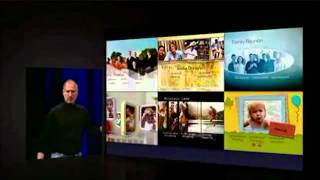

What Jobs talks about
Steve Jobs uses this Macworld keynote to walk through the next major release of Mac OS X, Tiger, and to show how Apple is bringing search, widgets, Mail, QuickTime, and iChat into the core of the desktop experience. He frames Spotlight and Dashboard as the biggest changes, because they make everyday tasks faster and more direct.
He also shows how Tiger extends across Apple apps, from Finder and System Preferences to Mail and iPhoto, and ties the demos to Apple’s broader push in digital media. The presentation connects software progress to hardware and services, reinforcing Apple’s idea that the operating system should make the whole computer feel more useful.
The keynote matters because it captures Apple’s shift toward integrated, system-wide features that simplify finding information and working with media. It also shows Jobs’s product philosophy in action: features should be built in, elegant, and instantly understandable.
Jobs speaks throughout, with brief appearances by Sony president Kunitake Ando and John Mayer.
In his words
“Spotlight is our search technology that's built right into the core of Mac OS X Tiger.”
“This is changing the way we use computers.”
“Dashboard is a place for widgets to live, and a mechanism to get them in, get your stuff, and get out.”
“The biggest thing about QuickTime 7 is the new codec called H.264.”
“And that is really the foundation of QuickTime 7.”
Key points
- Spotlight is built into the core of Mac OS X Tiger and can find documents, email, contacts, images, PDFs, and more almost instantly.
- Dashboard provides quick-access widgets for things like weather, calculator, stocks, translation, and flight tracking.
- Tiger extends search and smart organization into Mail, Finder, and System Preferences.
- QuickTime 7 adds H.264, full HD playback, and major video improvements.
- iChat gains multi-party audio and four-person video conferencing using H.264.
- Jobs presents Tiger as a major, system-wide upgrade that changes how people use their Macs.
- The keynote also previews the Mac mini-era software push, including iLife 05 and HD video tools.
Full transcript
This is why we go full circle! Running, running It's great to be here.
So we've got a lot of great stuff for you today. A lot of firsts, too. One of which is, this is the first Macworld we've ever used HD projection. It's incredible. Wait till you see it. You can wonder why. So let me start off with a few updates and then we're going to get into the heart of the matter today. First I'd like to start with Apple Retail. Just give you a brief update on Apple Retail. We opened our first store a little over three and a half years ago and we now have 101 Apple Retail stores around the world. Our retail stores are now hosting over a million visitors a week.
A million visitors a week. That's 20 Macworlds a week around the world. Isn't that incredible? And the latest store we've opened, the most recent store we've opened, is London. It is our largest store to date. And if you haven't seen it, I just want to show you a few pictures. We're really proud of it. It's in a building that's owned by the Crown. And it's been recently restored and we got the prime position and it is spectacular. This is street level, this store, isn't that incredible? Here's the inside of it. Looks very familiar, only larger. And it's in one of the greatest spots in London. If you know London, it's on Regent Street right next to Oxford Circus.
So it has become, in its first quarter of operation, we opened it right around Thanksgiving, our second highest grocery store in the world. So we are just thrilled to be over in Europe and we'll be opening some more stores in England later this year. So that's a brief update on retail. Now I'd like to give you an update on the iMac. We launched the new iMac last, in September, and it is the world's most beautiful desktop computer. The engineering in this thing is magnificent. It puts the entire computer right in with the display. And it just gets rid of all the cables, it gets rid of all the extra boxes and all of the extra shapes to hold the computer.
It's just gorgeous. And it comes in two sizes, as I hope you know, 17-inch and 20-inch. And we've gotten the best reviews on this new iMac that we've ever gotten for any product. Here's Walt Mossberg from the Wall Street Journal who said it in three lines. I'm writing these words on the most elegant desktop computer I've ever used, a computer that is not only uncommonly beautiful, but fast and powerful, virus-free, and surprisingly affordable. Now, the Detroit Free Press said it more succinctly. In three lines, the new G5 iMac is the finest personal computer I've ever used, hands down, nothing comes close. But the award for the most succinct goes to PC Magazine, who said it best, five out of five ratings.
Now, again, the new iMac is just stunning. If you haven't seen one in person, I'd suggest you go to an Apple store, an authorized reseller, and take a look at one. They are just fantastic computers. And I'm very pleased to report to you that the new iMac, in its first full quarter of shipping last quarter, has become the most popular Mac we make. It became our highest selling Mac last quarter. So what's next? I'd like to talk about Mac OS X. Mac OS X is the world's most advanced operating system. And our current release is Mac OS X Panther, it's the fourth major release of Mac OS X.
And Panther has been an awesome release for us. It has been the most successful OS release in our company's history. We have over 12,000 applications running on Mac OS X, and because of Panther, we've been able to complete the transition to Mac OS X with over 14 million active users. So Panther has been phenomenally successful for us. So what do you do after this? What's next? Well, what's next is this, Mac OS X Tiger. Mac OS X Tiger is the fifth major release of Mac OS X. And we are on schedule to ship it the first half of this year. It's got 200 new features in it.
It is an amazing release. And we don't have time today to go through all the features. If we did, I'd love to tell you all about Unix, how it's the number one Unix in the world, how any process can address 64 bits of memory, a whole bunch of things there. I'd love to tell you a lot about how we're an even better Windows client, work even better with Windows servers, about some of the great technologies in Tiger, like Core Image, which is a whole floating point image processing library built right into the OS, about .Mac syncing, where you can automatically sync a lot of things in your OS with the other Macs that you own if you're a .Mac subscriber, about Safari RSS, which adds automatic RSS detection and RSS viewing right into Safari, and other apps like Automator, which take a lot of routine tasks and bundle them all together and make it even easier to do very cool things.
But we don't have time for all that today. So I've picked a handful of features that I'd like to show you in Mac OS X Tiger. And the first one, and the most important one, is Spotlight. Spotlight is our search technology that's built right into the core of Mac OS X Tiger. And it allows you to find anything on your system, documents, images, appointments and calendars, things in PDF files, bookmarks, anything, emails, contacts, you name it. And you can find it almost instantly. And the way it works is you have a little spotlight icon up in the right-hand corner there. And you click on it, and you get a search field. And you type in something, and you get a menu with the top hits right there, what it thinks you're looking for.
But if you want to see more, you just hit return, and you get the spotlight window right here. And it gives you the top five of everything, if there are five. You can see the rest of things if you want. And it's incredible. And you can find any, you can find stuff in your system you didn't even know was there. It's amazing. Now, we previewed this to our developers in the spring. And since then, there have been a few Spotlight wannabes that have shipped. Desktop tools. One from Google looks like this. And one from Microsoft, the MSN search tool, that looks like this. And they're great, but they're nowhere near as good as Spotlight. Now, why is that? Because when you build it in to the core OS, you can just do things that you can't do with a tool sitting over to the side.
Now, how is Spotlight better than these? Well, of course, it's from Apple, so it's far nicer, and it has a much better user interface. But it goes much deeper than that. Because the OS can let Spotlight know when something changes, it instantly updates when things change. You don't have to run another search. You don't have to wait ten minutes. You can be looking at a result, and it'll change right in front of you if the underlying files change, because the OS can notify Spotlight that that's happened instantly. And it means we can integrate it right into the OS and our apps. So we can put Spotlight technology right in our applications, which you can't do with a tool on the side, and our developers can build it into their apps.
And we have over a hundred developers building Spotlight into their apps, including developers like Microsoft. So it's fantastic. And what I'd like to do now is just show you a little bit of Spotlight. All right. So I'm going to go get Spotlight here. Just click up here. Isn't this great? I've got a 20-inch cinema display, every single pixel up there on the screen. It's fantastic. So I'm going to say, Spotlight, I'm going to look for soccer. And boom, it finds everything in my system. I've got about a quarter million files on this system here, about a quarter million files, and it just went through everything. So I'm going to just say, well, show all, just show you the window.
And here's all the things it found about soccer. And they're sorted over here by kind. I can sort them by date if I want to. So see all the things that I've opened today or last week. last month, where I sort it by people, but I'm going to keep it by kind here. And I'm going to go look at, as an example, an equipment price list up here in Documents, the first entry. And it opened an Excel document, it found out that the word soccer was inside an Excel document and, of course, it found it. Very easy. I can expand the images. It says there's 167 images on soccer here. And I can go look at them all if I want to. Or I can just say, now just show me the top five. And, you know, as an example, I can go down and, oh, let's see, where was that?
I wanted to show you an event poster. Well, let me open a PDF brochure here again. Here's a PDF brochure. It found the word soccer inside a PDF document. No problem. And I can go to Contacts here and I can say, show me a contact. It'll just open it right up and show me the contact right here. I can just click on the phone number to get it nice and big. If I click on an email message, it just brings up a Compose window. So very, very easy to use. So let me look up something else here. Bryce National Park. And again, got a lot of images here if I want to see them. And I can go down here to PDFs and see the National Park map.
And again, it found Bryce right inside of a PDF document. This isn't metadata. This is actually inside the PDF document. So pretty amazing. Now, what I'm going to look at, I'm just going to go, I've got, we've got over 100,000 images on this map from Corbis that we got. So I'm going to just search for images and all these images are tagged with metadata right from Corbis. So I'll search for a love. And I'm going to get a lot of images here. I've got, whoops, I didn't want to do that. I'll show you that in a minute. All righty. Yeah. I've got a little bug here. All right.
Well, that's why we have backup systems here. So, great. So here we go. We're going to search for love and we've got a lot of images here about love. And you can, of course, you know, click on any one. Yeah, I'm fine. I want to open this application. There we go. So here we are. We've got a lot of images about love and I'm going to type in sunset. Boom. And now I'm finding all these images. Let's see how many I've got.
I've got 38 images from Corbis about love and sunset. And I click on any one and there I go. So there you have it. That's finding images. Now I want to go over to the Finder. And I'm going to go to the Finder here. And what we've done is we've used Spotlight technology to add smart folders to the Finder. So you can have a Finder that holds all your presentations like this. And it does this. It basically uses Spotlight so that whenever you add a presentation, boom, it goes in this folder. Viewed this week. And again, everything that you've opened this week will be in this folder. And you notice we've added a Spotlight view in the Finder. So I have my list view, my icon view, and now I have a Spotlight view.
And I can just check everything I've opened this past week will be in here, smart folder, all the time. So we've added Spotlight to the Finder. Now let me show you another place we've added it in System Preferences. This is System Preferences and I'm going to search for something. I want to change the brightness of my screen maybe. So I start typing in bright and it instantly comes up with all the possibilities. And if I pick one, it'll just go right there and let me set the brightness of my screen. So I'm going to search for another one here. Album art. I heard there's something neat on album art in Preferences. And sure enough, it finds iTunes artwork screensaver. So let's go there. And we've added a screensaver for, let's see, iTunes artwork right here.
So let me go test that. And it just goes and finds all your albums, artwork there, and it just makes a screensaver out of them. Very simple. The point is we've added Spotlight to the Finder, to Preferences, and to other apps that we'll see in just a minute. So that is a quick demo of Spotlight. And this is changing the way we use computers. Those of us that are on this now, it's completely changing the way we use our computers. To be able to find something instantly, whether it's a document, an application, an appointment, a mail message, boom. Right like that, you've found what you want.
And that's Spotlight. Now, another app that I want to give you a brief look at is Mail. We've got a major upgrade to Mail and Tiger. And this is what it looks like. It's really great, much nicer. And you can now search across all your mailboxes instantly because we've integrated Spotlight into Mail as well. And so you can type something in like Macworld, and you can see it adds a mailbox column, pulls anything that has to do with Macworld from every mailbox you've got, shows you what mailbox it's from. And this is powered by Spotlight. And it's fantastic. One other thing I want to show you is a lot of us get photos in our emails now. And to view them, we've got to drag them to the desktop, and some of them we want, some of them we don't.
Maybe we want to take them into iPhoto. We've got something new here, which is a slideshow button, which is amazing. So let me show you this now. Let me bring up Mail. I've got over 100,000 emails here. And, again, let me search for soccer. Boom. That was what it took to search 100,000 emails in a bunch of different mailboxes. And, again, I could just look at my inbox or all mailboxes or just the subject or the entire messages, whatever I want. And if I want to save this, if I want to save things about soccer, I can just save this. And let's make it a capital S maybe for the title. And, boom, I've now got a smart mailbox that whenever I want to know anything about soccer, I just hit that.
And everything in any mailbox, there it is. All right. Now, here's an email with somebody sent me a bunch of pictures from the soccer tournament. And, again, I want to see these really easily. So now we've got this button called Slideshow, and it shows me my pictures in a slideshow like this. It's really fantastic. It saves a lot of time. And the other thing is I've got some on-screen controls here, so I can make them as big as the screen if I want to. I can look at all of them if I want to. And if there's one that I want to add to iPhoto, I just hit this button, and it gets added to iPhoto. Maybe this one, too.
Oh, this one for sure. And when I go ahead and quit mail, well, actually, when I go ahead and get out of that mode, excuse me, iPhoto. Yes, I want to use iPhoto. iPhoto will automatically launch, and it will add those pictures to iPhoto. It should add those pictures to iPhoto. And you have them right where you want them. So it's really fantastic. And that's what I wanted to show you about mail. Next up is QuickTime 7. We are launching QuickTime 7, which is the most major upgrade to QuickTime in the last decade in Tiger.
And QuickTime has done phenomenally well. The current release, QuickTime 6, we've had over 330 million copies of it downloaded, plus tens of millions of more copies distributed with all sorts of CDs and other products. It's been an incredible success. And 98% of these downloads have been to Windows users because, of course, we ship it for free on every Mac, and we do software updates on the Macs. So phenomenally successful QuickTime 6. We're going into QuickTime 7 with Tiger. What's new about it? Well, a lot of things. Live resizing, full surround sound up to 24 channels. If you have it, it mixes down. If you don't, automatically. Full screen overlay controls, full HD playback, complete MPEG-4 compliance. MPEG-4 is huge, and QuickTime is fully compliant with MPEG-4 file formats.
But the biggest thing about QuickTime 7 is the new codec called H.264, a new compression technology for video that has been created by the MPEG group, the same people that brought us MPEG-2 on our DVDs today and MPEG-4. And it is the best video codec technology in the world. It has been adopted for the next generation of DVDs, the high-definition DVDs, and it's been adopted by both groups, Blu-ray and HD DVD. So no matter who wins, H.264 is winning. And it's really astounding. You know, you can have windows like this that scale to this. It's scale to full screen. It's unbelievable quality.
And we have on-screen controls, again, like you saw a little earlier. And let me just show you what this looks like, because it's pretty amazing. So I'm just going to play a movie here, it's probably the easiest way. And let me go ahead and play this movie. And again, you can scale up, isn't that nice? Here's the on-screen controls. You see the quality here, it's phenomenal.
So that is H.264 in QuickTime 7. And H.264 has taken over the world. It's scalable from cell phones all the way up to HD. And everybody's signing up for it. It's really very exciting. And that is really the foundation of QuickTime 7. Okay, another really great feature of Mac OS X Tiger. We call it Dashboard. You know, we invented Expose when you want to find your windows fast. And it's worked great. Everybody uses Expose. But there's a lot of times when you have to do a quick calculation, or find out the weather, or another piece of information you need now, and get back to what you're working on quickly.
Get in, find something, get out. And that's what Dashboard does. Dashboard is a place for widgets to live, and a mechanism to get them in, get your stuff, and get out. And so we've made some amazing widgets. Let me just show you in high-res what they are, and then I'll show you Dashboard. Calculator. Address book, which ties in with our address book database. Calendar. Stickies. Controller for iTunes. A world clock. And some you might not have seen before. Here's a converter that's really great. You can convert anything to anything. Feet to meters, whatever it is. You know, power, speed, you name it. It's really handy. A dictionary in Thesaurus. Right at your fingertips.
A stock tracker, with charting on it. Up to the minute stock prices. A flight tracker. Translation. Yellow pages. And weather. So, this has evolved into something that I think is going to be a really big hit in Tiger. And let me go ahead and show it to you now. All right. So I just go down in the dock. We put a little dashboard icon right in the dock. And you hit it, and boom, your widgets come on stream, just like this. Use your calculators. Whatever you want. And you say, well, I want some more widgets.
Well, that's fine. Let's go get some more widgets. So here's some more widgets we can get. Let's go ahead and get the dictionary. And we can say, well, let's, you know, I like to look up love here. And there's love. And there's the Thesaurus for love. Pretty nice. And, oh, let's look up a flight tracker here. Let's look up a flight. Track your flight by airline or city. Let's see now. Find flights. Well, I don't know a flight number, but trust me, it works. And here's some stock. See what stocks are doing. Well, we're down a little bit today. Well, we still got a lot more to go in the keynote, don't we?
So all right, we got our stock tracker there. Translation's fun. You know, let's see. English to Japanese, maybe English to French. And French fries, oops, I don't know how to spell. French fries or go to Japanese, I guess. Boom. Translation. Unit converter's great. So let's just set it to, well, first let's set it to speed. And so 60 miles per hour equals 96.5 kilometers or 100 kilometers equals 62 miles per hour. And you can convert almost anything to anything. One of my funnest ones is currency because it goes out on the Internet and finds the rates for you. So a dollar, ooh, that's tough.
That is tough. Let's, how about Japanese yen, ooh. So you may not want to use this one too much. Let me go on to the clock, which is fun. The clock is great. You know, you can turn these things around and actually, let's go to Europe and, oh, maybe Paris. Where's Paris? And it's nighttime in Paris, so the clock actually turns dark when it's nighttime. There, for those places. And yellow pages. Let's look up some, maybe after the keynote, we want to get some sushi. And we can click on any of these things and it will give us MapQuest directions. And here's our weather in San Francisco.
We all know what that is today. It's raining. And we can look at a five-day report here, what it's going to be like. It's really fun. Actually, I can cycle through all these things. I think they gave me a way to do that. So there's sunny, which it's not. A little cloudy, hazy, a little more cloudy, clouds, more clouds, rain, you know, more rain, sunshower, lightning, you know, snow, I think that one is, more snow, melting snow, hail, and wind. Now, the architecture for these widgets is completely open, and so we've got hundreds of developers developing widgets.
Here's a third-party widget here from eBay. So if you are bidding on something and want to track your stuff, you can just track it and, oh my God, somebody outbid me, re-bid. So this is pretty cool. And, you know, you can be, let's just open some windows here. I've got this open. Maybe I'll open Safari. And I got to check on something. I just go here, and boom, I check on it. Oh, no, nobody's outbidding me on eBay. The weather hasn't changed in San Francisco. Dollar still sucks. Boom. And it's that simple. Boom, boom. Boom, boom. You can choose which widgets you want. There's a way to get more widgets, and it's pretty doggone cool. And I think you're really going to like Dashboard. So boom, boom. And that is Dashboard.
And the last thing I want to show you today is iChat. You know, iChat is really, really popular. It ties in with the largest instant messaging community in the world, the AIM community. And we've made it even better for Tiger. We've extended the audio conferencing to up to 10 simultaneous people. And it really works, and it's really simple. It's fantastic. And it's free. And then for video, we've added the industry's first multi-party video conferencing up to four people using, of course, H.264 compression. And it's really stunning. Most people would present it like this, but our engineers are just so great and they came up with this.
Isn't this incredible? So I'd just love to show this to you now. Let me give you a demo of video conferencing in Mac OS X Tiger. Okay. Let me bring up iChat. And I'm going to ask Danica to get on a video conference with me. Hi, Danica. Hey, Steve. Where are you? Hmm. Danica's really in Paris, actually. You can see the spotlight on the top of the tower rolling around. And it's pretty nice. It's beautiful here tonight. Is it raining? No. That's good.
Listen, I'm going to invite other folks to join us. I'm going to invite Phil Schiller to join us. Great. Hi, Phil. Hey, Steve. How's it going? Good. Hey, Phil. Has the keynote started? It's raining. I'm a little behind. And I'm going to ask Scott Forrestal to join us, too. Hey, Scott. Hey, Steve. Phil. Danica. It's great to see you guys. Hey, Danica. Nice location. Yeah. Hey, Steve. Do you want to join me for a cup of coffee, or are you busy? Isn't this incredible? Now, one of the things I want to do is I want to go full screen on this. Yeah.
I mean, when we train this iChat U+.3, what we try to do is... create this whole sense of place, and when you go full screen, it's amazing. I like Danica's place better than my place. Yeah, what's up with that? Look at the reflections on the tabletop there. Isn't that incredible? All being calculated in real time. It's unbelievable. It's unbelievable. Hey, you guys, thanks. Listen. It's amazing. I'm going to send Phil away here. Thanks, Phil. I know. All right, let's talk about him quick. Take care, Scott. And Danica. All right. Whoops. Take care. Talk to you later. Say hi to Paris for us. Okay.
Bye-bye. All right. So, amazing. Four-party video conferencing. iChat and Mac OS X Tiger. So Mac OS X Tiger, pretty amazing release. We've got over 200 new features. I'm sorry we don't have time to show you more, but there's other incredible stuff in this release. And we are on track to deliver it the first half of this year. And that is going to be long before long. All righty. Next topic.
HD, high-definition video. 2005 is going to be the year of high-definition video. And we've already got the premier product in the world that edits high-definition video, Final Cut Pro HD, in use all over the world for editing HD. The most popular HD editing product in the world. But we're not satisfied. Because if this is the year of HD, we need more. And so today we are introducing our second HD editing product, Final Cut Express HD. Final Cut Express HD adds powerful HDV editing to its incredible DV editing. It adds live type for animated titling, something new for Final Cut Express.
And also something new, it adds soundtrack for custom music, right in Final Cut Express. It seamlessly integrates iMovie files. So if you're moving up from iMovie, this is the thing to consider. And if you use motion, it has seamless project integration with motion. And it's fantastic. And the HD is just stunning in this product. Final Cut Express is going to be priced the same at $299 and will be available in February. And for all of those Final Cut Express owners that want to upgrade to HD, it's only a $99 upgrade price. So we think this is going to be a very popular product. HD is really starting to happen. 2005 is going to be the year of HD video editing.
Okay, what's next? What's next is iLife. iLife, we are leading the digital media revolution with iLife. It is our suite of digital media applications. Now, this is iLife 04. And it's been a huge hit for us, bringing all these applications together and having them interoperate. Well, today, I'm pleased to announce iLife 05, a completely new version of iLife with almost every app having a major, major upgrade. So iLife 05 is iPhoto. We have a major upgrade of iPhoto, a major upgrade of iMovie, a major upgrade of iDVD, a major upgrade of GarageBand, and, of course, the latest version of iTunes.
So let's get started with the most popular app, iPhoto. What is new for iPhoto in iLife 05? Well, much better organizing and searching. People are building larger and larger photo libraries. They want to be able to organize them and search them even more efficiently. More formats. We're going to support even more formats. Far more powerful editing. You will not need to leave iPhoto to make your pictures perfect. Advanced slideshows. Big request from people. All new books and all new book design. This stuff is going to blow your mind. And with all these new features, it's even easier to use than it was before. So let me just show you a few things on the slides, and I'll give you a demo.
This is what the new iPhoto looks like. It's even simpler than it was before. And you can see that we've added folders, so you can now have project folders with multiple albums, slideshows, and books inside. A super fast way to search for things. You can instantly find things that are tagged with keywords just by typing it in, and boom, instantly find them. We've added a calendar view, so you can find things by month, week, day, instantly in a calendar view. So some great new ways to organize and search. Let's talk about some new formats. The new iPhoto supports MPEG-4 movies, so you can bring a lot of these digital still cameras, take movies, you can bring them right into iPhoto, store them in your albums right in iPhoto, and play them right from iPhoto.
And the new iPhoto supports RAW completely throughout the application. RAW is a feature of some high-end digital cameras, and if you're a high-end digital photographer, you can get the most out of your camera by using RAW. And we think we've got the best RAW support now in the industry, built into iPhoto, through and through, really easy to use. Now, if you want to edit your photos, this is what editing looks like now. Very simple, you can still do all the normal things, but we've added a few things. Number one, you see the pictures across the top. If you're editing photos in an album or your library, you don't have to go back to organize, edit, organize, edit to switch photos. You can do it right here. But most importantly, we've added an editing dashboard.
So you can edit your photos to a much greater degree right in iPhoto. And this is really amazing. It contains all the things you need to really make perfect photos. You can set black and white points, of course, brightness and contrast. You have an exposure control to change the exposure of the photo, a histogram. You can set the saturation, the temperature, the tint, and you can straighten photos. And because it's a dashboard, you can see the photos underneath it, of course. And all of this stuff works exactly the same on JPEG photos and on RAW photos. It's that easy to set your RAW photos. Now, that's editing. We've got advanced slideshows. Advanced slideshows allow you to set the timings differently, the transitions differently for each photo, and use Ken Burns pan and zoom features between photos.
It's wonderful. And a whole new way to make books that's phenomenal. So I'd like to show some of this to you now. Let's go to iPhoto. So this is iPhoto. And I've got 25,000 photos in here. You can see the performance here just scrolling through them like this. No problemo. And we can change their sizes. Really nice. So let's go do something with some of these photos. We've got some, again, better organizational tools. So here's a folder, and I've got a bunch of albums in here. And when I don't want to see them, I just close the folder.
Really nice. Let me go ahead and search for something. I'm going to search for photos that were taken on a lake. Oops, I've got to spell lake. And here's photos that were taken on a lake right here. All the ones that are tagged with the word lake instantly show up, which is pretty nice. Let me go over to the calendar and bring up the calendar. I'm going to go back to 2004 and go back to January. You see I've got a bunch of ski photos. I guess we were skiing in January. And let me go to June. And June, you know, we've got a lot of beach photos here, sailing photos and stuff. And let me go to – I just double-click on June to get the weeks.
And there's the weeks. And I can go to the 18th and see all the photos I took on the 18th of June. It's that simple to find them. And here is an example of one of the new formats we support, which is MPEG-4 video right off a simple camera. You get the idea. Okay. So, again, we support video, and we have much better ways to organize and find your photos. Let's get out of this. And let's go back. And I'm going to go to a photos to edit album. I put a few photos I want to edit in here. And let me go ahead and just pick one and say let's edit this photo. And, again, I have all of them, so I can just click between them here.
See different photos. But I'm going to go back and edit this one. And let me bring up my editing dashboard. And I'm just going to take – let's say, in this case, I'm going to take the saturation up a little bit. I think we can make this photo a little bit better. Take the exposure up a little bit maybe around there. And maybe move the black level up just a hair. And you can see that we've made the photo a little nicer. You can get a before and after just by holding down the control key. Pretty nice. All right. Let's go try another one. Going to save those changes here. And so I'm going to go ahead and – this looks like it needs a little bit of sharpening. As a matter of fact, it looks like it needs a lot of sharpening here. So maybe, you know, somewhere right in there.
Take the exposure up again, a little underexposed, and maybe take the black levels up a little bit. And maybe take the white levels down just a hair, right around there. And again, you can see the photo has been improved quite a bit. You can do this now right from inside iPhoto. Now, another photo I want to show you. This is a really cool thing. We've got a sunset here, and our camera was a little off, so we'd really like to straighten this. So we just go to our straighten control here, and it actually rotates and zooms at the same time. And again, you can see that control.
Boom. Very easy to do this stuff. So that is editing. Now, let me show you a custom slide. I'm going to go down here and pick beach day and just go ahead and play this for you. This is just a slide show we made. Here's all the photos up here. And again, you can set different durations and transitions on each one, set the Ken Burns effect, have it automatically stretch itself out to fit a piece of music and all sorts of other cool stuff. But let me just play it for you. Pretty cool, huh?
Really easy to make that stuff. Now I want to show you the book stuff. I'm going to pick an album right here, and there's a new way to make a book. You just go down and hit this make book button, and it says what kind of book you want to make, and there's different sizes, which we'll go over in a minute, and some incredibly great new book designs. We've got picture book here. We've got travel. I don't know if you can see these very well. Watercolor, contemporary, just a whole bunch of book designs. I'm going to pick travel because this is a travel theme here. And it's going to go ahead and ask me would I like to lay out the book all manually, which I might like to do, but I also can have iPhoto take a first pass at it and lay it out automatically. So I'm just going to pick automatic for this demo. And it's created the book for me now, and it's going ahead and laying it out.
And here's my book. And I've got all these spreads. Now what you notice is we have double-sided books now because we have double-sided printing. And I can just go take a look at these spreads, and it's really pretty amazing. And I can move them around. I can just move a spread around like this. I can move individual pages around if I want to. And if I want to say I want to start moving some of these photos around, it's trivial. This effect where it breaks it up into a bunch of photos, iPhoto does that automatically, but I want this photo to do that. And I can just, as an example, drag this over and just swap them. Simple. And I can go over here and say, you know, I'd really like this photo to be on this page here, and it'll make a new layout for me automatically. Stuff like that. It's so simple to do this stuff now.
Really, really nice. You know, I think I really want this photo over here. And it automatically lays them out for each theme. And if you've got a photo, as an example, here's one. You say, you know, this photo, I'm going to move it over here. But as I move it over here, I notice it really is a little overexposed. And so I can basically go into edit right now with this photo and, you know, bring this up and maybe, you know, take the exposure up just a little bit, maybe take the saturation down just a little bit. You know, I'm not going to play with it too much, but maybe a little bit like this. And just say done, and it saves the changes and puts it back in my book right where I have it. So it's pretty cool stuff. And we can, you know, set page designs for these things. I can, you know, turn this one into one of these things or whatever I want.
It's that easy. And that's pretty much what I wanted to show you on iPhoto. Thank you. So we've got a whole new way to organize our photos, enhanced ways to organize and search, dramatically expanded editing, much more powerful editing, so you never have to leave iPhoto to make your pictures perfect. Full raw support throughout the app. Most of those pictures I was working with there were raw photos. Much more advanced slide shows and completely new way to make books that is dramatically better.
Now, if you notice on the book panel, there's this button here called buy books. You can buy your books right from iPhoto. You can also order prints from iPhoto, and we're cutting the price in half to just 19 cents a print. And isn't that great? But the books, the books are the most amazing thing. You've got to try making a book. You know, these book designs are phenomenal. Here's one of the ones we were just working with. You can see what you can do here. You can just select these different pages, put text on the pages and lay out your photos however you want. This is beyond what most of us mere mortals can do, and yet with iPhoto you can now do this. Here's another book design, you know, really beautiful. Isn't that nice? And again, you just drop the photos in.
iPhoto does everything else in terms of the shadows and the rotations and everything else like that. Here's another design. Look at this. Isn't that beautiful? You know, it's pretty amazing. Now, we've expanded the kinds of books we're offering. We still offer the hardcover, 11 by 8 1⁄2, our most, you know, the only one we offer now, which is really great. You've seen this one. We are adding a softcover, 11 by 8 1⁄2, same book size, same book designs. We're adding a smaller softcover, which is an 8 by 6. Again, same book designs, just a little bit smaller book. And we're adding a pocket book for pictures, 3 1⁄2 by 2 1⁄2. This thing's wonderful to have a bunch of pictures in your pocket. So four different book sizes.
They're all 20 pages minimum because we are printing on double-sided. We're using double-sided printing on all of them. And the price is $29.99 for 20 pages. Instead of 10, we have 10 pages for the same price on the hardcover. The softcover is only $19.99. The 8 by 6 is only $9.99. And the pocket book is only $3.99. And these books are going to be available throughout the world day one. So, a lot of great new stuff in iPhoto, but that's only one of the new apps in iLife. So let's go on to iMovie. What's new in iMovie? Well, dramatically faster, much higher performance, non-destructive trimming right in the timeline, that's been a big request, more transitions and effects, MPEG-4 video, so you can edit that MPEG-4 video you get off your still camera or some camcorders, and a new thing called Magic iMovie where you can plug your camcorder in.
You can select with a few pop-ups what kind of transitions, and you can type in a title and push a button. It will automatically spool in all the video off your camcorder, separate it into clips, add effects, add transitions, add a title, and make your movie for you. It's really amazing. And these things are all great, but these things aren't the biggest feature of the new iMovie. What might you guess is? Well, we said this is the year of high-definition video. The biggest feature is that iMovie now edits high-def video. It's unbelievable. HDV, 720p, and 1080i.
And it's just stunning. It's really, really stunning what you can get. And I'd just like to go ahead and just show you the app, and then show you a movie that we made here right here on iMovie. So here's the app. And again, you see the aspect ratio. And, you know, look at the quality of this as I just scrub through it. It's just unbelievable. And it works exactly the same way iMovie works. It's the simplest video editing in the world that now edits high-definition video. So we took this video and we put it back on the camcorder, because you get perfect quality when you spool it back out to the camcorder. And let me just show you that movie now. Let's go ahead and run it right off the camcorder.
HDV, 720p, and 1080i. And it's just stunning. It's just unbelievable. And I'd just like to go ahead and just show you the app, and then show you a movie that we made here on iMovie. And again, look at the quality of this as I just scrub through it. It's just unbelievable. And let me just show you that movie now. Let's go ahead and run it right off the camcorder. HDV, 720p, and 1080i. And let me just show you that movie now. HDV, 720p, and 1080i. And let me just show you that movie now. Like no one's loved you, come rain or come shine. High as a mountain, deep as a river, come rain or come shine.
I'm gonna love you like no one's loved you, come rain or come shine. Isn't that incredible? You know, we've been using this stuff now for years and we're still blown away with it. We just keep making it better. And you can take your videos and you can watch them on your computer in high def, or you can put them back to the camcorder and watch them in high def on a high def TV, or you can actually make a current generation DVD and it'll put them in gorgeous 16x9, just the best video you've ever seen on a DVD.
And we're anxiously awaiting Blu-ray DVDs so we can burn our own high def DVDs as well. So this is stunning. Now, the year of high definition video isn't just gonna be made possible by Final Cut Pro, Final Cut Express, and now iMovie editing HD. You've got to capture the HD in the first place, right? And that is being made possible by some new high def camcorders that are stunning. And the most stunning of these is this new Sony HDV camcorder. It is the world's first prosumer HDV camcorder and it sells for just $34.99. And I've got one here. It is just absolutely stunning video. I've been playing around with this for a month and you've just got to go get one of these.
It's great. And the company behind this, as always, of course, is Sony. They're the best video company in the world. And, you know, we compete with Sony in a friendly way in computers and music and a few other things. But we cooperate with Sony too. We started using their 3.5-inch floppy disk in the original Mac. We do a lot of stuff with Sony. It is my great pleasure now to actually welcome the president of Sony, Kunitaki Ando, on stage to talk about the collaboration between Sony and Apple to make this the year of high-definition video. Hi, Steve. How are you doing? Fine, thank you.
Good job. Yeah, thank you. Thank you. Well, Steve, once again, thank you very much for inviting me to this stage. You know, it's very exciting to see just a real Steve Jobs making presentation at the Mac World. Also, some of you may be surprised to see me here at the Mac World, right? But as Steve explained, Sony and Apple have had a very long, close relationship for many, many years. And I have a great admiration and respect to Apple products for hardware as well as software.
And I know that Steve openly said that he's a great fan of Sony products. Not all of them, but I'm sure most of them. And in fact, the most recent product he fell in love with is the FX-XS1, which he explained on this screen. In fact, I don't know, he actually told me that he played with it over the weekend. He liked it so much, he decided to invite me to this stage. And I gladly accepted that, because together, we could really, with the great software products, the hardware products, we could really revolutionize the way we enjoy video at home. I think Steve is so right when he said that the year 2005 is the year of high definition in the home.
And it is Sony's strategy to really create HD world by introducing the range of HD-related products, such as, of course, flat-panel display, color TV, Grand Vega, and the Blu-ray disc decoder and player, and these are still cameras, and of course, like the HD camcorder like FX-XS1. But also, of course, Sony is a great primary supplier of HD equipment for the broadcasters. But, you know, without great software, although it's very difficult to appreciate all the greatness, the full value of the hardware, and in fact, we recognize that great quality software is the glue which puts together all the pieces and make the great, you know, the value of the hardware.
And I think without those, we cannot really enjoy all the great, great hardware. So, strategically, it's very important for Sony to work with Apple, who really create the great application which works seamlessly with all the Sony products, and just all the great software which is introduced, just do that. Thank you. On the Mac platform. Well, anyhow, let me explain a little bit about the background of HDV format, which we are promoting aggressively this year. Sony, Canon, and Sharp, and JVC all got together and created the HDV format, which allows the recording and playback of the HD video on the existing DV format, which is just great.
And I think, I think, what, you know, this, well, I don't know. And then, I think we should, together, we really create this great HD, HD world and everything, right? We're in. Yeah. But let me tell you this. You know, today, I really appreciate all those inviting me, but actually it took too long here. But today you show this little product, you know, FX1, but maybe a little bit too bulky. So looking forward, looking forward, keeping this great powerful features of, you know, professional broadcasting cameras, but I think we continue to develop much lighter and smaller and easier to use, maybe for less price.
That'd be great. That's what you want, right? Thank you very much. Thank you very much. Take care. Bye-bye. Thank you. Bye-bye. And also, also, also, one more thing, one more thing. When you, I'm sure you all visit other markets of booth, right? And I'm sure you'll see the great products, and I hope you really enjoy the live demonstration, great software, great hardware, FX1, and I'm sure you'll be blown away. Okay. Thank you. Thank you. Thank you. Thank you. Thank you. You know, we do work very closely with Sony on digital still cameras and these new camcorders, which is really great.
And who knows, maybe someday computers and music, too. So the year of high-definition video, iMovie edits high def. Unbelievable. So next, let's move on to iDVD. We've got a new iDVD, too. And it's got some great new features. It's got 15 amazing new themes in it. And the reason they're amazing is because they've got these things called animated drop zones, which I'll show you. We've also added one-step DVD creation. So if you just want to take what's on your camcorder and get it on a DVD, plug your camcorder in, push a button, it'll suck the video in and just make a DVD out of it in one step, which is really nice. And we're supporting all of the DVD formats now. If you have a drive, it writes them.
So the most important thing here for most people, of course, are the new themes. They're pretty amazing. And let me just go ahead and show them to you. All righty. Let's launch iDVD here. So here's one of the new themes. And it animates on some photos, in this case, in the menus. So let's go to a customize here. And let's go to media over here. And, you know, I've got some movies that I could drop in here. So why don't I just drop a movie in here instead of a photo. And, you know, maybe another one right here.
And, you know, maybe one more right here. So now let me just preview this. Look at that. Isn't that incredible? And when these are all your own movies, it's just fantastic. I mean, this is better than most Hollywood DVDs that you buy now. So let me go show you a few of the other new themes. I've just got them integrated into this project here. It's a very straightforward one. And again, these are all your movies, and your photos, and your music. I think he's great.
Here's another one. All right. This is a nice one. And finally, this one's pretty amazing to me.
Isn't that incredible? So I can tell you, when they're your own movies, it's pretty amazing, it's pretty moving. So that is iDVD, and it's got these great new themes. That's iDVD. Now, which brings us to GarageBand. Before we get into GarageBand, I just want to remind you of these great jam packs we have out. These are add-ons to GarageBand. Our first one had a bunch more instruments in it, Jam Pack 1.
Our second one added remix tools. Our third one added a lot of section, a lot of percussion. And today, we're introducing a new one, which is orchestral instruments. It's really quite special. It's got even the best piano we've ever shipped, and a whole bunch of orchestral instruments. And if you're into GarageBand, I would definitely go check this out. So GarageBand. GarageBand is the newest of the iLife apps. We introduced it a year ago, and it's been huge for us. And we've gotten a lot of requests to make it even better, and that's what we're going to do today. The number one request has been for multi-track recording. We're adding up to eight track recordings simultaneously in GarageBand. We're adding real-time music notation, which we've taken out of Logic, which is pretty special.
Pitch and timing fixing. Recorded tracks are now as flexible as software instruments and loops. You can change keys, you can change timing, and your recorded tracks will change, too. You can make your own loops now, and we've got a fun vocal transformer. So to help me show you a few of these things, when we introduced GarageBand a year ago, I asked John Mayer to come and help us demonstrate it. And I am thrilled that Grammy Award winner John Mayer found time in his schedule to come back here and help us demonstrate some of the new features of GarageBand. I'd like to welcome him now. Thank you.
All right. So the first thing we're going to demonstrate is the music notation stuff. So John is going to play for us, and I'm going to get set up here and show you what the notation looks like. So I'll just go ahead. We've got a little woodblock going for timing here.
I didn't win any Grammys for playing the piano. And again, you know, we can just. And we can even actually go in and tweak this. Anyway, we can really screw up music this way. Now let's go on to multi-track recording, and we're going to go ahead and record something here. We've got a little piece here, and we're going to go ahead and record four tracks live here.
Whenever you're ready, just let me know. All right. She comes and goes and comes and goes like no one can.
She comes and goes and comes and goes like no one can. She comes and goes and no one knows she's slipping through my hands. She's always buzzing just like neon, neon. Neon, neon, oh yeah.
Who knows how long, how long, how long. So. Right. And so we've just finished recording four tracks live. Let's go back and listen to him here.
Get stuck. See the colors of the city lights. A trail of ruby red and diamond white. It's like a sunrise. She comes and goes and comes and goes like no one can. Awesome. Thank you, guys. Thank you very much. Thank you.
All right. So this is the new garage band. A lot of great new features. The biggest ones, of course, multi-track recording up to eight tracks, real time music notation. There's a lot more in there that we haven't had a chance to show you today. So be sure and check it out. So in addition to these four apps, all major upgrades, we've got the latest version of iTunes in there. And these five apps are iLife. Now, it's not just these five apps, though, because these apps all work together. They work seamlessly together. And so you can get your music to make your DVDs, to make your movies, to make your slideshows and iPhoto. You know, you can get your photos from any of the apps or your movies from any of the apps.
These apps work together seamlessly in iLife 05. Now, iLife05 is going to be priced at just $79, $79, and it goes on sale a week from this Friday on January 22nd, a week from this Friday. And of course, it's free on all new Macs, as always. So that is iLife05. All right, on to the next big thing, then. The next big thing, today we are announcing a new product called iWork.
iWork, with iWork, we're building the successor to Apple Works. Now, Apple Works is a really popular product, and it's been around for a while. In fact, it was written before Mac OS X. And so it doesn't take advantage of the great stuff in OS X, like its very advanced typography, for example. It was also written long before iLife, which is where we have all of our digital media now. So it doesn't take advantage of that, and iWork does. iWork is a product that we've created from the ground up to take full advantage of OS X and iLife. And iWork's got two applications in it, the first of which is a major upgrade to Keynote. Cinema quality presentations for everybody.
And let me show you some of the cool new things. Ten new Apple design themes, really nice ones. Animated text, which you've seen throughout my presentation. Powerful animated builds. Presenter display. Interactive slideshows. And self-running kiosk slideshows, if you want those, too. So you've seen the animated text in my presentation here. You've seen the animated graphics. Of course, I'm using Keynote, too, for everything. This is the presenter display, where if you're presenting something on your display, in this case on a PowerBook, you can see the slide that's up on the screen. You can see the next slide. You can see timers. You can see notes. Whatever you want to see. And, of course, the coolest thing about Keynote is how we build these great presentations so easily, using Apple themes and the tools of Keynote.
Let me just show you a few of the new themes. Here's hardcover. This is a new one. It's pretty nice. Handles photographs very well. Just really beautiful. And because we have animation built in that mere mortals can use, I just click once to go to this next slide, and this is fully automated. Isn't this cool? So Keynote, too, has no trouble doing stuff like this. Mere mortals can set this up. Not very long. So another theme is watercolor. We made a little thing for a spa with watercolor here. Again, animated graphics. Real easy to do. Notice the treatment around the edges of the picture.
Again, the theme does all that for you. You just drop your photos in, and everything's done for you. That's watercolor. There's one called scrapbook. Again, you drop your photo in. All the shadowing and everything is done for you. Animation, very easy to do. And, of course, Keynote supports charts and graphs. And we try to make them look real nice so you don't have to do much work at all. Just put in the data. So these are a few of the themes in Keynote, too. I've been giving you the demo here now, and we'll continue to do so. So I'm not going to do a demo of Keynote 2. Keynote 2 is compatible with Apple Works, PowerPoint. We're adding Flash output and PDF output and actually QuickTime output, too.
So that is Keynote 2. What's the other application in iWork? It's a brand-new application that we're announcing today called Pages. Pages is word processing with an incredible sense of style. And you can do almost anything with it. You can do letters, newsletters, brochures, resumes, menus, you name it. It's pretty doggone easy to do with Pages. So let's take a look at what Pages supports. It supports all the things you'd expect in a really good word processor. Advanced typography, multiple columns, text and paragraph styles you can figure out how to use, footnotes, all this stuff is in there. But the most important thing are 40 Apple design templates. This is a new concept where you can bring up a template that's all set up with Greek for text and our photos in it for photos, and you simply put your own text in and put your own photos in, and you've got something astounding.
Of course, you can change it all around if you want, but you don't have to change anything. And each template comes with all these different pages that you get to select from within that template. So let me show you a few of the things that you can build off of. Here's one. Look at this. You can just pick any of these pages, drop your own photos in, drop your own text, move the photos around, change the styles, but they're awesome starting points. Here's a very simple letter. It doesn't have to be so fancy. Here's a one-page sheet that a real estate agent might want to put together on a house, take photos with a digital camera, real easy to lay out. Here's a family newsletter. Look at this. Here's a menu.
And here's a brochure for a surf school. So, to give a demo of pages, it's my pleasure to invite Phil Schiller, our Senior Vice President of Worldwide Product Marketing on the stage, who's going to give us a demo of pages. Phil? Thank you. All yours. Thank you. Good morning, everyone. Made it to the show finally. What I'd like to do is take you right into pages, be the first to really show you it running live, and just show you how easy it is to do incredibly beautiful things with this powerful but simple application. So we'll launch pages. And when pages opens up, the first thing it does is ask you, well, what template would you like to start with?
Very much like Keynote does. Of course, you can start with a blank page, but it's so much nicer to use these beautiful design templates. There's a lot of them. We've organized them for you. You can say, I want to do a marketing brochure, an education document. Maybe I want to create a journal. I'm going to do a newsletter, a family newsletter, and just pick the first of those templates, family newsletter. And I click choose, and just as Steve said, when it opens it up, it starts you with a document that has placeholder text and graphics. You don't start on a scary blank white page. Now it's up to you to go and add your own content. So for example, maybe it's not the Johnson family. Maybe it's the Taylor family. And so I just type that in. And as you see, you don't have to worry about font sizes and colors and font families.
That's all built into the template very easily. And as Steve said, this is integrated with iLife, and it's built understanding that your photos are, for example, an iPhoto. So let me click on the media button, and up will come my media browser, and it's going into my iPhoto library to let me know what all my photos are. I can even see the albums. So let me go into one of my albums, the Taylor family album, and there are my photos. So to start placing my photos, I'll just grab, for example, this birthday picture and place it into that first drop zone, and it took care of it for me. Pages resized it with beautiful quartz graphics resizing, yes, and turned it on an angle. Let me get some more pictures. Let me put one of the girls picking apples in the center. Let me take this apple. I'm going to put it in place of this cookie in the bottom of the template.
See, that's an apple with transparency panel on it. And I can start to customize this however I'd like. So, for example, I can take this photo in the center. Let me drag it over to the left, move it up. You see the alignment guides just like in Keynote. Resize it, beautiful live resizing. Maybe I want to take this apple and move it up onto this section of the document, flow text around it. Isn't that beautiful? Very simple and powerful. So I've now started to create my first page. Let's say I'd like to add another page. This is one of the most powerful things about these templates, that in this word processing application, it knows I have lots of different pages that I might want in my document, and they're all designed together. So let me just add a second page to this.
For example, maybe I want a very text-rich page. So let me take this one column text page, and I've added another page of a different format to my document. I didn't lose what I was working on. Up above is the first page, and now here's the second page. Maybe I want to take the center section and rather than have text, I'm going to go up to my object menu, and maybe I'll add a chart to this page. And now I have a beautiful chart right in the middle of the page, formatted already for me with this template. Maybe we want to change that chart to a pie chart. Again, I don't have to worry about the formatting. It's all taken care of for me. Maybe I don't want a chart at all. Maybe I want a table object. Table objects are really powerful, just like in Keynote. I can set it up any way I want.
And last, maybe I don't want a one-column page. Maybe I've decided to make this a two-column page. I go up to my column tool, change from one to two columns, and just in a second, Pages has now made a beautiful two-column layout. It's resized that table for me, reformatted the headlines. I don't have to worry about any of that. And now let me just show you both pages in a two-up view. And in just a second, I've created this beautiful document with two pages designed by Apple Design. Beautiful template with my own photos, my own text, my own table. And in just a second, I've made a beautiful document. There's so much more, but that gives you a glimpse of just how powerful and easy to use Pages is. Steve? Thank you.
So, these incredible things you can make so easily. It's exactly like Keynote. The same team designed them both. And they've designed them so mere mortals can make fantastic-looking presentations, fantastic-looking documents. If you know how to use Keynote, you already are most of the way to knowing how to use Pages. Pages is compatible with Apple Works, Microsoft Word, and, of course, it outputs PDF as well. It's word processing with a sense of style. So that's Pages. It's a glimpse of Pages anyway. And these two apps are what iWork is, building a successor to Apple Works. iWork is priced at just $79. And it's going to be available on January 22nd.
So, that's iWork. What's next? I wish I had a nickel for every time somebody asked me that. Why doesn't Apple offer a stripped-down Mac that is more affordable? You know, we do offer a stripped-down Mac. You know? There's some of them right there. This is Virginia Tech. It's one of the fastest supercomputers in the world, built with ExServs. We just introduced the new 2.3 gigahertz ExServ last week with ExSan, our storage area network. But this is not what they have in mind. They want a Mac that's stripped down, no display, maybe no keyboard and mouse. But they have something else in mind.
And so today we think we know what they have in mind, and we're introducing it. It's called the Mac Mini. We think people understood the iPod Mini, and we think they're going to understand the Mac Mini just as well. It's a new member of the Mac family, and this is what it looks like. It's very, very tiny, and it has a combo optical drive, a slot load combo optical drive, so you can not only play DVDs, but you can burn CDs as well inside it. And it's really beautiful. It's got a bunch of cool things to it.
It's quiet. It's got the slot load combo drive. It's got FireWire and USB 2, a modem, analog and digital video output, Ethernet, and it's really tiny. So this is a very robust computer, but it's very, very tiny. Matter of fact, let me show you one right now. This is how tiny it is. Now, the Mac Mini is BYODKM.
What does that mean? Right? BYODKM. It means bring your own display, keyboard, and mouse. Okay? We supply the computer. You supply the rest. So you can take Mac Mini, and you can hook it up to, let's say, our 20-inch cinema display, right? And our keyboard and mouse. But the great thing about Mac Mini is you can hook it up to any industry standard display, keyboard, and mouse. A lot of people already have a display and a USB keyboard and mouse. And so that's Mac Mini will hook up to almost any industry standard display, keyboard, or mouse.
And it connects to almost anything on the back. You can see headphones, FireWire, USB 2 ports, analog and digital video out, modem, Ethernet for communications. Really nice. Now, the Mac Mini comes with Mac OS X Panther. And it comes with the brand new iLife 05. And we want to price this Mac so that people that are, you know, thinking of switching will have no more excuses. People that want a second Mac in their household or a third or a fourth, really going to be easy.
So there are two models of the Mac Mini. The first one is $499. And the second one adds a bigger hard drive and a faster processor for just $100 more at $599. These are the two models of the Mac Mini. This is the most affordable Mac ever. As a matter of fact, it's the cheapest computer Apple's ever offered. It's the most affordable Mac ever. And this is the box it ships in. And it's going to be available a week from this Friday on January 22nd.
So that is the new Mac Mini. The newest and most affordable Mac ever. So, what's next? I want to give you a little update on iTunes. Some great news here. iTunes, of course, is the world's most popular online music store. And this is this week's iTunes. I'm really pleased to report that iTunes has sold more than 230 million songs to date. And even more astounding, we are at the rate of one and a quarter million songs per day. That is a rate of almost half a billion songs per year.
That's where we are today. Now, these sales have earned iTunes a 70% market share. And although we've seen a lot of competition enter the market over the last year, iTunes market share has stayed at 70%. Even in this expanding market, even with all these new competitors, iTunes is by far the most popular online music store in the world. Now, we have a lot of iTunes music stores around the world. We are in 15 countries right now. And these 15 countries represent 70% of the global music market. So we have a little more to go, but we've got a very good start. Something new this last quarter was the iTunes prepaid music card.
And these were sold everywhere last quarter. I'm pleased to report that since Thanksgiving, we sold over a million of these prepaid cards. Big gift item. So that's iTunes. One last thing we're introducing today, if you go to the store, is we've completely retooled the iTunes essentials. We're constantly trying to come up with new and better ways for our users to discover new music. And we've retooled the essentials, and I'd go check it out. You can get essentials on artists. You can get essentials on historical time periods, as an example, 50s rock. And there are great ways to discover the best of the best tracks by those particular artists or in those particular genres or in those particular points in time.
So iTunes essentials. So that's what's new with iTunes. And now I'd like to move on to iPod, the world's best digital music player. As you know, we have iPod, and we have iPod Mini. For the holiday quarter in 2003, we sold 733,000 iPods, and it was an amazing number. How many did we sell last quarter? For holiday 2004 quarter, I am pleased to report that we sold over 4.5 million iPods.
I can't begin to tell you how great that makes us feel. That is a 500% growth year over year. 500%. And let's take a look at how many iPods we've sold to date. This is just the last two years showing the cumulative numbers of iPods we've sold. We have crossed 1 million iPods now. And of those 10 million, over eight of them were sold in calendar year 2004. So you can see how the digital music era is really coming.
upon us, and iPod is leading the charge. Now, our 10 millionth iPod, we made our 10 millionth iPod on December 16, 2004, and I happen to have it with me right here. I just told them to keep it rather than sell it. Ten million iPods. Thank you. Another amazing thing happened last quarter. This is Amazon's top five consumer electronics products. Three of them were from Apple. The number one consumer electronics product on Amazon was the 20 gig iPod, the number two was the silver iPod mini, and number four was the prepaid card. Pretty amazing. Three of the top five consumer electronics products on Amazon were from Apple. Now, we have a lot of people making accessories for the iPod.
There's an incredible iPod economy out there. There are now over 400 accessory products that you can get for your iPod. This is unmatched in the industry by a mile. Now, there's a few new things that we have to announce for the iPod today. The first one is kind of fun. One of the places we all want to listen to our iPod sometimes is in our cars. And last summer, we announced with BMW that they were going to start offering an adapter, an installed adapter that you could get in your BMW for your iPod. They've made a ton of them. They've been sold out ever since. It's been huge. And we are working with BMW on the next generation adapter which will be out this year. And there are some other announcements being made here today that I'm really happy to tell you about. Some other companies are going to join BMW in offering iPod adapters on their cars in 2005. First one is Mercedes-Benz. The second one is Nissan. The third one is Volvo. And the fourth one is Scion. We are really excited about this. And these companies, these companies are going to be rolling out their adapters in 2005. There's incredible customer demand for these things. And even over in just Europe, there's a few other companies that are going to be rolling them out, Alfa Romeo and Ferrari.
So, Mercedes is doing a really fun thing for us all. They have brought two cars to the Mac world. And they are on the show floor. And you can go see two Mercedes cars, two brand new Mercedes cars. And you can see the iPod adapters and see how you can control the iPod from the steering wheel and see the playlists and artists and albums and songs in the displays. And the two cars they're bringing are their SLK Roadster which is the one pictured here and their new super hot CLS which nobody's even seen yet, out on the show floor today. You can go check them out. Now, one other really exciting thing that's happening. Cell phones. We announced that we were working with Motorola several months ago on putting an iTunes client on their cell phone. And let me show you what it's going to look like. This is one of the phones. And you can see playlists, artists, albums, songs. You can pick an artist, in this case, Black Eyed Peas. You can pick what you want from them. And then when you play the song, this is what you'd see. It looks familiar, doesn't it? These phones are going to start rolling out this spring. So, we're very, very excited about that. So, these two things and many more are why we believe we have just begun this era of digital music. And that we're going to see some very healthy progress in the next year. We're very, very excited about it. iPod and iPod Mini. But there is
one more thing. There is one more thing that we want to tell you about today. It's pretty great. So, let's look at iPod market share. And let's go back a year in time. Let's go back to January 2004, a year ago. iPod's market share was about 31%. Flash music players had a share of 62%. And the iPod wannabes were about 7%. That was a year ago. Now, a year ago, we introduced a new product called the iPod Mini to go after the high end of the Flash market. Well, it's a year later. How'd we do? January 2005, I am pleased to report that the iPod's market share has doubled to 65%. The Flash market share has been cut in half to 29%. And the wannabes are down a percent to 6%. In one year, very rarely do you get a before and after snap like this. The iPod Mini worked. So, what's next? Well, we'd like to go after the remaining mainstream Flash market. So, we've taken a look at this market. And it's a zoo. There's a zillion little Flash players. And the market's incredibly fragmented. Nobody has very much market share. Nobody's investing, marketing, and growing
the market. The products are all pretty much the same. So, let's just take a look. We'll pick one of them and take a look. They all have some attributes. First of all, they, most of them are powered by AAA batteries, which are not rechargeable. So, what that means is you're going to feed this thing about $100 worth of batteries a year. Not such a good investment. But let's even forget about the batteries for now. The real key here is that these products are trying to be as easy to use as an iPod. But they've got these very tiny displays and no click wheels. They've just got these little buttons. And the result is a real tortured user interface. They're really hard to use. They're hard to find your music. You're sitting there trying to navigate around these things and it's a lost cause.
Well, we don't want to make another one of these. There's plenty of them. We want to make something that's really great if we're going to enter this market. We want to make something that's even easier to use than the existing iPods. Because if this is going to be our entry-level product, we want to bring even more people in to the digital music revolution. This is not the way to go. So we noodled on this for a while. We realized we had to come up with a new original idea that would make a product that was way better than this, where you didn't have to use tortured user interfaces to listen to your music. And then we saw it. It was clear as a bell. Something happened in the iPod market. With all of our iPod users last year, they discovered a new way to listen to their music that became the most popular way that iPod users listen to their music. And what is that? Shuffle. With shuffle, you don't have to find your music. It's shuffled up for you. And we decided to base a FlashBase player around shuffle. And so today, we are introducing the iPod Shuffle. And this is what it looks like. It's unbelievable. And it is so great to use. But let me first show you what it looks like. It's really tiny. Headphones plug in the top. Now, it is really smaller than most packs of gum. Okay? There's a lot of packs of gum out there, so I went
and got a few. But it's smaller than most packs of gum. It weighs about the same as four quarters. That is under one ounce. It weighs less than an ounce. Now, how do you use it? It's so simple. You've got a very simple set of controls here. To play and pause your music, you've got a button. Volume up and down. Very easy. Previous and next song. It couldn't be easier. And you get some great feedback with some LEDs as you go through these things. So you know exactly what's going on. It really works. And it's really simple. And you can shuffle your music, listen to your songs in different ways, which has become so popular on iPod. Or, by flipping the switch in the back, you can listen to your music start to finish in a playlist. So if you've got a new album you want to listen to, just put that at the top and listen to it as an album. Now, the iPod Shuffle has a cap on the bottom. Pop off the cap, there's a USB connector. USB 2 for fast transfers. And it's got a 12-hour rechargeable battery so you're not feeding...
in this thing with expensive batteries. And of course, you can plug it in to your PC or your Mac. And there's something else really cool you can do with it. You can turn it upside down and we supply a lanyard with it and you can put it right on. Let me show you how that works. This is the new iPod Shuffle. Take off the cap, put it right on, you're set to go. Let me show you what this looks like again. Very, very simple. Really fun. And again, you can see how small it is. Really tiny. The new iPod Shuffle. But that's not the whole story because where we've really brought great value to the digital music era is the integration between the device and the jukebox where your music is. And that's what we've done with the iPod Shuffle. So we've taken iTunes and we've invented something new for the iPod Shuffle and that's called Auto. So what you can do is push this button and it will go through your music library or any playlist you want and it will pick songs in order or at random or pick your most played songs more often and it will automatically build
a playlist that is of the precise size that fits on your iPod Shuffle. And so when you plug in your iPod Shuffle at the bottom of that playlist is auto-fill. You can manually fill your iPod Shuffle or you can just click a button and auto-fill it. It's really, really cool. And you can use your iPod Shuffle as a USB storage device too because right in the preference, you can enable disk use and choose how much space you want to dedicate to your songs and how much space you want to dedicate to data. So iPod Shuffle plus the new version of iTunes that comes with it is killer. Now, how do we stack up against all these other flash players out there? Well, the most popular size out there is 256 megabytes that holds about 60 songs. And the prices range, there's a few at $99, a few at like 169, but 149 is about the sweet spot for those guys. Well, the new iPod Shuffle is going to come in two models. The first model, 512 megabytes, holds 120 songs, twice as much as the sweet spot of today's flash market, and the price, $99. We're really serious about this. The second model has a gigabyte of memory, holds 240 songs, and the price on that is
$149. This is the box that iPod Shuffle comes in, and we are shipping them out of the factory starting today. Now, what do you do after you get an iPod Shuffle? Well, the first thing you're going to want to do is accessorize. So you'll be able, I'm sure, within 30 days to find 100 accessories out there for iPod Shuffle probably from this incredible iPod economy, but we've got a few that we've done to get things started. So you can take your iPod Shuffle, and if you're an athlete, you can get an armband, great for running. We have a dock. If you want to leave a dock set up on your desk, you can just click your iPod Shuffle in when you get there. We've got a dock. We've got a sports case where you can drop your iPod Shuffle into it, close it, take it in more rugged environments. And we've got a battery extender. If you want to add 20 hours of battery life to the iPod Shuffle's 12, maybe you're going to be on the road without a computer. You got to buy some of those double A's to charge it, boom, and drop the iPod Shuffle in. These four accessories are all just $29 each, and they're rolling out in the next four weeks. So, iPod Shuffle, 240 songs a million different ways. And iPod Shuffle joins the other members of our iPod
family, the iPod Photo, the iPod with its U2 version, the iPod Mini, and now the iPod Shuffle. There's a lot of choice with iPods. Okay. So now, I've got a fun thing I want to show you. We've got a new TV ad that's going to start running in a week or so. And so I'd love to show it to you if you want to see it. You want to see it? All right, let's go ahead and roll it. This is the new iPod Shuffle ad. So, we are so excited about the iPod Shuffle. We think it's going to be one of the most popular iPods in the world. We think it's going to make the iPod accessible to even more people and going to bring tons more people in to this new digital music era. And we can't wait to see the reaction. We hope that people love it as much as we do. So, they're shipping out from the factory today. I heard a little rumor that there might be some over at the
Apple Store a few blocks away. We'll see. So, that's what we had for you today. And all the people, I'd like you to join me actually in thanking all the people at Apple that have worked so hard on these products. We've got so many new products here. We've got Mac OS 10 Tiger. The team is working so hard. They're on schedule. That's coming out the first half of the year. And it's just fantastic. We've got iLife. The iLife team has done a remarkable job topping what they did last year. And they've been working so hard. We've got our iWork team, fantastic team. Not only took Keynote to the next level, but bringing a whole new application, Pages, for us to use. The Mac Mini team, fantastic. It was really hard getting that powerful Mac in that tiny little box. It was really hard. And they've done a phenomenal job on that. And, of course, the iPod Shuffle team. We are so thrilled with the work that they've done. And I'd just like to give them all a round of applause. The other thing I'd like to do, I always do this because I think it's important, is I want to thank the families and the spouses of all the folks that work at Apple. Because without your support and without your sacrifice of, we know you want to see us around a little bit more, we couldn't do the things we do. So I'd like to really thank the families and spouses of all the
folks that have worked so hard on these products. Thank you. Now, we have a real treat to end the presentation today. I told you that John Mayer is a Grammy Award winner. What I didn't tell you is that he's up for two Grammys next month, two more Grammys. And they're for a song called Daughters, which is a phenomenal song that he wrote. And I asked him to perform for us, perform this song for us that he's up for the two Grammys for, and he's agreed to do that. And I'd like to welcome back on stage, John Mayer.
I know a girl, she puts the color inside of my world. She's just like a maze, where all of the walls are continually changed And I've done all I can to stand on the stairs with my heart in my hands Now I'm starting to see, maybe it's got nothing to do with me Fathers figure to your daughters, daughters will love like you do Girls become lovers, who turn into mothers, so mothers figure to your daughters too Oh oh Oh now now, you see that skin, it's the same she's been standing in Since the day she saw him walking away, and now I'm left cleaning up the mess he made
Fathers figure to your daughters, daughters will love like you do Girls become lovers, who turn into mothers, so mothers figure to your daughters too Boys you can break, you find out how much they can take Boys will be strong, boys soldier on, boys will be gone without warmth from a woman's good, good heart From her heart, yeah On behalf of every man, looking out for every girl, you are the God and the weight of her world, oh yeah yeah So fathers figure to your daughters, daughters will love like you do Girls become lovers, of something or others, so mothers figure to your daughters too So mothers figure to your daughters too
So mothers figure to your daughters too Thanks very much Thank you Well thank you very much Thank you very much and I hope you have a chance to get out to the show floor and see all these incredible things we just introduced Thank you very much, see you here next year Bye bye Follow your intuition Free your inner soul and break away from tradition Cause when we be out, bullets bullet me that You wouldn't believe how we wow shit out Turn it till it's burned out, turn it till it's burned out Acting up from northwest east side Everybody, everybody, let's get into it Get started, get started, get started Let's get it started, let's get it started Let's get it started in here, let's get it started Let's get it started in here, let's get it started
Let's get it started in here, let's get it started Let's get it started in here, yeah Lose control of your body and soul Don't move too fast, people just take it slow Don't get ahead, just jump into it If I hear about it, good people do it Get started, get stupid Don't worry about it, people will walk you through it Step by step like an infant new kid Inch by inch with a new solution Transient hits with no dilution The feeling's irresistible and that's how we move it Everybody, everybody, let's get into it Get started, get started, get started Let's get it started
Transcribed from the audio with OpenAI Whisper. Timestamps link to the video above. Errors are possible.