Steve Jobs on the iPod Mini: A new member of the family
What Jobs talks about
Steve Jobs uses the 2004 Macworld keynote to frame Apple’s 20th anniversary Mac year, then moves through a wide slate of product updates: Mac OS X Panther, Final Cut Express 2, Office 2004, iTunes, iLife '04, and the new iPod mini.
The iPod mini is the centerpiece of the show. Jobs positions it against the high-end flash-player market, emphasizing its 4GB capacity, thousand-song library, thin aluminum design, color choices, and compatibility with both Mac and PC.
The keynote matters because it shows Apple expanding its lead across music, consumer software, and the Mac platform at once. Jobs presents the iPod mini not as a gadget alone, but as part of a broader ecosystem of hardware, software, and services.
Jobs speaks throughout, with demos and brief remarks from Apple staff and Microsoft’s Roz Ho and Chris Barton.
In his words
“This is the 20th year anniversary of the original Mac”
“The transition is basically now over. We made it.”
“This is the best 50 bucks. You'll ever spend”
“We think this is what it takes to take your library with you”
“We have the solid-state scroll wheel right patent pending”
Key points
- Apple is celebrating the Macintosh’s 20th anniversary and saying the Mac OS X transition is over.
- Panther is presented as a major success, with Exposé, iChat AV, and strong adoption.
- Jobs introduces Final Cut Express 2 as real-time video editing for more users.
- Office 2004 is highlighted as a strong Mac release from Microsoft.
- iTunes reaches 500,000 songs, with new classical tracks and the Pepsi promotion.
- iLife '04 expands Apple’s consumer software story with new iPhoto and iMovie features, plus GarageBand.
- The iPod mini is aimed at the high-end flash market, with 4GB of storage and a thousand-song library.
Full transcript
Welcome to Macworld 2004. Thank you for coming this morning. You know, we've got over, I just checked, we have over 60,000 viewers connected with broadband to the webcast right now, coming in from over 100 countries. So, howdy out there. We got some fun things, we got some fun things to announce this morning. And it's always hard for me to hear up here on stage, so if you guys could let me know how you feel about stuff when we announce it, that'd be great.
So I want to start off with this. This is called Boilerplate. It's what we put on the bottom of our press releases and everything else. It's how we talk about ourselves. And it says, Apple ignited the personal computer revolution in the 70s with the Apple II and reinvented the personal computer in the 80s with the Macintosh. And I want to focus on the second half and really focus on this word reinvented. It's hard for those of us, there's some people in the audience who were born after 1984 here. So it's hard if you weren't there to remember how things were in 1984 when the Mac came out, which is 20 years ago this year. People were using command line interfaces. It was very weird. And the Mac came out and changed everything. With its graphical user interface, it was literally a decade ahead of anything else. And it was a computer for the rest of us, those of us who didn't want to learn computerese. And this is, I pulled the first brochure that we did from the Mac, and it was really startling that we had to go through and teach people like what a mouse was. Nobody had ever seen a mouse. We made the world's first low-cost mouse and got it out there. And people thought, what is that? We had to teach people what pointing and clicking was, what cutting, copying and pasting was. These were totally virgin concepts out there. And again, what people were used to was this strange thing. And they got used to the Mac pretty fast, even some developers we know. And so the hardware was
also pretty miraculous for its day. It was the industry's first 32-bit processor. So Apple was the first company to bring 32-bit processing to the PC industry, and now we're the first to bring 64-bit processing with the G5. This was the original Mac team that did a lot of the work, a lot of the management. And this, I kept these. This came from my own file because it kind of proves that we were once young. So that was the original Mac. And days before we introduced the Mac, we ran an ad. And this ad was only run on paid television one time. But it has become a widespreadly acknowledged and routinely voted as the best ad ever made. And so I thought I would run it to start our Mac world here today. Let's go ahead and run it.
I'm ready to welcome a new, secure from the pests, a very complicated new force. Our new invention of the force is more powerful a weapon than any fleet or army on earth. We are one people, with one will, one resolve, one cause. Our enemies shall talk themselves to death, and we will fight them with our own blood. We shall prevail. Ladies and gentlemen, welcome to the court of the people who have introduced Macintosh. And we'll see why 1984 won't be the beginning of a new era. We couldn't help ourselves.
Hey, you know, today with us is Lee Clow, who is the driving force behind creating this original 1984 commercial. Stand up, Lee. There he is right there. So, 20 years. This is the 20th year anniversary of the original Mac, and we're gonna make something of this year. We are working on some incredible new products for this year. It's gonna be a great Mac year. We've got some wonderful things that we'll announce throughout the year that I think you will love as much as we do.
It's gonna be a great 20th anniversary year of the Macintosh. Now, to start it off, we wanna give you all our first 20th anniversary product, which is a poster. So you can pick one of these up at the booth after the keynote. Now, let's start in with Mac OS X. When the Mac originally revolutionized our industry, reinvented our industry, it did so because of the Macintosh operating system, the first graphical user interface. And Apple was 10 years ahead of the rest of the industry. Well, we're getting there again with Mac OS X. We are now out ahead of the rest of the industry with the world's most advanced operating system again. Microsoft's copying us again. It feels great.
And so, Panther is the fourth major release of Mac OS X in three years. And of course, Mac OS X is based on Unix. Panther has over 150 new features in it. We introduced it last year, and it's done great. Some of the features people love are expose. You know, we've made it really easy to run a bunch of apps. They're all protected. You can have a zillion windows open, but how do you find something? And now expose gives you a way to find it instantly. And we're finding that people are using this feature like crazy and really loving it. iChat AV, text chat adding audio chat and now video chat to iChat. And we're finding people are using this like crazy. The new Finder has been very well received, and I think it's the easiest to use Finder we've ever shipped.
Fast user switching has been a real hit. And these are just a few of the features that we've added in Panther. And so, what's it all added up to? Panther's been a huge success for us so far, and we now have over 9.3 million active Mac OS X users. And that is approaching 40% of our installed base. 40%, which is huge. Let's take a look at how that's grown in the last two years. You can just see what it looks like right here. And we're going to cross 10 million active users this quarter. Now, what does this mean? What this means is we embarked on something really hard three years ago, which was to change our operating system. The last time Apple did that was in 1984, going from the Apple II operating system to the Mac operating system.
We tried to do this three years ago, and you know what? We've pulled it off. The transition is basically now over. We made it. This is not easy. Microsoft's done it once before when they went to win 95, and they're going to try to do it again in 2000 and whatever with Longhorn. It is really hard and takes many years. This is the fastest operating system transition on record that we know of, where 40% of an installed base has moved over to a new operating system in three years. And we're very, very happy and very thankful. We now also have 10,000 native apps on Mac OS X, and look at the slope of that curve. It's accelerating. And there's some neat new apps being announced here today.
Bionicle from Lego and THQ, which is a great app, is being announced here today. Macromedia is announcing a new version of Director MX, which is a really important app on top of X. Pearsons is bringing a new category of app called Knowledge Box to the platform. Pearsons is bringing a new category of app called Knowledge Box to the platform, a really important app for education. MYOB is bringing their groupware version of Account Edge to Mac OS X. And really the first enterprise-quality backup software, NetVault, is announcing today on Mac OS X for clients and servers, which is really cool. We've got one too today called Final Cut Express 2 that we're launching, the second major version of Final Cut Express we're launching today.
This is pro video editing for everyone. And some of the new features are it's based on Final Cut Pro 4 technology, and so it brings all the real-time stuff with it. up to five DV streams in real time. You can use filters and transitions and effects and color correction all in real time. You've got advanced real-time audio tools. It's optimized for Panther and the G5. It's really, really cool. And this is what it looks like. And to give you a demo, I'd love to invite Richard Karas up here, who is the senior director of our Pro Apps marketing. Thanks, Richard. Thanks, Steve. Thanks for coming. All right. Final Cut Express 2 is all about real-time performance for DV editors.
And leveraging on the architecture of Final Cut Pro, like Steve said, we now have RT Extreme. This gives us the ability to have real-time filters and effects. And I'd like to show you a little bit of that. So I've got a project open here. I'm going to go ahead and grab a filter and just bring it down on this first clip. And you can see how easy it is. You just bring it there. Once I double-click it, I have the ability to go in and interactively adjust the amount of that filter. And if I ever want to see it, I can just start playing it. I don't have to wait for any renders. The other thing that's great about this is we have over 200 filters and effects. And one of the ones I think is crucial is real-time color correction. This allows us the ability to do things like interactively change the hue of our image there. And we can find, in this particular case, I want to bring out the blue sky a little bit more and punch up the whites.
And the other thing we can do is I'll add a cross-dissolve to the beginning of this clip here. Now, watch what I can do. Interactively adjust the duration of this clip. And then once I've got it, I can just, again, hit Play. And we can see that I got real-time color correction and a cross-dissolve happening. I haven't had to wait to render at all. Next up, let's go to the end of this clip. And you see I've got this background plate. I've blurred it a little bit because I want to start putting some video on top of it. So the first thing I'll do is just bring in a video clip. And again, just put this down on the timeline here. And once it's there, I can manipulate this in the canvas. I can take it. I can change its size and shape. I can position it. And if I want, I can just double-click it and go in here. And I have precise controls over things. I know I want to have it be 30%. And I know exactly where I want it to be on the y-axis there.
Now, if I go back here to the beginning of this clip, I'm just going to move this off here. And the next thing I'll do is I'll make that a keyframe. By doing that, I've added a mark in time that allows me to do things like animate this video. So I'm going to move ahead in time. And I'll go ahead and bring this clip over here. And now you'll see that Final Cut Express automatically puts in this motion path. And it gives me control over that motion path. In this case, I'm just going to have it ease in and ease out. Now, let's take a look at what I've got so far. So there we have two streams of video playing in real time. Like we said, with RT Extreme, we can do multiple streams of video. So I've gone ahead and set up two other clips of video the same size and shape. And I'll just bring those in here. And you'll see that I can just take these things, bring them in here, and bring them down on the timeline.
And now I've got three streams of video. And I'll just bring this to the beginning. I'm going to add a title for this as well. And the great thing is your creative options are now so wide open. Because watch this. We have one, two, three, plus the background, plus the titles. Haven't had to wait to render at all. Last thing I'll do is add some music to this piece here. And for this, we use Soundtrack, which is a great tool that allows you to create royalty-free music interactively. So let's go ahead and take a look at our finished piece. So there you go.
Real-time performance for DV Editor. Thanks a lot. So Final Cut Express is one of the three video editing products that has made Apple the number one video editing supplier in the world. Obviously, iMovie, Final Cut Express, and Final Cut Pro. And today, we have a new version of Final Cut Express. It costs $299. It's a $99 upgrade if you already have Final Cut Express. And it's available today. So we hope you check it out. OK, one other thing we've got today that's really important, one of the many applications being announced today, is Microsoft Office 2004. And it's my pleasure to invite Roz Ho up here, who's General Manager of the Macintosh Business Unit at Microsoft, to tell us about Office 2004.
Thank you, Roz. Thank you, Steve, for inviting us to be part of this exciting keynote today. 2004 is actually an important milestone for Microsoft as well. We're celebrating 20 years of shipping great software on the Mac. In 1984, we announced the first version of Word, available first on the Macintosh before it was available on Windows. We followed that up. We followed that up with Excel and PowerPoint, both products that were available first on the Macintosh.
In the span of the last 20 years, we've continued to innovate our product as Apple innovated with the Macintosh platform. I've been working on these products for the last 12 and 1 1⁄2 years. And I'm very excited today to be announcing Office for Mac 2004. I think this is the best Office product we've ever built at the Macintosh Business Unit. Most of the team is hard at work finishing Office 2004. In fact, some of the team have already started planning future versions of Office after that. I did manage to convince Chris Barton, the lead program manager for Excel, to take the time to show you just a few of the Mac-first features in Office 2004.
Chris, you want to show us? Thanks, Roz. Thanks, Roz. It's great to be here today. And I'm really excited to show you all just a few of the many new features in Mac Office 2004. And as Roz mentioned, everything I'm going to show you today is a Mac-first feature. So let's get started in the application that everybody knows best, and that's Word. So I'll launch Word. Now, all of us take notes. And in fact, taking notes is an important part of how we get things done. Now, this is an example of how you might have taken notes in an older version of Word. But today, I want to show you a better way to take notes using a new set of features called Word Notebook View. I get there by clicking on the View button in the lower left-hand corner of the window. Now, Word Notebook View makes it easy to take notes on your Mac.
And it generates regular Word files that you can share with anyone on any platform. You'll also notice that it looks like a notebook with lined paper and section tabs on the right-hand side of the page that I can easily click through. Now, at times, I might want to search through my different sections. And I can do this using the new Quick Search feature at the top of the screen. I'll simply click and type in the word I want to search for. So I'll search for budget. When I press Return, the section tabs on the right-hand side of the page that contain the word I'm looking for highlight in light blue. This allows me to quickly find the information that I need. Now, not all notes are equal. And for this reason, Word allows me to call attention to my notes. And I can do this using the new Note Flag feature. In fact, you might have noticed on the left-hand side of the page, there's already several note flags that I've added to these notes here.
Now, adding a note flag is easy. I simply bring up the formatting palette. And I'll come down to the new Note Flag section. From here, I simply select the type of note flag that I'd like to apply. There's even a special note flag that I can add that allows me to create an entourage task directly from Word. To do this, I simply click on the Create Entourage Task button. And then I specify when I'd like to be reminded. When I click OK, a new task is created in Entourage. And a new note flag is added in Word. It's that easy. So while the formatting palette is up, there's something new about it that I'd like to show you that's new to Office 2004. If I stop using it for just a second, something happens to it. Using the power of Quartz, the formatting palette becomes slightly transparent. This allows me to see what's behind it and get the best use of my screen space. What do you think of that?
Thank you. Thank you. Thank you. Thank you. Thank you. So there's one more thing I want to show you today about notes. And that is sometimes when I'm in a meeting or a lecture, I just can't type fast enough to keep up with everything that's being said. For this reason, Word allows me to record audio while I type. And Word uses the latest MP4 QuickTime codecs to keep my file size low and my quality high. Let's take a look at how this works. So I'll go to the Ad Review section, which was a meeting that I attended where I took some audio notes. As I hover over the different notes, I see a sound icon appear on the left-hand side of the page. And this lets me know that there's audio associated with this file. I can see additional information about the recording by clicking on this Audio Notes toolbar and seeing what the recording is about. Now at the bottom of the page, I see there's some next steps and action items.
And I didn't take very good notes, so I'd like to see what was said in the meeting. I'll do this by hovering over the note and clicking on the sound icon. Jessica, we need you to select a photographer by Friday, January 16. Tim, we need you to get the legal update on the trademark search, also by Friday, January 16. Now using the Word Audio Notes feature and Word Notebook view, I can make sure to take better notes and not miss a thing. Now, there's another set of features that I'd like to show you in one of my favorite applications, and that's Excel. So I'll bring that up. Now, this is a great-looking feature. Spreadsheet, but how's it gonna look when it prints? In fact, have you ever printed a spreadsheet and been surprised because it printed out different than how you thought it would well There's a new view in Excel that makes it easy to get great-looking output and it's called page layout view I get to page layout view by Clicking on the view menu and going to page layout view here now page Lab view allows me to do everything I can do in any other view in Excel It allows me to format data insert lists edit formulas. You name it. I can also do some additional things You'll notice at the top of the screen. I can see that I have a header I can't see this in any other view in Excel and I can edit it directly on the page simply by double-clicking I'll also notice that I have a table and a chart that falls onto a second page and that's not gonna look good when it Prints and so I'd like to fix that and I can do that using a new section in the formatting palette called page setup I'll simply come here and I can change the orientation of the page from portrait to landscape I get real-time feedback to see how that's going to print and I see that doesn't quite look how like I want it to the Charts still falling on multiple pages. So instead I'll use the fit to feature I'll simply specify how many pages I want the spreadsheet to print on check the box and let Excel do the work
Now that looks a lot more like what I expected and using page that view I can make sure I get the best looking output In the easiest way possible Now the last feature I want to show you today is a feature that's integrated seamlessly throughout the entire office suite But I want to show it to you an entourage now. We all have things that we have to deal with every day There's a lot of information and this is true regardless of whether you're a creative professional working on a brochure at work or whether you're at home trying to keep a soccer team organized Or plan for a family reunion. All of these things are projects and today I want to show you a simpler way to manage your projects using a new set of tools called the project center Now the project center I get to an entourage by clicking on the project center button in the upper left-hand corner of the window Project center gives me several at-a-glance views of my projects and allows me to quickly and easily jump through them The first view that I see is the overview the overview is a quick snapshot of how my projects coming along I see some events that are related to this project Some tasks and some sections at the bottom that I can even customize to make sure I'm seeing the information That's most important to me. I can also see additional views I can see contacts notes and clippings which are associated with this project. I'm working on Files which I can access directly from here by just double-clicking on the file itself and I can also see schedule and mail items I can add and remove items by dragging and dropping them onto the project or using the add and remove buttons in the lower right-hand Corner of the window and when I'm setting up a project I can even create rules or items are automatically associated with the project keep it as easy as possible Now because you don't work alone the project center even allows you to share your projects with others and you can do this in just A couple clicks you can share on a server and of course on your iDisc And now using the project center, you can make sure you're managing your projects in the simplest way possible Well today, I've shown you a better way to take notes using word notebook view
I've shown you an easier way to get great-looking output using Excel page layout view and I've shown you a simpler way to manage your Projects using the project center. These are just a few of the many new features in Mac office 2004 and Roz I can't wait to show them more. Thank you for the great demo Chris Chris is too shy to tell you but he designed the Excel page layout feature that you just saw Of course these are just a few of the features that we've added to office 2004 if you want to learn more about the new version Please come by and visit us in our booth The team members there are very eager to share with you. Just what we've been working on for the last two years I also have some good news for those of you that haven't switched to our current version of office today We're announcing the technology guarantee program What that means is that starting today if you buy a copy of office 10 You'll get a free upgrade to office 2004 when the product is available in the spring Okay, Steve congratulations on the Macintosh's 20-year anniversary Thanks again for letting us be part of the keynote today And I also want to thank Apple for providing all those great innovative Technologies that led us to what we love best, which is creating great products for all of you We're looking forward to another 20 great years of working together. Thank you Thanks Roz
The new version of office looks very good. I had a chance to see it up close yesterday, and it looks great three new versions coming out this spring so These are a few of the many Apps that have got us to 10,000 native Mac OS 10 apps and the transition is over Panther has a tremendous amount of momentum behind it if you haven't switched to Panther You're really missing out on something you should go check it out All right next up. I want to talk about the g5 The g5 is our future roadmap in processors We've been working with IBM now for the last few years to develop the g5 and we couldn't be happier with it It is the fastest personal computer in the world, and you can't really talk about the g5 Today without talking about Virginia Tech Virginia Tech did an amazing thing They called us on the phone, and they said we have gotten a grant We've written a grant. We've got it funded to build a new kind of supercomputer They call it a super cluster, and we need 1100 of your dual processor power Mac g5 as a matter of fact We need the first 1100 that you ship to anybody and we weren't shipping a lot then so the first 1100 was quite a few and we had to piss off a few other customers I'm sorry, but but we went ahead and did it and they built this supercomputer out of these 1100 dual processor g5 2200 Processors and it worked and they hooked it together with infiniband this really fast
I oh right out of the back of the g5 and they built the following you know the Fastest supercomputer in the world is the earth simulator. It's 35 35 teraflops and it cost over 300 million dollars the second fastest one is it Los Alamos and it runs at 13 teraflops and it cost over 200 million dollars The guys at Virginia Tech built a supercomputer that turned out when it was benchmarked by this that you know the most independent Supercomputer agency in the world who rates these things number three Over 10 teraflops it cost them 5.2 million dollars to do so As you might imagine this is sending ripples throughout this the supercomputer world People don't know what to make it people have made pilgrimages to Blacksburg to find out What is going on and it's really really cool So we decided since we couldn't all go to Blacksburg to bring them here And we made a video that I'd like to show you now It's very nice to have the same platform running on my desktop that I can use to check email and Also at the same time connect to the supercomputer one of the fastest supercomputers in the world The g5 was a perfect fit for the architectural goals of our system That's a 64-bit processor with two double position floating point units excellent memory bandwidth For the first time clusters have the capacity to go toe-to-toe against the fastest custom design supercomputers There's really nothing much you can do Different on most of the custom design supercomputers that you cannot do on the system and you cannot do better on the system
Nobody has ever bought a computer It's not a computer. It's a machine. It's a computer. It's a machine. It's a machine It's a machine that can do everything in the world It's a system that can do everything with no limitations And you cannot do better on the system nobody has ever bought Apple technology and put together a large-scale scientific computer before and You know the guys at Virginia Tech were able to assemble quite an impressive system based on 1,100 G5 boxes 2,200 processors in that configuration reaching In excess of 10 teraflops worth of actual achieved performance The machines and the network interface cards that went into them arrived in early September and that was Less than three weeks that the whole thing was built and put up InfiniBand is what is used to interconnect all of the nodes the G5 systems together InfiniBand provides very high network bandwidth and very low latency, which is what allows us to couple Together G5s into what is essentially finally a supercomputer We hope to build a top 10 system and Optimistically, maybe top 5 top 3 was definitely a surprise very pleasant one at that this system represents a leap in supercomputing performance supercomputing price Supercomputing manageability what it has shown is at a price of 5.2 million dollars Practically anyone can build a system a supercomputer of a scale that's necessary for high-end computing research Typically systems that operate in the top 10 are a lot more expensive than our system For instance the system above us is about 30% faster than us, but it costs 215 million dollars
The top machine in the world is a lot faster than us It's three and a half times faster than us. But that machine costs $350 million. Virginia Tech has aspirations to join the top 30 research universities in the United States. And this is one of those sort of spires that one can build that will be visible from afar. So we're very proud. We're number three. We're above 10 teraflops. And we're the first academic machine to break the 10 teraflop barrier. Personally, it is still sinking in. It's been months of very hard work, 14, 16, 18-hour days, basically sleeping in the lab to get it done. It's slowly starting to sink in that we actually have accomplished what we set out to accomplish.
It feels nice. It feels good. They looked at everything before they picked the G5. They looked at Intel. They looked at AMD. They looked at Spark. They looked at everything. And they fell in love with the G5. And they thought this system would let them do what they wanted to do. They also fell in love with the architecture of the whole computer, the I-O bandwidth that was so high and everything else. And they also fell in love with Mac OS X. This all runs on Mac OS X. So as he said, the same system he gets his email on is running their supercomputer. And it's worked out really well for them.
We expect to see a few more popping up here and there, since anyone can afford one now. So what they probably wish they could have used, of course, was XSERVs, because they're a little more compact. But XSERVs only had G4s in them until today. Today, we're introducing the G5 XSERV. You can tell it's different because it's got these two air vents on the front. And it's got a slot load optical drive in it as well. The new G5 XSERV. It's in a 1U form factor. It has single and dual 2 gigahertz G5 processors. And cooling these guys was no easy trick. Our first product with ECC memory in it, because our customers have been requesting that, DDR 400 up to 8 gigabytes, up to 750 gigabytes of storage, three independent serial ATA drive channels, and three hot pluggable drive modules, either 80 or 250 gigabytes in size.
A full complement of communication ports. So dual gigabit ethernet built in, et cetera, et cetera. And the new XSERV G5s, of course, ship with Panther server 10.3 and an unlimited client license. So this is just like Linux. You don't have to pay on a per client basis. Unlimited client license. Now, unlike Linux, you can use it as a mere mortal, because we ship these incredibly great management apps to manage your server, to manage your accounts locally or remotely. And we've got three models of the new XSERV G5. We've got the basic server, which has a single 2 gigahertz processor in it for $29.99. We've got the dual processor server, which has two 2 gigahertz G5s in it for $39.99.
And a lot of our customers like to use these things as compute nodes. And we have a compute node with dual 2 gigahertz for $29.99. And all of these will be shipping in February. And it's the new XSERV G5. Now, we thought if we're updating the XSERV, we ought to also update its companion product, the XSERV RAID storage system, which is really amazing. And this is a storage system that has held, well, let me just tell you. It starts off, it's a 3U rack-optimized storage system with 14 independent ATA drive channels, 14 hot swappable drives, dual everything, tons of redundancy.
And we've added some new features today. The first is we've gone to 3.5 terabytes of online storage, 3.5 terabytes in this little 3U rack. That's a 30% increase over where we've been. We've gone to SFP connectors on the back. This has become the new industry standard for connecting to 2 gigabit fiber channel that everybody uses. It's now built in to XSERVs. We've gone to RAID set slicing. So if you want to hook a whole bunch of different servers up to one RAID unit, you can have set slicing up to 16 slices per single XSERV RAID. And we've got on-the-fly RAID set expansion, so you can add drives without repartitioning everything. But maybe the biggest news is that when we announced XSERV, tons of people got a hold of us and said, we want to use this with a lot of different fiber channel switches.
And so we've gone out and we've qualified a bunch of fiber channel switches and virtualization thingamabobs. I don't even know what those are. I do know what fiber channel switches are, however. And we've qualified a whole bunch of these things. Even more so, we got people using other operating systems wanting to use XSERV because it is so aggressively priced. And so we have worked with folks to certify XSERV RAID on not just Mac OS X, but on Microsoft Windows 2003 server and XP Professional, and two versions of Linux. You can use XSERV RAID with. So three versions of XSERV RAID, the good, with a terabyte of storage at $59.99, the better with almost two terabytes for $74.99, and the best with three and a half terabytes for $10.99.
And if you do the math, that is $3 per gigabyte. It is far lower than Dell, and HP, and Sun, and EMC, and anyone else we know selling this class of storage. So if you're in the market for storage, whether it's for video editing or for databases, you should check this out. It now runs on a wide variety of operating systems, the new XSERV RAID. And that's what we have today for the G5. All right, let's get into some new territory, iTunes. We all know iTunes. It's this fantastic jukebox software that runs on the Mac and Windows and has the iTunes Music Store embedded right in it.
Again, that's the Mac version, and there's the Windows version. Looks almost the same. We are pleased today to announce that we have crossed our 30 millionth song since April 28. 30 million songs purchased and downloaded, and this is tens of millions of songs ahead of our competitors. The gap is getting bigger and bigger as each month rolls on. This is just the songs per week for December. As you can see, we're getting close to that 1.9 million songs a week, which if you multiply it by 52 weeks of the year is 100 million songs a year. So we're moving in on 100 million song a year rate with the iTunes Music Store, and we're feeling pretty good about it.
Now, Nielsen SoundScan assembles market share data from everybody, and the market share data, the most recent market share data, is 70%. The iTunes Music Store has 70% of the legal downloads. It feels great to get above that 5%, doesn't it? So, and that makes us number one in songs and revenues on every platform in the world. Now, let me give you some updates on the iTunes Music Store. I asked them to go back and say, who's the top customer on the iTunes Music Store? No, it isn't, actually. It isn't Bill Gates, and we're not going to say who it is because we don't want to embarrass them or get them in trouble with their parents.
But the top spender on the iTunes Music Store has spent $29,500. So you'd think somebody would have noticed that on their credit card by now, but. So that's one update. Next update, I want to tell you about audio books. We added audio books in October. We added over 5,000 audio books. That's over 20,000 hours of spoken content, and it's really fantastic. If you haven't experienced an audio book, go buy one. They're superb, and you can put them on your iPod and take them with you. They're wonderful. And I'm very pleased to announce that in the first quarter, we've sold over 50,000 audio books.
Next is gift certificates. We also launched gift certificates in October. This is where you can send an online gift certificate to another iTunes user from $10 to $200 in $10 increments. It's really easy. They get it in their mail. They click on a button, and it adds it right to their iTunes right there. And again, we're very pleased to announce that we've sold over 100,000 gift certificates since we launched them in October. We are really pleased with this. So that's gift certificates. Another thing we've done since we last met is we have welcomed AOL's 25 million US members to iTunes. They can go to AOL and download iTunes. They can buy music on iTunes using their AOL account so they don't have to enter their credit card at all.
They can just use their AOL name and password. The AOL music sites, which are very popular, all have iTunes buttons on them now that'll take you right to iTunes to buy the song. And we've added a cool new section on the music store called Sessions at AOL, which is they do some live recording sessions. You can now buy those at the Sessions at AOL section on iTunes. So we're really happy to have welcomed these AOL members to iTunes. Another thing we've added since October is iTunes Essentials. These are collections of essential tracks of everything. There's over 60 of them from One Hit Wonders to Bob Dylan Essentials to Opera Essentials and it's really been a great guide for people to find some things that they might not have discovered.
These have done extremely well. If you haven't seen them, I'd suggest you go check them out. We've also got some new features we're announcing here today on iTunes. The first is Billboard Charts. We're going to do Billboard Charts right. We're adding the hot 100 charts from 1946 to the present. And you can get at them from the homepage and when you click on there, you're taken to the browser and you get in the first column, you select charts from the genre list and then you select Billboard Hot 100. Of course, it's the only thing to select today. But what that says is throughout this quarter, we're going to be adding more Billboard Charts. Charts for each of the popular genres in terms of the hot songs for each year there. Then you pick your year. This is 1984 and you see all the songs, the top, the hot 100, number one was When Doves Cry by Prince in 1984.
Billboard Charts have never been done like this online and you can check it out as of today. The second thing we're adding today by a lot of popular requests on this one is we're adding over 12,000 classical tracks today from labels like Deutsche Grammophon, Philips, Deca, just some fantastic classical music. I think you will really enjoy it. And all of this is contributing to something else we get to announce today with iTunes, which is we have now got 500,000 songs available for download and purchase today. We've hit the magic half a million mark and that makes iTunes the largest online music store in the world.
One of the other guys has claimed they have half a million songs, but it ain't really true because a bunch of them are available only for subscription and not for purchase and download. iTunes is now the largest online music store in the world. Now, we've got some fun things coming up. One of them is Pepsi. Pepsi and Apple are going to give away 100 million free songs legally starting February 1st, okay, legally. The way it's going to work is that Pepsi is going to put out a lot of bottles of Pepsi with yellow caps on them, 300 million to be precise. And one in three is a winner. And this is what the caps look like on the top and when you get a winner, this is what they look like underneath.
And you take this to iTunes and we're going to have a special Pepsi thing, right on iTunes you click, you type in that secret number and right away you get a 99 cent credit to buy a 99 cent song on iTunes for free, instant gratification. So, this is going to kick off on the Super Bowl. Pepsi's running a Super Bowl ad about this, February 1st. It's less than a month away and it's going to run for 60 days. So 100 million legal free songs in February and March. So start drinking it. Okay, and this is the kind of thing that we think is going to keep this market share really high, keep iTunes number one in songs and revenues.
So that is iTunes. We couldn't be happier that you are enjoying this as much as we are. We love this and it's so gratifying to see everybody embracing it so much and it being so far ahead of its competitors. And we're putting a lot of energy in to keep making it better and better and better. That's because we love music. We love it just like you guys do. So thank you. Next, let's talk about iLife. We launched iLife a year ago. A lot of the apps we launched before that, but we pulled them all together and we made them work together as a suite a year ago.
And today, we're launching the next generation of that suite, iLife 04. iLife 04 is like Microsoft Office for the rest of your life. So we saw the new Microsoft Office here. So when you're at work grinding away, that's what you should use. But for the rest of your life, iLife is basically the Microsoft Office for the rest of your life. And we're launching a new version today, iLife 04, and I'd like to tell you about it and show it to you. So to start off, iLife 04 includes the latest, greatest version of iTunes that we just saw here with all the new features right in the box. And everything works together. So iTunes works seamlessly with all the rest of the apps as we'll see in a minute. So iTunes is the first app in the box.
Next up is iPhoto. I'm sure most of us here use iPhoto. It is quite remarkable. But when we designed iPhoto, digital cameras were just coming into being. And so a lot of us had, you know, 500 digital photos. We thought, well, God, we'll cross 1,000 next year. Not true. These photos are really easy to take. We've all got a few thousand photos, maybe 4,000 or 5,000 photos. We can now see crossing 10,000 photos in the next year to 18 months. Well, we wanted to get ahead of that. And so the number one feature of the new iPhoto, iPhoto 04, is that it supports up to 25,000 photos with zero weighting.
So we wanted this thing to scale, to get out ahead of us, and it came out beautifully. So 25,000 photos with blazing performance, number one. Number two, time-based organization, some really neat ways to organize things around calendars that will help us find photos. Smart albums. Wouldn't it be great if you could set up an album that said, I want all my photos taken between the middle of December and the middle of January, just dumped in this album, because that's most likely my Christmas photos. We can do that. A lot of input about how people want to preview or audition their photos quickly, throw the ones away they don't want, rotate the ones they want to rotate, et cetera, et cetera. And they want to rate their photos. We've built that into the new iPhoto. Some enhanced slide shows, music and transitions, and rendezvous photo sharing.
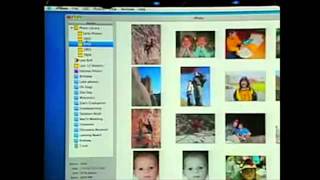
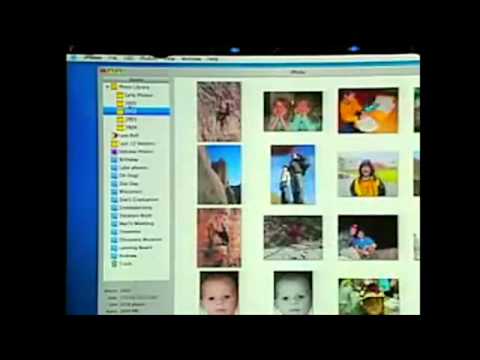
I don't know about your house, but when we go out on an outing with our kids, we take some pictures in a camera, there's a little tension as to whose computer those pictures are going to get loaded on, you know, because the other person can't see them. So now it's going to be really easy. And guess what? There's no copyright issues with sharing photos. It's really easy. So what I'd like to do now is give you a demo. So I'm going to launch iPhoto here, and it's going to come up. And as you're going to see, I have over 25,000 photos here in iPhoto, 25,093 photos. And I'm just going to scroll through them just like this.
That's your life. Let me just resize these. Well, okay, let me, you know. So again, you know, this is your life going by. And so it's really, really nice. And again, very, very responsive. Now let me show you some of the new effects. Let me just pick a photo here and go into edit mode. And I'll go... Oops. I double-clicked it and went back. Let me go show you sepia. Sepia. We got a really nice sepia finally. And as you can see, it's much nicer than it was. Let me go back and pick another one here. Again, very nice effects, and they happen much faster.
The performance has been improved dramatically. All right, let me go back and show you another cool thing that we've added, which is time-based organization. So the first thing we've done is in the photo library up here, you see the triangle. You can now open up the photo library, and iPhoto automatically gives you albums by calendar year. So these are all the photos I took in 2004, 2003, 2002, et cetera. It gives you the four most recent years and then early photos. Very simple, all automatic. Don't even have to look at it if you want to. But if you're trying to find a photo you know you took in 2003, you don't have to look through 25,000 photos. You only have to look through 6,857. So that's number one. Number two is, of course, we've had the last roll on here, and this is really handy when you just load a roll of photos in.
A new album which is the last 12 months, so it's a rolling last 12 months, which is very nice to have as well. But we've made it even better because you can go to preferences and you can change the last 12 months to let's say the last 9 months or whatever you want. And so you can just make this how you last 6 months, last 5 months, whatever it is you want. And you can have, you know, last 2 rolls, last 3 rolls, whatever it is you like. You can set it up this way and iPhoto will give you what you want. The other thing we've added is a smart album. So here's a smart album with all my holiday photos in it. And the way that that's set up is it just says date is in the range of 12-20-1-5 for each year, any year I want. So let me go ahead and set up another smart album.
I can go ahead and set one up just like this and I can say ratings, which I now have. My ratings is, you know, 4 stars, 3 stars. I'll just say ratings is 5 stars. And it's going to set up a new playlist. I could have named it. It says album 1 here, so I'll go name it. Top rated photos. And there it is. And I can actually turn on the stars in any of these views and you can see that these are all my 5-star rated photos. So very, very easy, smart albums. Now, a big request we've had is when I load in a roll of photos, I quickly want to go through and parse out the ones I want to throw away and keep and maybe rate them right on the fly.
So let's do that. I'm going to click this. I pick last roll here with these photos and I'm just going to go ahead and play the slideshow here. And I can go through and watch my pictures like this. But if I move the mouse, look at what happens. This comes up and I can rate a photo like this or let's say I want to rate it 5 stars. I can go to the next one. Let's say I want to throw this one away. I can throw this one away. I better throw this one away. And this one I've got to rotate. It's rotating the full resolution of the photo here, so it takes just a second. There we go. And, oh, this one I'm going to rate 5 stars just because it's memorable. And you get the idea. We can go back. We can rotate. We can go back and look at other photos. We can stop here and, you know, et cetera.
Anything we want to do, very easy to do. So now that we've done this, we can actually go back in our top rated photos right here. And if we go down to the end, you'll see that there's the boat and there's that memorable fish photo because we rated it 5 stars. So that's pretty cool. And now we've also got improved slideshows. We had a lot of folks saying, you know, I have a long slideshow. I don't want to listen to the same song over and over again. And we also had folks saying, you know, that dissolve is nice, but I'm getting a little tired of it. So let me go ahead and click the slideshow icon. And we've got some cool new effects. Let me just put it into white right here. And let me go to two seconds per slide here.
And I'll pick some music. I can pick now a playlist. So here's all my playlists. And I can pick an entire playlist and say, just go ahead and play this. So you get the idea. So let me go back and just show you one other transition real quick. Let me show you the cube transition. And let me go back to music. Yeah, there we go. We'll pick that. And let's go ahead and play again. All right.
Now, something we've all been waiting for is rendezvous photo sharing. So I'd like to invite Peter Lowe up on stage. Peter is the senior product manager for all this stuff and helped make all this stuff happen. Peter's got a PowerBook there with some photos on it, I assume. Hey, Steve. You brought some of my pictures with me today. So watch the source list up there. And in a few minutes, these computers will negotiate over rendezvous. Their iPhotos will talk to each other and Peter's photos pop up. And if I go in here, I see he's got some of these things. But I'll just stick with the photo library. And so I'm going to do a slideshow. But you know what? I don't have the song that I want to use. So you know what I'm going to do?
I'm going to go to iTunes and buy it. So I'm going to go to the music store. And just to show you how all this stuff works together. All righty. Music store must be busy. Come go with me. Let's find that one. It's an old song. Actually, I know it's on the American Graffiti album. I think that's how you spell graffiti. Yeah. American Graffiti. Come go with me. Let's buy that song here. All this stuff just works seamlessly together. So here we are buying a song. I'm going to just quit iTunes here. And now I'm going to go back to my slideshow.
And I'm going to set the transition to cube. Why not? And on the music, I'm going to search for come go with me. And there it is. Just bought it. Shows up in iPhoto. And let's go ahead and play the slideshow. Got to hit the checkbox. Oh, I got to hit the checkbox. All right. Thank you. There we go. Play music during slideshow. Come go with me. Here we go. All right. All right.
Thank you, Peter. This is pretty great. All righty. So that is the new iPhoto 4. Again, we've got new date-based organization where you can automatically get albums of calendar years of your photos. If somebody has another computer on the network, wireless or wired, it shows up in shared photos. And you can take a look at those photos. And you can even transfer them over to your computer just by dragging them if you want to. We've got much better effects, much higher performance. We've got a way to audition your pictures really efficiently. Rotate the ones you need to, rate them, throw away the ones you don't want.
We've got enhanced slideshows with whole playlists and much better transitions. And one thing we haven't talked about is, you know, we have these great books and prints you can order really easily right from iPhoto. But they've been U.S. only. And they are going to be available in Japan later this month. And they're going to be available in Europe in March. We're sorry it took so long, but we're getting there this quarter. We're getting there this quarter. So, the new iPhoto. We think you're going to really like it. Next up is iMovie. iMovie's been a bedrock app. It's a great, great app. But we found ways to make it even better. So the new iMovie, iMovie 4, you can trim clips directly in the timeline.
This is going to save a lot of work. If you've used Keynote, you know what alignment guides are. We've built alignment guides in so you can line up the playhead right on the beginning or ending of any video, any key points you've set, any audio you've set. This is really nice. New and enhanced titles. You can import video directly from an iSight camera. A lot of requests for that. And we've made sharing your movies even easier. So let me show you iMovie 4. So we're bringing up a simple project here. It's one of the guys' movies that we nabbed for the demo here.
You get the idea. So we can now trim clips right in place. So I can take this clip right here as an example and trim it right like this if I want to, right in place, and everything shrinks. And it's non-destructive so I can trim it back if I want to and everything just falls right back into place. Let me undo that so the movie's intact here. And so you can edit clips right in the timeline. The other thing that you can do that's kind of cool is you can drag the playhead by holding down the option button and audio scrubbing. It comes in handy, believe it or not.
So, audio scrubbing. The other thing we have is we have some improved titles. So let me go ahead and play this title reel we made. The man that watches the ship that goes sailing somewhere Yeah, on the sea, he's there to watch And I'm going to fly, I'm going to fly High in the air, straight to her arms I'm going to sing Okay Another thing we've got is eyesight importing And importing from an eyesight camera, if you happen to have one of those Oops, one And let me go ahead and record with that Hey, so this is the last part of my movie that I forgot And I've got to finish it at the last moment, thanks And so we'll just go ahead and convert that to DV format And add it to your movie as a clip And right down at the bottom here we've got our clip Hey, so this is the last part of my movie that I forgot And we could cut it real easy Now, let's go back up here to sharing Here's a clip, it's a nice clip actually
So we want to share that Now we want to put that on our website And we've made it even easier to do that We select the clip And in iMovie 4 you just go to share right here And here's all the sharing And you pick home page We'll say share the selected clip only And we say share it Now what it's going to do is it's automatically going to convert it To compress it to something that's appropriate for the web It's going to put it on my iDisc It's going to transfer it up to .Mac for me And I've got to type in my password here I think that's the right one And here's my movie right here And I pick a theme So I might pick the TV set here And I might say I want to pick another one Maybe I'll go pick the theater And then I publish it And that's all I have to do And here's my home page And I go there and there's the movie Right on my .Mac account home page So that is some highlights from iMovie 4 We've got editing right in the timeline We've got enhanced titles We've got some great new ways to share your video even easier iMovie 4 Boom Now we couldn't update iMovie without updating iDVD 2 So we've got some cool new things with iDVD 4 We've got some 20 new Hollywood quality themes
We've kept all the old themes too So all the other great ones you still have The 20 new ones We've got enhanced menus People wanted some nicer transitions between menus We've got enhanced slideshows We've got a navigation map So you can see the layout of your whole menu structure of your DVD We've added pro encoding right out of Final Cut Pro This is the best quality encoding available The quality is dramatically better on your video And we've been able to up the time to 2 hours on a DVD Even with this pro quality encoding And a big request A big request from our education customers Who don't have super drives on every machine Is let us build DVDs on one machine But archive the project and take it over to a Mac with a burner And burn it on another And we've added that as well So let me give you a demo of some of this stuff I've made a project here That I'm just going to run through Rather than building it on the fly Just to save a little bit of time And so I'm loading that project in right now iDVD looks the same except for one new button Called map right down here And with this project Maybe the best place to start is showing you the map of the project So let me show you the map of this project It's a pretty big one We've got a bunch of menus And I can just move around here And you can see a lot of menus and sub menus
And really be glad you've got this map When you're trying to navigate your way around And so you can find out where you are Let me go through some of the themes here This is a new theme we've got And again, this is your own video You drop in the video It processes it Puts it in back of this sheer curtain And does all the effects for you So let me go into preview And we'll just blast through this DVD Now let me show you one of the first new transitions A page flip as we go from this theme To one of the next themes Called drive in Alright, there we go There you go So this is drive in Let's go to a white transition Go to montage here Here we go Here's a cube transition to go to kids theater Here's a mosaic transition to go to reveal Here we go Again, just drop your photos and movies in here
iDVD does the rest Let's go to pop art We've got a little droplet effect here Let's go to road trip here And let's do a page flip and go see some slideshows And you'll see what we can now do with slideshows Transitions You can put an entire playlist on your slideshows So you don't have to listen to the same song over and over again And all sorts of new transitions So you get the idea This is some highlights from iDVD4 Again, we've got We've got 20 new Hollywood quality themes We've got some great new transitions for menus As well as slideshows We've got the DVD map We've got pro quality encoding Again, I cannot stress enough The quality of the video is just impeccable And we're managing to fit two hours on an industry standard DVD We think you're really going to like it iDVD4 So we've got
We've now got these four great apps That work seamlessly together In iLife 04 But today we're announcing something so cool It's a fifth app That's going to be part of the iLife family And its name is GarageBand What is GarageBand? GarageBand is a major new pro music tool But it's for everyone It's for all of us And what it does is it turns your Mac Into a pro quality musical instrument And complete recording studio One app Now, you could say But this is kind of a niche thing, right?
No, it's not Because recent surveys have said That one half of all US households Have at least one person who is a current musician Not somebody who played something in high school 20 years ago But currently plays a musical instrument Half of US households This is a really big market And we think GarageBand is going to appeal to these folks So what is GarageBand? Well, you can digitally mix up to 64 tracks Right on your Mac Right? You can play over 50 software instruments That we've included right in GarageBand These are super high quality software instruments That you can play if you have a USB or MIDI keyboard. You can use over a thousand professional loops.
For those of you familiar with soundtrack, we've built soundtrack right into GarageBand and there's over a thousand professional audio loops. So it's like bringing the band with you, the backup band comes with you. Of course, you can live, you can record live audio performances. You have over 200 pro quality audio effects and you have vintage and modern guitar amps. In other words, you can plug your electric guitar right into your Mac and pick from vintage or modern guitar amps, because guitar players love this, and record right on your Mac. So software instruments, this is a really big deal. Software instruments right on your Mac. One of these is a $50,000 Yamaha Grand Piano right on your Mac.
If you've got a kid that plays the piano and they've got a Mac, you can get them GarageBand, a pair of headphones and a USB keyboard and they've got a $50,000 Grand Piano in their bedroom. Pre-recorded loops. Not only do we have over a thousand pre-recorded loops by great professional musicians, but these things adjust their tempo and pitch automatically to whatever you're doing. And of course, live recording, you know, guitars, vocals, whatever you want. And this is all in one app. And this is what it looks like, GarageBand. Now, to help me demo GarageBand, I'm not a musician.
And so we asked a friend of ours, John Mayer, to come on out and help us demo GarageBand. John. All right, sir. Thank you. All right. How you doing? So, now the first thing we're going to do, John's a guitar player, but he volunteered to play keyboards for us, too, here. What am I doing? And so we're going to bring up GarageBand and just give a very simple demo. First, I want to show you, have you hear these software instruments. So, GarageBand should be coming up. Here we go. And I've loaded a bunch of software instruments into this project, and so we're just going to have John play.
We don't have to record anything or do anything fancy. This is what the piano is. John's playing a MIDI keyboard that's hooked right into this Mac here. That's all we need. USB or MIDI keyboard. There's the piano. Let's keep going. Let's use our keyboard to play some other instruments, like a jazz bass. Awesome. Or how about a choir?
Isn't this awesome? Yeah, you know. I play guitar most of the time. A 70s electric piano, like a Rhodes. Percussion, like this jazz kit.
Here's a cathedral organ. All in the key of C, by the way. And a classical guitar. The string bends, that's really cool, and I was telling Steve yesterday, when I first tried this out, that guitar players traditionally go through keyboard sounds.
Synth keyboards have always traditionally done some things better than others. And one thing that's never really been done right is the guitar. Because there's so many... It's just inherently not a static kind of instrument. And this is the first time I've ever heard a guitar sound like a guitar on a keyboard. Especially with the velocity being that you can bend into a note. It's back on grand piano now, but when it was for the guitar, you can hear it. String noise in there, too. So it has all the attack and all the kind of sound. So anytime we could record any of these performances, you want to just play something on the piano, and I'll just go ahead and record it here. Go ahead.
And so we can just go back and play that back. It's very, very simple. So now let me show you when we go ahead and make a composition of four instruments. We just made a little lounge jazz combo. Again, these are all software instruments, all played with a keyboard, but different instruments. And we just, you know, we can set some up like this. Now, because these are software instruments, I can use the data to change the instruments.
So I'm going to change this tremolophone here. So let's say... So you get the idea, right? Pretty cool. Now... By the way, you can do anything with these instruments.
Like, I can go back and change the tempo. Anything you want. Now, next is the stressful part of the program, because this is where I want to show you loops. And I'm going to show you what a non-musician can do with loops, and that's going to be me. So I'm going to try to make something using loops. So we come up with a grand piano, but I'm not going to use a grand piano for this. So I'm going to start afresh, and I'm going to go down here where we have our loops. These are the thousand-plus loops by professional musicians that we've shipped with GarageBand. And so I'm going to go pick a guitar. I'm going to say guitar and rock and blues and something that's relaxed.
And I can just go down and click on these and hear them. And I'm going to pick one, this one here. And I just drag it up and drop it on. And I want to stretch it out a little bit. So I go up here and I just stretch it out. I'm going to stretch it out about that far. And I'm going to turn repeat on and stretch repeat out about that far. And I'm just going to start playing this. And then I'm going to go get a bass. So I'm going to reset this, and I'm going to say I want a bass. And I want sort of a world sound, and I want something that's acoustic. And the one I want that I found that I liked is Woody Lattin Bass.
And you can just go sample these all day long. Pretty good, yeah? So I'll drag that in. Stretch it out. And then I'm going to go to favorites. I put some percussion in. What was that here? Yeah, this was it here. Yeah? I'll drag that up there. And now I'm going to find, you know, let's just play some of these things. They're interesting, how they can make it sound so different. But I'm going to get a delicate piano, which I like a lot.
All right, let's drag this up there. Let's see, that's where I want it right there. We'll turn it up. And I'm going to grab this classic guitar as well and drag it up there. See how we're starting to come together here. So that's the first half here. And then I found I like this funky electric guitar for my second half. I'm going to go back here and I'm going to go get some horn stabs. And I want these.
No, I don't want those. I want this one. There we go. And I can just search for things like this and drag them up here. And build my composition piece by piece.
And there we got it here. Let's turn it up a little bit. There you go. So you get the idea. Okay. Now, guitar players love great old amps because they have magical sounds that are hard to recreate.
And we have shipped a half a dozen great guitar amps with GarageBand. You can plug your guitar right into your Mac and John's agreed to demo it for us here. In multiple keys. So let's start with unprocessed guitar. It's a British invasion. That's it.
Summer sounds. Funky rhythm. That's it. Liverpool, please.
And this is my favorite. This is the one the Apple guys came by my place and I went, no, keep this here for a minute. To me it sounds like an amp with a mic on it. This is the one I had. You know, now instead of lugging an old amp around, you can just lug your powerbook around and plug your guitar right into it. So here's an example of some live recording just like that.
We can go get a band, you can hook up the guitars, you can get a microphone and it can sound like this. So you get the idea. Now, let's put it all together. Let's put it all together with software instruments, with live recording and with loops. All together and see what we can do here in a project.
And John built this with some software, with some loops up here. Matter of fact, these Motown drum loops, I'm told, were actually, they're the original Motown drummers who played on My Girl and heard it through the grapevine and songs like that. They recorded these loops. And so anyway. The fun thing for me, though, I may interrupt you. The fun thing for me is when I first saw this, especially that shuffle team just played, is that it's a practice tool. And when I was growing up, you know, when you first learn a scale, you want to play it over something. And most of the time you play it, you have to play it on records where there's already an instrument. And so you have to pretend the lead guy isn't there or you just play against nothing. And it's bad for your time. It's bad. And I just wish I had this when I was 13 or 14. I would lock myself in my room forever and just go on around and around and around and around playing.
You know, that's the cool part about it. That's our new marketing campaign to get 13 year old kids to lock themselves in their room forever. So let me just play this. Let me just play this. John composed this and he's going to lay down a lead guitar track. But let me play it before he does so you can hear it. All right. So let's go back to the beginning. And I'm going to hit record and John's going to lay down the lead guitar track using a 70s amp. So let's go. So let's go.
So let's go. So let's go.
That's fine. There you go. So when am I going to get this back? You brought it in my life and you took it from me. When do I get it back? So let's play it back. We've got it captured here now. So let's play it back. We've got it captured here now.
So you see what we can do with this. It's incredible. John, thank you so much. Thank you. Thank you, man. Thank you. Thank you. Thank you. Thank you. Thank you. Thank you. Thank you. Thank you. Thank you. Thank you. Thank you. Thank you. Thank you. Thank you. Now, one last thing I want to do here is... Yeah, that's what I'm going to do. I'm going to go up here and I'm going to say, Export to iTunes right in GarageBand. You can export right to iTunes. And it's creating the mixdown really fast for us here. We don't have to wait all day for it. It's very fast. So it creates the mixdown.
It's going to load it right into iTunes, create a special playlist for me so I know exactly where it is. And I can put it right on my iPod. Sell it! And I think iTunes has popped up behind here. And here it is, GarageBand playlist and live guitar. Right there. Pretty cool, huh? So, pretty neat. So this is GarageBand.
Again, over 50 software instruments. See, all you need is a USB or MIDI keyboard and you're in business with 50 awesome software instruments. Over 1,000 pre-recorded loops. This is your backup band right inside GarageBand. Live recording, guitars, vocals, anything you want. A lot of great old amps if you're a guitar player. All in one app. And this is GarageBand. We've got iTunes. We've got iPhoto. Brand new iPhoto. We've got brand new iMovie. Brand new iDVD. And now GarageBand. What should we sell this for? You know, what would this cost? What would this cost on the Windows market?
Let's go take a look. We keep hearing that Windows is cheaper, right? Music Match Plus is the first thing you've got to buy to bring your jukebox up to where it's even close to iTunes. Not as good, but, you know, getting there. So you've got to spend $29 on Music Match Plus. Adobe Photoshop Album is sort of a copy of iPhoto. They didn't quite get it right, but you've got to go buy that. Pinnacle Studio 8 is video editing and DVD burning. Again, nowhere near as good as iMovie or iDVD, but you have to go buy that. And then if you want music, you know, the best thing on Windows, again, nowhere near as good as GarageBand, is a thing called Cakewalk Home Studio for $129. And you add all this up, and again, it's over $300. And it's nowhere near, I mean, not even close.
And these things don't work together as a suite at all. Well, we've got our five iLife apps packaged in a box. We're going to be selling this for $49. $49. We love digital music, we love digital photography, we love digital music making, and we love digital movie making, and we want to get this in the hands of everyone. And in addition to it only being $49, it is free with every new Mac. iLife 04.
It's like Microsoft Office for the rest of your life, when you're not at work. It runs on Panther and Jaguar, and it is going to be in stores very shortly. On January 16th, you'll be able to go to the store and buy your very own copy, iLife 04. We've got a few companion products to iLife 04. Let's go back to GarageBand for a minute, because they're going to make GarageBand even better. The first companion product is called the Jam Pack. It's for GarageBand, and it includes over 100 more software instruments, including 12-string guitars and a $150,000 Bosendorfer grand piano.
I think that's the most expensive one in the world. Over 2,000 more loops, 15 more guitar amps, and over 100 more effects presets. The Jam Pack sells for $99. It will also be available on January 16th, so if you're really into GarageBand, you'll want to take a look at this. And the other companion product is that we're going to be reselling a keyboard, an M-Audio keyboard. This is a 49-key USB keyboard. Again, you can use any USB keyboard or MIDI keyboard, but this is an entry-level keyboard that's a pretty good one, 49 keys, $99. You'll be able to buy this on our store and in our stores. So that is GarageBand. It's going to make GarageBand even better, and it's going to make iLife even better.
So we've done a video for iLife, and I'd love to show it to you now. So let's go ahead and roll the video. ♪♪♪ Hey, what's up, people? It's Ian Robinson here in lovely New York City, and I'm thinking to myself, you know, whether the intrepid reporter or the psycho mack head, it is my job, nay, my calling in life, to take pictures, make movies, I even make music.
Very, very loud music. How do I do it? Simple, with iLife 04, the newest and coolest software from Apple. It's fun, it's easy, it's a lot like myself. ♪♪♪ iTunes, the greatest digital jukebox ever, just not better. Unless you've been living under a rock in a cave at the bottom of the ocean, you already know that iTunes manages your music like nobody's business. Download hundreds of thousands of songs at 99 cents a piece at the iTunes Music Store. You name it, jazz, hip-hop, rock, metal.
The iTunes Music Store has it all and more. 500,000 tunes, and it keeps on growing. ♪♪♪ How many photos do you have? 1,000? Ah! 5,000? Ah! 25,000? Ah-ha! iPhoto 04 has the horsepower to shred right through them. ♪♪♪ iPhoto will automatically organize shots by date, by your rating, enhance your photos, retouch them like a pro, or, hmm, let's check out sepia. And make slideshows with cool new transitions.
Face it, iPhoto 04 rocks. ♪♪♪ Just some goofy home movie? Yeah, but it's my life, my iLife, and I did it using iMovie 4. It's so simple and it works so well. That's the best thing about all the iLife apps is they work so well together. Now in iMovie 4, edit like crazy right in the timeline. Change your mind about an edit? No problem. Restore it like that? Good as new. There's also awesome new title tools, like Far, Far Away, my personal favorite. As in, from a galaxy far, far away.
So now you've finished your big blockbuster. Use iDVD4 to burn a DVD up to two hours long that'll play just about anywhere. And check out these cool... new themes while you're at it, like kids theater, drive-in, and of course, my personal favorite, road trip. You know, listening to music, obviously amazing. But the greatest thing in the world is making music. So I got to ask you a question. Do you play a musical instrument? Do you think you got the chops? Well, it doesn't matter whether you do or you don't, because GarageBand, the latest and greatest music-making software from Apple. Dude, it's going to totally blow you away. Right out the box, GarageBand turns your Mac into dozens of musical instruments.
All you have to do is plug in a USB musical keyboard, like this lovely one I have before me, and boom, you've got all these instruments. Horns, grand piano, guitars, bass, drum kit, anything. GarageBand is not just a recording studio, not just a room full of instruments, but it's also brought the band. There are over 1,000 pre-recorded loops to choose from. Just click, drag, and drop your tracks, and you're on the go. Too short? Stretch it out. Too long? Shorten it up. Too slow? Make it faster. Wrong place? Scoot it around. Not only can you use loops, just hit record and capture your own performance. Man, my band is going to flip when they see this stuff. So is everybody else.
iLife, it's the move. And I'm not the only person who thinks so. You know, I'm a traveling type guy. Let's hit the road. First stop, Soho. On Lord of the Rings, we all have digital cameras. And throwing it into iPhoto, and the ease of that, and being able to log our experiences in that way, able to turn on our computers and sort of see three years of our lives flash before our eyes, is wonderful. OK, Elijah, the new iPhoto. Does this baby scream? Oh, my god. Real-time scrolling. Unbelievable. Which is amazing. It's like your life flashing before your eyes.
The slideshow now has a bunch of features. Whoa! That's awesome. It definitely beats the old fades. Oh, that is so cool. iPhoto blows my mind. From the right coast to the left coast, everybody loves the iLife. Oh, yeah. I got the video feed from one of our shows. And I made an iMovie as sort of the best of some of the moves and some of the falls. I think that people are very intimidated by the thought of video editing. And if they're introduced to iMovie, I mean, literally, you open it up, and it doesn't look that scary.
And you show them how to import some video, and they can do it in a matter of a half hour, I believe. You can be a video editor. And that's not intimidating. That's exciting. I like the effects in iMovie. One of my favorites is Earthquake. It makes it look cool, instead of something sketchy that you film with your skateboard like that. If we want to put a video project to the web quickly, we just take one of the defaults from iMovie, and it'll convert that whole project into a little quick time to go on the web. And many software programs that are upgraded or updated, they're much harder to figure out. You've got to figure out how to navigate through them. It doesn't feel like that with iMovie. It feels like, oh, yeah, that's the way it should have been. Can't come all this way and not hit Hollywood. Rock and roll. The most exciting part of GarageBand is that it's going to really help my whole creative process.
It's going to help me to have a vision and to not be intimidated by how to get that vision put across before I even go in to make a record. Say, for instance, I need a tremolo guitar. You would look in your category of amps, and it would say surf guitar. Or you want something crunchy, you've got the British Invasion. Wow, that does sound like the British Invasion. And then when you put your live performance on top of that, and it's just really simple. I mean, that's like the craziest thing I've ever heard in my whole life. I think it's going to be a real enjoyable process of making music. And then you just fire it off to your iPod, and it winds up in one of your playlists. Thanks to everyone at Apple, because you care, and you're constantly working to make things better for me and everyone else.
So thank you. I feel like all the iLife apps, they represent my personal portfolio, all my photos, all my video. And it's all integrated. And you can run from one to the next the same information seamlessly. And I feel like, if someone wants to look at my life, just check my iLife apps. And it's all there. A lot of my life revolves around iLife now. And I think it's a great way for me My life revolves around iLife now. And I would never have thought that 10 years ago, that I would spend so much time on a computer, doing things creatively. And Apple's made it so easy for me to go in, not only with iMovies, and with my iPod, and iTunes, and iPhoto, but now with GarageBand.
And I mean, not to sound corny, but Apple has made my life so much easier. And I can't imagine not having these facilities at my fingertips now, because I spend so much of my day doing exactly that. You're the only one. All I want to do is talk to you. That's all she wrote. From Frieza New York to Sunny La La Land, I'm Ian Robinson. And don't forget, if someone ever says to you, dude, get a light, say, you know what? I got a light. An iLight. Oh, yeah. It's all about you. It's all about you. It's all about you. It's all about you. It's all about you. So iLife 04, available on January 16, 10 days from today.
Last up today, I'd like to talk about the iPod. Hopefully, how many of you here don't have an iPod? Raise your hands. All right, not a lot of you, fortunately. We are so thrilled with the success of the iPod. It's unbelievable. Now that, you know, as you know, it's available on Mac and Windows. And we had a really successful holiday quarter with the iPod. I'm extraordinarily pleased to report to you that last quarter, we sold 730,000 iPods. And that propelled us over the 2 million mark.
We sold our 2 millionth iPod in December. And just let's take a look at how these things have sold in the past 2 years since they've been out. Remember, iPod was only introduced 2 years ago. And so let's take a look at the sales curve. Look at this. That's the sales curve of iPods. And you notice which direction it's heading. Now, what market share does this give us in terms of all MP3 players? Even the little $50 ones that people buy and never use because they only hold, you know, 3 songs. Well, the market share data is not in for December. We had a great December. But it is in for October and November. And in October and November, we had a 31% market share of units.
Again, even including the little $50 jobs and a 55% of revenue. And that made us number 1 in both units and revenues in the entire MP3 space throughout the world. We think the December numbers are going to be even higher. So, iPod is a remarkable product. It's really thin. It's got the dock, which makes it super easy to charge and sync up to your computer. And it comes in 3 models, the 10, the 20, and the 40. Well, today, we are updating the 10 gigabyte model. We're going to put in 50% more storage and take it to 15 gigabytes for exactly the same price of $299.
And that is starting today. The second thing we've got today in iPod land is a pair of in-ear headphones that are going to be an accessory. These are Apple in-ear headphones. They come in a cool box that helps you keep the cable straight. And they are selling for $39, which is about half of what other in-ear headphones sell for. And you ought to check them out. They're available today. And they're really good. Now, the last thing we have on the iPod today is we've got a new ad. People have really liked the ad campaign. At least that's what they've been telling us. And we're going to continue it. And we've made a new ad that will be debuting this month. And I'd love to run it for you right now. Are you ready?
Are you ready? Check the technique What station I Showed an early version of this to my wife. She said well, that's the first one where you can't do it yourself anymore So the iPod Now I want to go back To this market share data this 31% market share that I bet will go up when we see the December numbers But I want to drill down into this a little bit more So we look at this and the iPods got a 31% market share of the entire mp3 market But what's the rest of the market? Well, the biggest chunk is flash players There's a zillion of them but they all add up to about another 60% of the market and half of that we look at as the high-end flash market or Coincidentally about another 31% These are flash players that sell between a hundred and two hundred dollars And then there's about an equal 31% That's a low-end flash market flash players that sell under a hundred dollars And then the other is seven percent. These are mostly other hard disk players that were in the process of eliminating with the iPod so
Now we looked at this this high-end flash market and we want to we want to go after that It's really interesting the under $100 flash players get usually put in the drawer and not use because they really only hold 15 songs The high-end flash players if you pay $200 They hold about 60 songs if you pay close to $100 They hold 30 songs and people either do one of two things They either get a new memory card for it Right and spend usually over 200 bucks total to bring it up to 60 songs or they put it in the drawer and don't use It so this is what these things generally look like Right something like this and Again, what they are is they have 256 megabytes of memory if they're useful. They hold 60 songs They're about 0.8 to 1.2 inches thick and they sell for us whether you buy them with 256 or you buy them with 128 And you realize you need 256 and you go out and pay more and get that memory card So that's what this market represents in terms of the ones actively in use. They also have a really bad user interface They've got a really small display that doesn't tell you much and they've got this little thumb thing Which if you I guess if you have 15 songs, it's okay But if you have any number of songs that it gets ridiculous very quickly Well, we are going to introduce the second member of the iPod family today to go after these guys And It's called the iPod mini The iPod mini, so let's see how it stacks up the iPod mini Right here Instead of having 256 megabytes
It's got 4,000 megabytes or 4 gigabytes of storage Instead of holding 60 songs it holds a thousand songs We think this is what it takes to take your library with you and not have to fret over Which 60 songs out of your library are you going to take it is half the thickness of these other? mp3 players a half an inch thick and we're going to sell it for $249 and so let's take a look at this. It's got 16 times the storage. It holds 16 times the music It's half the thickness and it's 50 bucks more. This is the best 50 bucks. You'll ever spend you get 940 more songs for $50 So the iPod mini What's it look like?
Well, this is the iPod and it's pretty small But this is the mini it's even smaller and it's pretty stunning you can put up to 10,000 songs on an iPod you can put a thousand songs on the mini and It is quite small to relate with what it looks like and the size that it is It is the size of a business card So if you've got a business card in your pocket take it out and take a look at it And that is how large the iPod mini is and it is a half an inch thick It is really really beautiful and when you turn it on you don't get some cheesy user interface You get the award-winning iPod user interface the same user interface now We had a challenge We had a challenge because we didn't have room for four separate buttons on the mini And so we came up with something really great. We have the solid-state scroll wheel right patent pending and We've added buttons right on it. So we've added buttons right on the on the solid-state scroll wheel So when you finish scrolling you just push it and it just clicks in like this And that's sweet. It's really nice and it saves space and lets us build this product. So small This is what the top looks like just like you've come to know and love in your iPod and the bottom has the same iPod connector on it which lets us plug in a cable and the iPod mini supports both firewire and USB 2 and A new thing you can charge the battery from either one so you can charge the battery off USB 2 if you're using it on a PC We supplied both cables with the iPod mini
So there's nothing extra to buy a firewire and a USB cable and we also supply a new belt clip with it Which is really nice and works real well There's two accessories for the iPod mini Got a dock and we've got an armband because this is great for running So if you take a look at this and compare it with these flash players 16 times the music half the thickness $50 extra and here's what one looks like right here This is one. They're really really beautiful. I don't think there's a shot of this from the back But they're quite nice They're quite nice and they are quite small and you can see the thickness right here They're really unbelievable So the iPod mini is designed to go after This the high end of the flash market and we think it's going to do very well doing exactly that There's just one more thing About the iPod mini Which is it comes in colors. So in addition to silver we have gold We have blue we have pink and we have green so we have a whole family of colors with the iPod mini Now these are aluminum and they're anodized aluminum. So the photography doesn't really do it justice You go out and see these in the booth. They are gorgeous The iPod mini runs on Mac or PC $249 we're going to be shipping these next month in the US and in April worldwide I Pod mini we think is going to be a great second member to the iPod family
So the 20th anniversary year of the original Mac We're starting off with tremendous momentum on Mac OS 10 with Panther The transition is officially over we made it We've got a lot of new apps including Final Cut Express 2 and a new version of office coming in a few months The g5 has great momentum with some great stuff coming this year and to kick it off We've got new excerpts with g5s in them and we've got excerpt raids We've got new features in iTunes like over 12,000 classical tracks and billboard charts iTunes has got a 70% market share Right billboard charts and classical tracks and Pepsi coming In less than a month We've got a whole new version of iLife With new versions of the four core apps and a whole new app GarageBand, which we think is going to be really really well received and For iPods, we've crossed our two Millionth iPod in two years. This thing is on fire It's the number one mp3 player in the world and today we're introducing the second member of the iPod family the iPod mini So we're kicking off our anniversary year here today, please go check out these products We think you'll like them a lot and there's a lot more coming throughout 2004 and one last thing before we break today
I would like everybody from Apple in the audience Who's worked really hard on all these new products you're seeing here today to just stand up and let us give them a round of applause Thank you Well, let's go out to the booth and get our hands on this stuff, thank you very much You know I can't be found, sitting home all alone.
If you can't come around, at least please send a phone. But don't be cruel, do what is true. Baby, think of me when you're mad, something I might have said. Please don't forget my past, the future's bright ahead. But don't be cruel, do what is true. I don't want no other love, baby, it's just you I'm picking up. Don't stop thinking of me, don't make me feel this way.
Transcribed from the audio with OpenAI Whisper. Timestamps link to the video above. Errors are possible.